19. GRASS GIS Integration
GRASS integration provides access to GRASS GIS databases and functionalities (see GRASS-PROJECT in Literature and Web References). The integration consists of two parts: provider and plugin. The provider allows to browse, manage and visualize GRASS raster and vector layers. The plugin can be used to create new GRASS projects and mapsets, change GRASS region, create and edit vector layers and analyze GRASS 2-D and 3-D data with more than 400 GRASS modules. In this section, we’ll introduce the provider and plugin functionalities and give some examples of managing and working with GRASS data.
The provider supports GRASS version 6 and 7, the plugin supports GRASS 6 and 7 (starting from QGIS 2.12). QGIS distribution may contain provider/plugin for either GRASS 6 or GRASS 7 or for both versions at the same time (binaries have different file names). Only one version of the provider/plugin may be loaded on runtime however.
19.1. Importing data into a GRASS Project via drag and drop
This section gives an example of how to import raster and vector data into a GRASS mapset.
In QGIS browser navigate to the mapset you want to import data into.
In QGIS browser find a layer you want to import to GRASS, note that you can open another instance of the browser (Browser Panel (2)) if source data are too far from the mapset in the tree.
Drag a layer and drop it on the target mapset. The import may take some time for larger layers, you will see animated icon
 in front of new layer item
until the import finishes.
in front of new layer item
until the import finishes.
When raster data are in different CRS, they can be reprojected using an Approximate
(fast) or Exact (precise) transformation. If a link to the source raster
is created (using r.external), the source data are in the same CRS and the format
is known to GDAL, the source data CRS will be used. You can set these options in the
Browser tab in GRASS Options.
If a source raster has more bands, a new GRASS map is created for each layer with
.<band number> suffix and group of all maps with  icon is created.
External rasters have a different icon
icon is created.
External rasters have a different icon  .
.
19.2. GRASS Options
GRASS options may be set in GRASS Options dialog, which can be opened by right clicking on the project or mapset item in the browser and then choosing GRASS Options.
19.3. Starting the GRASS plugin
To use GRASS functionalities in QGIS, you must select and load the GRASS plugin using the
Plugin Manager. To do this, go to the menu  , select
  GRASS and click
OK.
GRASS and click
OK.
The following main features are provided with the GRASS menu () when you start the GRASS plugin:
 Open Mapset
 New Mapset
 Close Mapset
 Open GRASS Tools
 Display Current GRASS Region
 GRASS Options
19.4. GRASS PROJECT and MAPSET
GRASS data are stored in a directory referred to as GISDBASE. This directory, often
called grassdata, must be created before you start working with the GRASS
plugin in QGIS. Within this directory, the GRASS GIS data are organized by projects
stored in subdirectories called PROJECTs. Each PROJECT is defined
by its coordinate system, map projection and geographical boundaries. Each
PROJECT can have several MAPSETs (subdirectories of the
PROJECT) that are used to subdivide the project into different topics or
sub-regions, or as workspaces for individual team members (see Neteler & Mitasova
2008 in Literature and Web References). In order to analyze vector and raster layers
with GRASS modules, you generally have to import them into a GRASS PROJECT.
(This is not strictly true – with the GRASS modules r.external and v.external
you can create read-only links to external GDAL-supported datasets without
importing them. This is not the usual way for beginners to work with GRASS, therefore
this functionality will not be described here.)
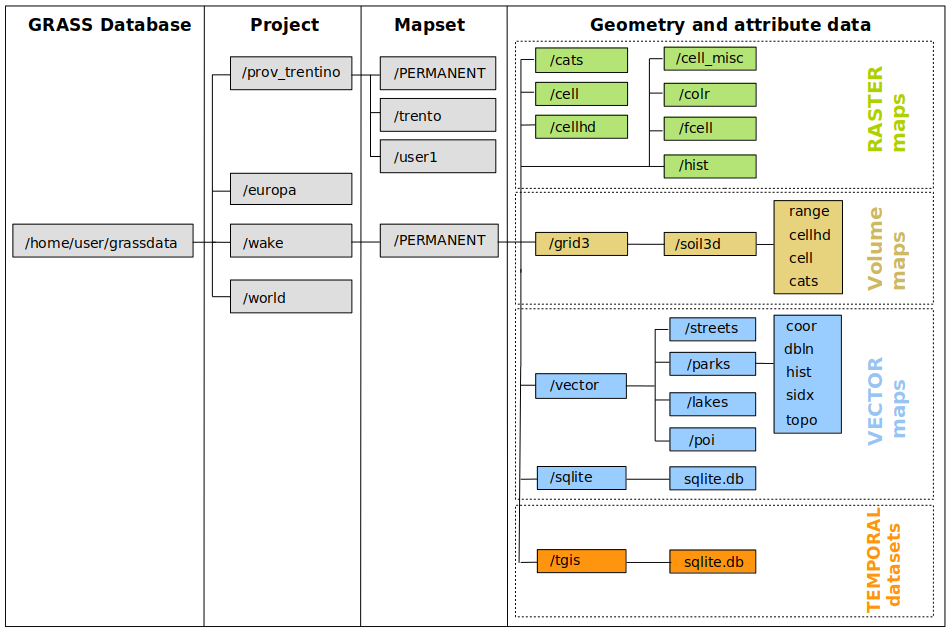
Fig. 19.1 GRASS data structure
19.5. The GRASS vector data model
It is important to understand the GRASS vector data model prior to digitizing. In general, GRASS uses a topological vector model. This means that areas are not represented as closed polygons, but by one or more boundaries. A boundary between two adjacent areas is digitized only once, and it is shared by both areas. Boundaries must be connected and closed without gaps. An area is identified (and labelled) by the centroid of the area.
Besides boundaries and centroids, a vector map can also contain points and lines. All these geometry elements can be mixed in one vector and will be represented in different so-called ‘layers’ inside one GRASS vector map. So in GRASS, a layer is not a vector or raster map but a level inside a vector layer. This is important to distinguish carefully. (Although it is possible to mix geometry elements, it is unusual and, even in GRASS, only used in special cases such as vector network analysis. Normally, you should prefer to store different geometry elements in different layers.)
It is possible to store several ‘layers’ in one vector dataset. For example, fields, forests and lakes can be stored in one vector. An adjacent forest and lake can share the same boundary, but they have separate attribute tables. It is also possible to attach attributes to boundaries. An example might be the case where the boundary between a lake and a forest is a road, so it can have a different attribute table.
The ‘layer’ of the feature is defined by the ‘layer’ inside GRASS. ‘Layer’ is the number which defines if there is more than one layer inside the dataset (e.g., if the geometry is forest or lake). For now, it can be only a number. In the future, GRASS will also support names as fields in the user interface.
Attributes can be stored inside the GRASS PROJECT as dBase, SQLite3 or
in external database tables, for example, PostgreSQL, MySQL, Oracle, etc.
Attributes in database tables are linked to geometry elements using a ‘category’ value.
‘Category’ (key, ID) is an integer attached to geometry primitives, and it is used as the link to one key column in the database table.
Tip
Learning the GRASS Vector Model
The best way to learn the GRASS vector model and its capabilities is to download one of the many GRASS tutorials where the vector model is described more deeply. See https://grass.osgeo.org/learn/manuals/ for more information, books and tutorials in several languages.
19.6. Managing GRASS data
19.6.1. Loading raster and vector layers from/to GRASS
Loading GRASS raster and vector layers into a QGIS project is like any other layer: from the Browser panel, either double-click on the layer item or drag-and-drop it from the mapset to the map canvas or Layers panel.
Likewise, importing a layer to a GRASS database or across mapsets can be done through drag-and-drop in the Browser panel:
Select the layer to import, either from the Browser panel or the Layers panel,
Drag-and-drop it over the target GRASS mapset. The import may take some time for larger layers, you will see animated icon
in front of new layer item until the import finishes.
When raster data are in different CRS than the mapset, they can be reprojected
using an Approximate (fast) or Exact (precise) transformation.
If a link to the source raster is created (using r.external),
the source data are in the same CRS and the format is known to GDAL, the source data CRS will be used.
You can set these options in the Browser tab in GRASS Options.
If a source raster has more bands, a new GRASS map is created for each layer with
.<band number> suffix and group of all maps with icon is created.
External rasters have a different icon .
Note
GRASS modules and Processing algorithms provide some more advanced tools to achieve the above actions.
19.6.2. Creating a new GRASS Project
Creating a GRASS project in QGIS can be done only through the GRASS Plugin.
Start QGIS and make sure the GRASS plugin is loaded.
In the menu, click on the
New mapset
to bring up the New Mapset wizard.Browse to or enter path to a folder, as Database directory. It can be an existing GRASS database (GISDBASE) folder, or a simple folder on your computer.
Click Next.
In the GRASS Project page, select Create new project and enter a name.
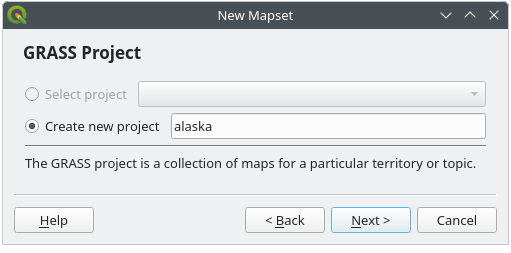
Fig. 19.2 Creating a new GRASS Project in QGIS
Click Next.
Click on the radio button
 Projection
to enable the list of Coordinate Reference Systems.
Find and select the CRS you want to use in the GRASS project.
You can enter a CRS name or ID in the Filter search box,
and select the target projection in the list.
Projection
to enable the list of Coordinate Reference Systems.
Find and select the CRS you want to use in the GRASS project.
You can enter a CRS name or ID in the Filter search box,
and select the target projection in the list.Click Next.
Indicate the default region to use in the GRASS project. You can enter the bounds in the north, south, east, and west directions or calculate them from a layer, map or bookmark extent (see Spatial Extent Selector). The widget also allows selection of country Preset regions. You can preview the set extent as a red polygon over a world map.
Click Next.
You also need to define a mapset within your new project (this is necessary when creating a new project). Name it whatever you like.
GRASS also automatically creates a special mapset called
PERMANENT, designed to store the core data for the project, its default spatial extent and coordinate system definitions.Check out the summary to make sure it’s correct. You can leave
Open new mapset ticked if you want the new mapset
to get automatically activated in QGIS.Click Finish. The new project containing two mapsets is created. With the mapset opened, you can notice that some of the tools in the GRASS toolbar that were disabled are now enabled.
If that seemed like a lot of steps, it’s really not all that bad and a very quick way to create a project. The project is now ready for data import or editing.
19.6.3. Adding a new Mapset
To create a mapset in an existing GRASS project:
Start QGIS and make sure the GRASS plugin is loaded.
In the menu, click on the
New mapset
to bring up the New Mapset wizard.Browse to or enter path to a folder, as Database directory.
Click Next.
In the GRASS Project page, tick Select project and pick a project from the drop-down menu.
From the GRASS Project page, you can create a new mapset within an existing project or create a new project altogether. Let’s click on the radio button
Select project
and pick a project from the drop-down menu.Click Next.
Enter the name for the new mapset. Below in the wizard, you see a list of existing mapsets and corresponding owners.
Click Next, check out the summary to make sure it’s all correct and click Finish.
A user has write access only to a GRASS mapset which they created. This means that besides access to your own mapset, you can read maps in other users’ mapsets (and they can read yours), but you can modify or remove only the maps in your own mapset.
All mapsets include a WIND file that stores the current boundary
coordinate values and the currently selected raster resolution (see The GRASS region tool).
19.6.4. Creating a new GRASS vector layer
To create a new GRASS vector layer:
In the Browser panel, select the target mapset
Right-click and select one of following items:
New Point Layer…
New Line Layer…
New Polygon Layer…
Enter a name in the dialog. A new vector map will be created and a layer added to the canvas in edit mode.
Selecting type of the layer does not restrict geometry types which can be digitized in the vector map. In GRASS, it is possible to organize all sorts of geometry types (point, line and polygon) in one vector map. The type is only used to add the layer to the canvas, because QGIS requires a layer to have a specific type.
In GRASS, it is possible to organize all sorts of geometry types (point, line and area) in one layer, because GRASS uses a topological vector model, so you don’t need to select the geometry type when creating a new GRASS vector. This is different from shapefile creation with QGIS for example, because shapefiles use the Simple Feature vector model (see section Creating new vector layers).
It is also possible to add layers to existing vector maps selecting one of the items described above from the contextual menu of an existing vector map. A new layer of the same name as the map is loaded in the Layers panel, ready for editing. Note that this is currently possible only if the GRASS plugin is enabled from the Plugin Manager.
19.7. Digitizing and editing a GRASS vector layer
When editing GRASS layers, changes are written after each operation. There are two main reasons for this behaviour:
It is the nature of GRASS vectors coming from conviction that user wants to do what he is doing and it is better to have data saved when the work is suddenly interrupted (for example, blackout)
Necessity for effective editing of topological data is visualized information about topological correctness, such information can only be acquired from GRASS vector map if changes are written to the map.
It is however, possible to undo/redo or discard all changes when closing editing. If changes are undone or discarded, original state is rewritten in vector map and attribute tables.
Simultaneous editing of multiple layers within the same vector at the same time is not supported. This is mainly due to the impossibility of handling multiple undo stacks for a single data source.
On Linux and macOS only one GRASS layer can be edited at a time. This is due to a bug in GRASS which does not allow to close database drivers in random order. This is being solved with GRASS developers.
19.7.1. Geometry digitizing
GRASS vector layers can be digitized using the standard QGIS digitizing tools. There are however some particularities, which you should consider:
You must be the owner of the GRASS mapset you want to edit. It is impossible to edit data layers in a mapset that is not yours, even if you have write permission.
GRASS topological model versus the usual OGC Simple Feature model
Complexity of the GRASS model with:
multiple layers in single maps
multiple geometry types in single map
geometry sharing by multiple features from multiple layers
Due to these particularities, the Digitizing Toolbar presents specific tools when a GRASS layer is edited. The GRASS 8 plugin must first be enabled.
Icon |
Tool |
Purpose |
|---|---|---|
|
New Point |
Digitize new point |
|
New Line |
Digitize new line |
|
New Boundary |
Digitize new boundary |
|
New Centroid |
Digitize new centroid (label existing area) |
|
New Closed Boundary |
Digitize new closed boundary |


Refer to the Editing chapter for common ways to digitize point, line or polygon geometries. Note however that if you want to create a polygon in GRASS, you first digitize the boundary of the polygon. Then you add a centroid (label point) into the closed boundary. The reason for this is that a topological vector model links the attribute information of a polygon always to the centroid and not to the boundary.
To form an area, vertices of connected boundaries must have exactly the same coordinates. This can be achieved using snapping tool only if canvas and vector map have the same CRS. Otherwise, due to conversion from map coordinates to canvas and back, the coordinate may become slightly different due to representation error and CRS transformations.
Tip
Use layer’s CRS also for canvas when editing.
19.7.2. Category
Category, often called cat, is sort of ID. The name comes from times when GRASS vectors had only singly attribute “category”. Category is used as a link between geometry and attributes. A single geometry may have multiple categories and thus represent multiple features in different layers. Currently it is possible to assign only one category per layer using QGIS editing tools. New features have automatically assigned new unique category, except boundaries. Boundaries usually only form areas and do not represent linear features, it is however possible to define attributes for a boundary later, for example in different layer.
New categories are always created only in currently being edited layer.
It is not possible to assign more categories to geometry using QGIS editing, such data are properly represented as multiple features, and individual features, even from different layers, may be deleted.
19.7.3. Attributes
Attributes of currently edited layer can only be modified. If the vector map contains more layers,
features of other layers will have all attributes set to <not editable (layer #)> to warn you that
such attribute is not editable. The reason is, that other layers may have and usually have different
set of fields while QGIS only supports one fixed set of fields per layer.
If a geometry primitive does not have a category assigned, a new unique category is automatically assigned and new record in attribute table is created when an attribute of that geometry is changed.
Tip
If you want to do bulk update of attributes in table,
for example using Field Calculator,
and there are features without category which you don’t want to update (typically boundaries),
you can filter them out by setting Advanced Filter to cat is not null.
19.7.4. Editing style
The topological symbology is essential for effective editing of topological data. When editing starts, a specialized ‘GRASS Edit’ renderer is set on the layer automatically and original renderer is restored when editing is closed. The style may be customized in layer properties ‘Style’ tab. The style can also be stored in project file or in separate file as any other style. If you customize the style, do not change its name, because it is used to reset the style when editing is started again.
Warning
Do not save project file when the layer is edited, the layer would be stored with ‘Edit Style’ which has no meaning if layer is not edited.
The style is based on topological information which is temporarily added to attribute table as field ‘topo_symbol’. The field is automatically removed when editing is closed.
Warning
Do not remove topo_symbol field from attribute table, that would make features
invisible because the renderer is based on that column.
19.8. The GRASS region tool
The region definition (setting a spatial working window) in GRASS is important
for working with raster layers. Vector analysis is by default not limited to any
defined region definitions. But all newly created rasters will have the spatial
extension and resolution of the currently defined GRASS region, regardless of
their original extension and resolution. The current GRASS region is stored in
the $PROJECT/$MAPSET/WIND file, and it defines north, south, east and
west bounds, number of columns and rows, horizontal and vertical spatial resolution.
It is possible to switch on and off the visualization of the GRASS region in the QGIS
canvas using the Display current GRASS region button.
The region can be modified in ‘Region’ tab in ‘GRASS Tolls’ dock widget. Type in the new region bounds and resolution, and click Apply. If you click on Select the extent by dragging on canvas you can select a new region interactively with your mouse on the QGIS canvas dragging a rectangle.
The GRASS module g.region provides a lot more parameters to define an
appropriate region extent and resolution for your raster analysis. You can use
these parameters with the GRASS Toolbox, described in section The GRASS Toolbox.
19.9. The GRASS Toolbox
The Open GRASS Tools box provides GRASS module functionalities
to work with data inside a selected GRASS PROJECT and MAPSET.
To use the GRASS Toolbox you need to open a PROJECT and MAPSET
that you have write permission for (usually granted, if you created the MAPSET).
This is necessary, because new raster or vector layers created during analysis
need to be written to the currently selected PROJECT and MAPSET.
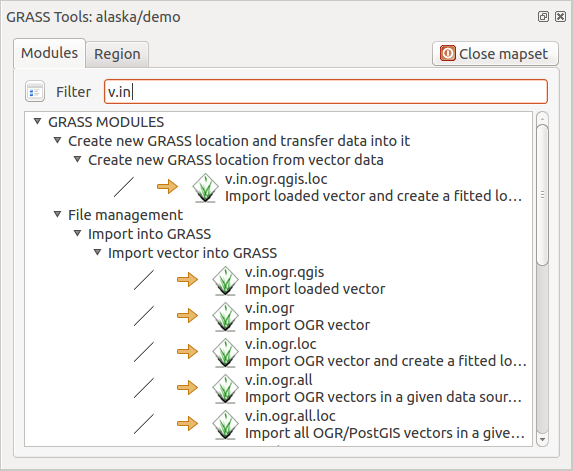
Fig. 19.3 GRASS Toolbox and Module Tree
19.10. Working with GRASS modules
Tip
Use Processing as replacement for the GRASS modules
The Processing Toolbox represents a more modern and integrated environment to do analysis on GRASS datasets within QGIS. Enabling plugin provides access to hundreds of algorithms that replace most of the modules in the GRASS plugin.
The GRASS plugin provides a user-friendly toolbox with about 200 of the available GRASS modules and functionalities.
19.10.1. The Interface
A complete list of GRASS modules available in the graphical Toolbox in QGIS is available in the GRASS wiki.
It is also possible to customize the GRASS Toolbox content. This procedure is described in section Customizing the GRASS Toolbox.
As shown in Fig. 19.3, you can look for the appropriate GRASS module using the thematically grouped Modules Tree or the searchable Modules List tab.
By clicking on a graphical module icon, a new tab will be added to the Toolbox dialog, providing three new sub-tabs: Options, Output and Manual.
19.10.1.1. Options
The Options tab provides a simplified module dialog where you can usually select a raster or vector layer visualized in the QGIS canvas and enter further module-specific parameters to run the module.
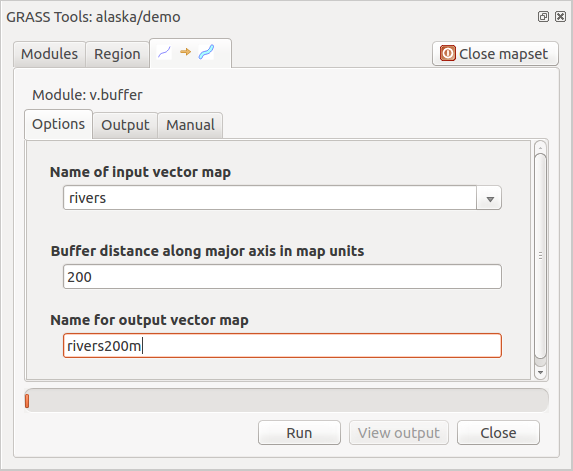
Fig. 19.4 GRASS Toolbox Module Options
The provided module parameters are often not complete to keep the dialog simple. The Show Advanced Options button below the simplified module dialog in the Options tab allows you to use the complete GRASS module options without the need to switch to the GRASS shell. For some modules however, you may still need to start the GRASS shell and run the module in the command line if you want to use further parameters and flags.
19.10.1.2. Output
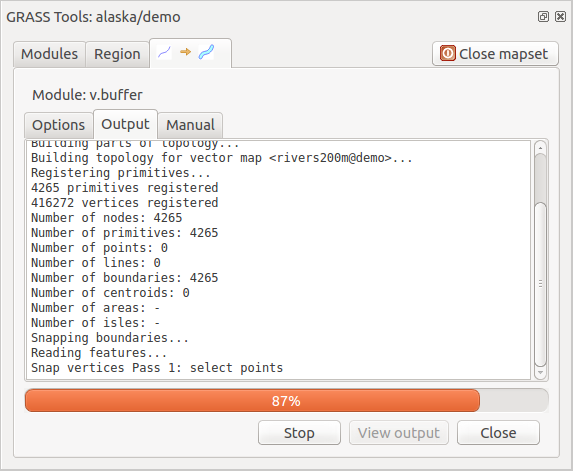
Fig. 19.5 GRASS Toolbox Module Output
The Output tab provides information about the output status of the
module. When you click the Run button, the module switches to the
Output tab and you see information about the analysis process. If
all works well, you will finally see a Successfully finished message.
19.10.1.3. Manual
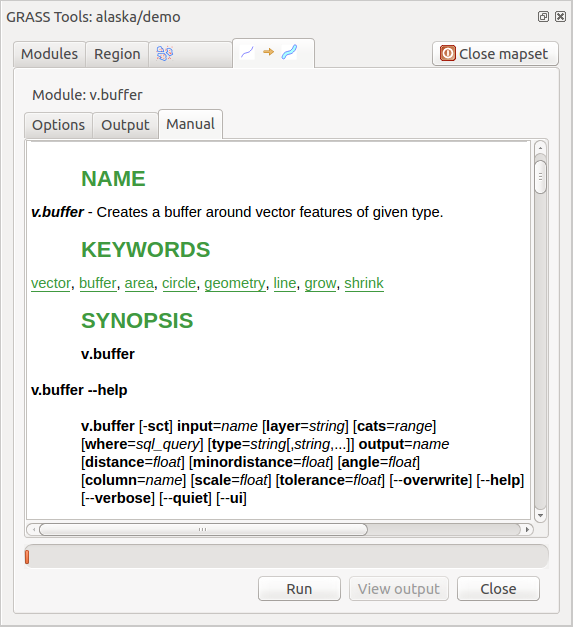
Fig. 19.6 GRASS Toolbox Module Manual
The Manual tab shows the HTML help page of the GRASS module. You can
use it to check further module parameters and flags or to get a deeper knowledge
about the purpose of the module. At the end of each module manual page, you see
further links to the Main Help index, the Thematic index and the
Full index. These links provide the same information as the
module g.manual.
Tip
Display results immediately
If you want to display your calculation results immediately in your map canvas, you can use the ‘View Output’ button at the bottom of the module tab.
19.10.2. GRASS module examples
The following examples will demonstrate the power of some of the GRASS modules.
19.10.2.1. Importing data into a GRASS Project
This section gives an example of how to import raster and vector data into a
GRASS project using the standard GRASS modules.
We will use the landcover raster map landcover.img
and the vector GML file lakes.gml from the QGIS Alaska dataset.
Start QGIS and make sure the GRASS plugin is loaded.
In the menu, click the
Open MAPSET icon
to bring up the Select GRASS Mapset dialog.Select as GRASS database the folder
grassdatain the QGIS Alaska dataset, as project ‘alaska’, as mapset ‘demo’ and click OK.Now click the
Open GRASS tools icon.
The GRASS Toolbox dialog appears.To import the raster map
landcover.img, find and click the module r.in.gdal in the Modules tab. The module dialog forr.in.gdalappears. This GRASS module allows you to import GDAL-supported raster files into a GRASS project.Browse to the folder
rasterin the QGIS ‘Alaska’ dataset and select the filelandcover.imgas raster file to import.As raster output name, define
landcover_grassand click Run. In the Output tab, you see the currently running GRASS command:r.in.gdal -o input=/path/to/landcover.img output=landcover_grass
When it says Successfully finished, click View Output. The
landcover_grassraster layer is now imported into GRASS and will be visualized in the QGIS canvas.To import the vector GML file
lakes.gml, find and click the module v.in.ogr in the Modules tab. The module dialog forv.in.ograppears. This GRASS module allows you to import OGR-supported vector files into a GRASS project.Browse to the folder
gmlin the QGIS ‘Alaska’ dataset and select the filelakes.gmlas OGR file to import.As vector output name, define
lakes_grassand click Run. You don’t have to care about the other options in this example. In the Output tab you see the currently running GRASS command:v.in.ogr -o dsn=/path/to/lakes.gml output=lakes_grass
When it says Successfully finished, click View Output. The
lakes_grassvector layer is now imported into GRASS and will be visualized in the QGIS canvas.
19.10.2.2. Creating contour lines
This example creates a vector contour map from an elevation raster (DEM). Here, it is assumed that you have the Alaska project set up as explained in section Importing data into a GRASS Project.
First, open the project by clicking the
Open mapset button
and choosing the Alaska project.Now open the Toolbox with the
Open GRASS tools button.In the list of tool categories, double-click .
Now a single click on the tool r.contour will open the tool dialog as explained above (see Working with GRASS modules).
In the Name of input raster map enter
gtopo30.Type into the Increment between Contour levels the value 100. (This will create contour lines at intervals of 100 meters.)
Type into the Name for output vector map the name
ctour_100.Click Run to start the process. Wait for several moments until the message
Successfully finishedappears in the output window. Then click View Output and Close.
Since this is a large region, it will take a while to display. After it finishes rendering, you can open the layer properties window to change the line color so that the contours appear clearly over the elevation raster, as in The Vector Properties Dialog.
Next, zoom in to a small, mountainous area in the center of Alaska. Zooming in close, you will notice that the contours have sharp corners. GRASS offers the v.generalize tool to slightly alter vector maps while keeping their overall shape. The tool uses several different algorithms with different purposes. Some of the algorithms (i.e., Douglas Peuker and Vertex Reduction) simplify the line by removing some of the vertices. The resulting vector will load faster. This process is useful when you have a highly detailed vector, but you are creating a very small-scale map, so the detail is unnecessary.
Tip
The simplify tool
Note that QGIS has a tool that works just like the GRASS v.generalize Douglas-Peuker algorithm.
However, the purpose of this example is different. The contour lines created by
r.contour have sharp angles that should be smoothed. Among the v.generalize
algorithms, there is Chaiken’s, which does just that (also Hermite splines). Be
aware that these algorithms can add additional vertices to the vector,
causing it to load even more slowly.
Open the GRASS Toolbox and double-click the categories , then click on the v.generalize module to open its options window.
Check that the ‘ctour_100’ vector appears as the Name of input vector.
From the list of algorithms, choose Chaiken’s. Leave all other options at their default, and scroll down to the last row to enter in the field Name for output vector map ‘ctour_100_smooth’, and click Run.
The process takes several moments. Once
Successfully finishedappears in the output windows, click View Output and then Close.You may change the color of the vector to display it clearly on the raster background and to contrast with the original contour lines. You will notice that the new contour lines have smoother corners than the original while staying faithful to the original overall shape.
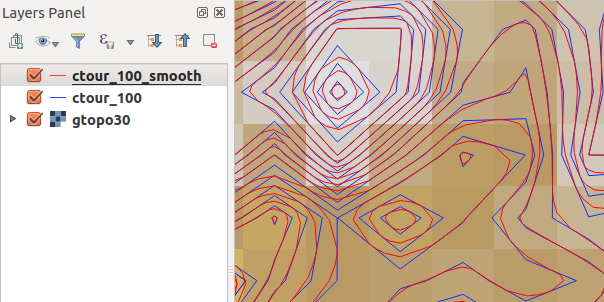
Fig. 19.7 GRASS module v.generalize to smooth a vector map
Tip
Other uses for r.contour
The procedure described above can be used in other equivalent situations. If you have a raster map of precipitation data, for example, then the same method will be used to create a vector map of isohyetal (constant rainfall) lines.
19.10.2.3. Creating a Hillshade 3D effect
Several methods are used to display elevation layers and give a 3-D effect to maps. The use of contour lines, as shown above, is one popular method often chosen to produce topographic maps. Another way to display a 3-D effect is by hillshading. The hillshade effect is created from a DEM (elevation) raster by first calculating the slope and aspect of each cell, then simulating the sun’s position in the sky and giving a reflectance value to each cell. Thus, you get sun-facing slopes lighted; the slopes facing away from the sun (in shadow) are darkened.
Begin this example by loading the
gtopo30elevation raster. Start the GRASS Toolbox, and under the Raster category, double-click to open .Then click r.shaded.relief to open the module.
Change the Azimuth angle from 270 to 315.
Enter
gtopo30_shadefor the new hillshade raster, and click Run.When the process completes, add the hillshade raster to the map. You should see it displayed in grayscale.
To view both the hillshading and the colors of the
gtopo30together, move the hillshade map below thegtopo30map in the table of contents, then open the window ofgtopo30, switch to the Transparency tab and set its transparency level to about 25%.
You should now have the gtopo30 elevation with its colormap and transparency
setting displayed above the grayscale hillshade map. In order to see the
visual effects of the hillshading, turn off the gtopo30_shade map, then turn
it back on.
19.10.2.4. Raster statistics in a vector map
The next example shows how a GRASS module can aggregate raster data and add columns of statistics for each polygon in a vector map.
Again using the Alaska data, refer to Importing data into a GRASS Project to import the
shapefiles/trees.shpfile into GRASS.Now an intermediate step is required: centroids must be added to the imported trees map to make it a complete GRASS area vector (including both boundaries and centroids).
From the Toolbox, choose , and open the module v.centroids.
Enter
forest_areasas the Output vector map and run the module.Now load the
forest_areasvector and display the types of forests - deciduous, evergreen, mixed - in different colors: in the layer Properties window, Symbology tab, chooseCategorizedin the top drop-down menu and set the Value field toVEGDESC. Then press Classify. Refer to the explanation of the symbology tab in Symbology Properties of the vector section.Next, reopen the GRASS Toolbox and open by other maps.
Click on the v.rast.stats module. Enter
gtopo30andforest_areas.Only one additional parameter is needed: Enter
elevas Column prefix, and click Run. This is a computationally heavy operation, which will run for a long time (probably up to two hours).Finally, open the
forest_areasattribute table, and verify that several new columns have been added, includingelev_min,elev_max,elev_mean, etc., for each forest polygon.
19.10.3. Customizing the GRASS Toolbox
Nearly all GRASS modules can be added to the GRASS Toolbox. An XML interface is provided to parse the pretty simple XML files that configure the modules’ appearance and parameters inside the Toolbox.
A sample XML file for generating the module v.buffer (v.buffer.qgm)
looks like this:
<?xml version="1.0" encoding="UTF-8"?>
<!DOCTYPE qgisgrassmodule SYSTEM "http://mrcc.com/qgisgrassmodule.dtd">

<qgisgrassmodule label="Vector buffer" module="v.buffer">
        <option key="input" typeoption="type" layeroption="layer" />
        <option key="buffer"/>
        <option key="output" />
</qgisgrassmodule>
The parser reads this definition and creates a new tab inside the Toolbox when you select the module.