Importante
A tradução é um esforço comunitário você pode contribuir. Esta página está atualmente traduzida em 35.29%.
18.26. A interface de processamento em lote
Nota
Esta lição apresenta a interface de processamento em lote, que permite executar em um só algoritmo um conjunto de diferentes valores de entrada
Às vezes, um determinado algoritmo precisa ser executado repetidamente com diferentes entradas. Este é, por exemplo, o caso quando um conjunto de arquivos de entrada deve ser convertido de um formato para outro, ou quando várias camadas em uma determinada projeção devem ser convertidas em outra projeção.
In that case, calling the algorithm repeatedly on the toolbox is not the best option. Instead, the batch processing interface should be used, which greatly simplifies performing a multiple execution of a given algorithm. To run an algorithm as a batch process, find it in the toolbox, and instead of double-clicking on it, right-click on it and select Run as batch process.
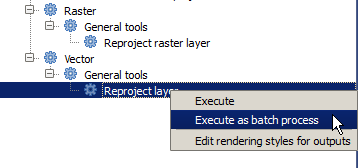
For this example, we will use the Reproject layer algorithm, so find it and do as described above. You will get to the following dialog.
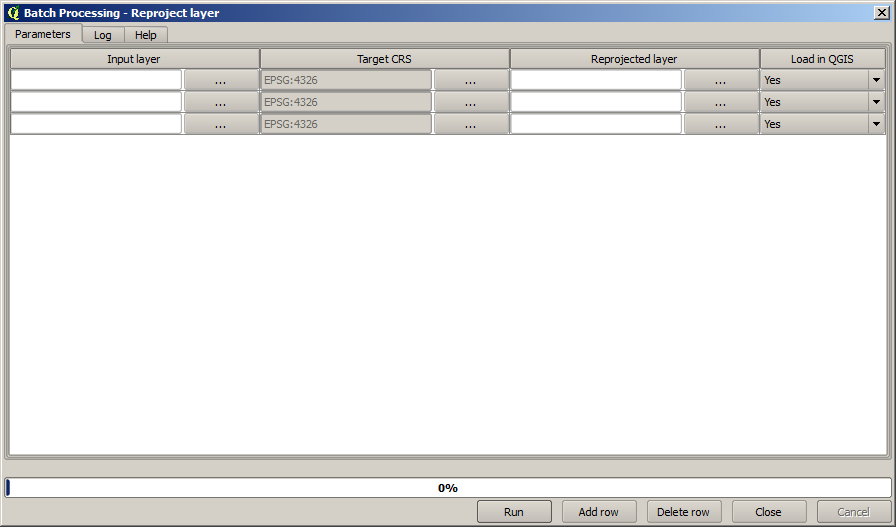
Se você der uma olhada nos dados desta lição, você vai ver que eles contém um conjunto de três shapefiles, mas nenhum arquivo de projeto QGIS. Isto é porque, quando um algoritmo é executado como um processo em lote, entradas de camada pode ser selecionadas a partir do projeto QGIS corrente ou de arquivos. Isso faz com que seja mais fácil de processar grandes quantidades de camadas, tais como, por exemplo, todas as camadas de uma dada pasta.
Cada linha da tabela do diálogo de processo por lotes representa somente uma execução do algoritmo. As células de uma linha correspondem a parâmetros necessários para o algoritmo, que não é organizado um encima do outro, como em um diálogo normal de solo–execução, pois horizontalmente nesta linha.
Defining the batch process to run is done by filling the table with the corresponding values, and the dialog itself contains several tools to make this task easier.
Let’s start filling the fields one by one. The first column to fill is the Input layer one. Instead of entering the names of each one of the layers we want to process, you can select all of them and let the dialog put one in each row. Click on the button in the upper-left cell, and in the file selection dialog that will popup, select the three files to reproject. Since only one of them is needed for each row, the remaining ones will be used to fill the rows underneath.
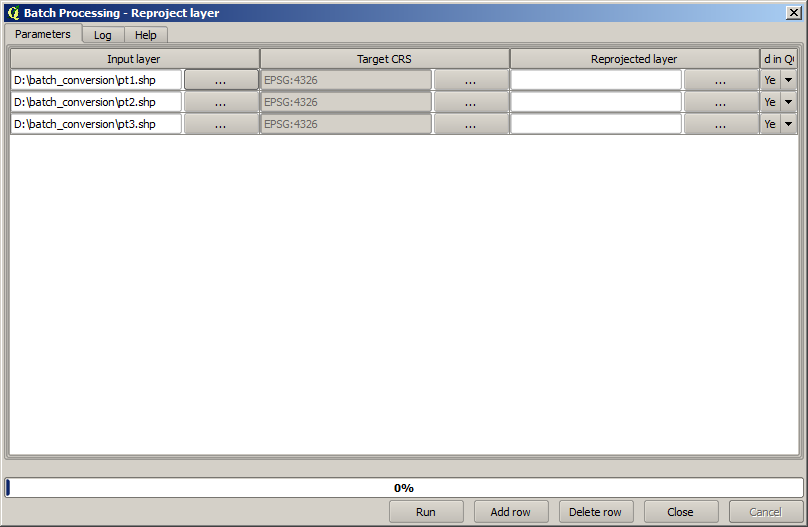
The default number of rows is 3, which is exactly the number of layers we have to convert, but if you select more layers, new rows will be added automatically. If you want to fill the entries manually, you can add more rows using the Add row button.
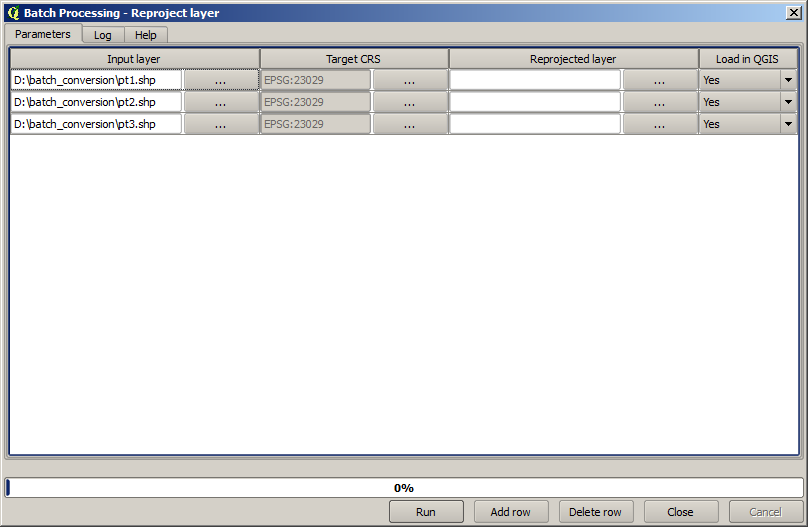
We are going to convert all those layers to the EPSG:23029 CRS, so we have to
select that CRS in the second field. We want the same on for all rows, but we
do not have to do it for every single row. Instead, set that CRS for the first
row (the one at the top) using the button in the corresponding cell, and then
double click on the column header. That causes all the cells in the column to
be filled using the value of the top cell.
Finally, we have to select an output file for each execution, which will contain
the corresponding reprojected layer. Once again, let’s do it just for the first row.
Click on the button in the upper cell and, in a folder where you want to put
your output files, enter a filename (for instance, reprojected.shp).
Now, when you click OK on the file selection dialog, the file does not automatically gets written to the cell, but an input box like the following one is shown instead.
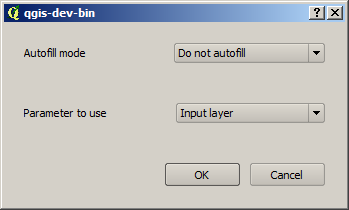
If you select the first option, only the current cell will be filled. If you
select any of the other ones, all the rows below will be filled with a given
pattern. In this case, we are going to select the Fill with parameter value
option, and then the Input Layer value in the drop down menu below.
That will cause the value in the Input Layer (that is, the layer name) to
be added to the filename we have added, making each output filename different.
The batch processing table should now look like this.
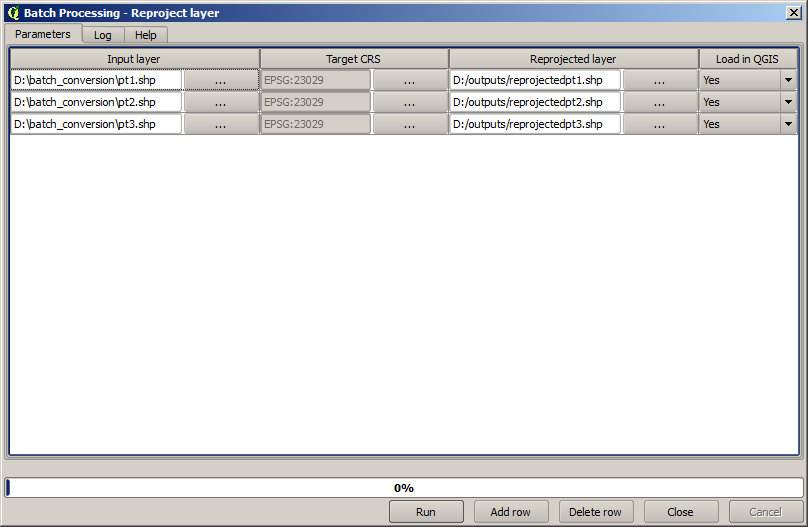
The last column sets whether or not to add the resulting layers to the
current QGIS project. Leave the default Yes option, so you can see your
results in this case.
Click on OK and the batch process will be run. If everything went fine, all your layers will have been processed, and 3 new layers would have been created.