중요
번역은 여러분이 참여할 수 있는 커뮤니티 활동입니다. 이 페이지는 현재 50.38% 번역되었습니다.
25.3. QGIS 파이썬 콘솔
이 장을 보다 보면 알게 되겠지만, QGIS는 플러그인 아키텍처로 설계되어 있습니다. 플러그인은 지리공간 업계에서는 매우 유명한 언어인 파이썬으로 작성할 수 있습니다.
QGIS는 사용자가 객체(레이어, 피처, 인터페이스)와 대화형 작업을 할 수 있도록 파이썬 API(예시 코드를 보고 싶다면 PyQGIS 개발자 쿡북 을 참조)를 제공합니다. 물론 QGIS에는 파이썬 콘솔도 있습니다.
The QGIS Python Console is an interactive shell for Python command executions.
It also has a Python file editor that allows you to edit and save your Python scripts.
Both console and editor are based on PyQScintilla2 package.
To open the console go to (Ctrl+Alt+P) or
click on the  Python Console icon in the Plugins toolbar.
25.3.1. 대화형 콘솔
이 콘솔은 사용자가 파이썬 명령어를 실행할 수 있게 해주는 파이썬 해석기입니다. QGIS(analysis, core, gui, server, processing, 3d)와 Qt(QtCore, QtGui, QtNetwork, QtWidgets, QtXml)의 모듈은 물론 파이썬의 math, os, re 및 sys 모듈이 이미 구현되어 있기 때문에 직접 사용할 수 있습니다.
대화형 콘솔은 툴바, 입력 영역 그리고 출력 영역으로 이루어져 있습니다.
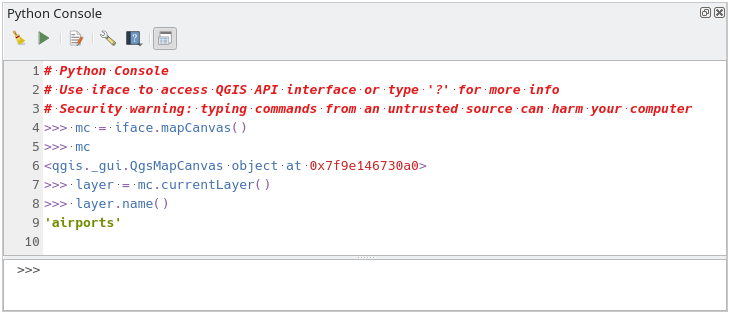
그림 25.17 파이썬 콘솔
25.3.1.1. 툴바
툴바는 다음 도구들을 제공합니다:
 Clear Console: 출력 영역을 지웁니다.
 Run Command: 입력 영역에서 사용할 수 있습니다. Enter 키를 누르는 것과 동일한 기능입니다.
 Show Editor: 코드 편집기 를 켜고 끕니다.
 Options…: 콘솔 속성 을 환경설정할 수 있는 대화창을 엽니다.
 Help…: 여러 문서에 접근할 수 있는 메뉴를 제공합니다:
파이썬 콘솔 도움말 (현재 페이지)
 Dock Code Editor: QGIS 인터페이스에 패널을 도킹시키거나 도킹을 해제합니다.
25.3.1.2. 입력 영역
콘솔 입력 영역의 주요 기능은 다음과 같습니다:
다음 API들을 위한 코드 완성, 문법 구문 강조, 그리고 팝업 도움말:
Python
PyQGIS
PyQt5
QScintilla2
osgeo-gdal-ogr
osgeo-geos
Ctrl+Alt+Space: Python settings 에서 활성화하면 사용할 수 있는 자동 완성 목록 보기
입력 영역에서 Enter 키를 누르거나
 아이콘을 클릭해서 코드 조각(snippet) 실행하기
출력 영역에서 컨텍스트 메뉴의 Run Selected 를 선택하거나 Ctrl+E 조합키를 눌러 코드 조각 실행하기
입력 영역에서 Up 및 Down 방향키를 눌러 명령어 이력을 탐색하고 원하는 명령어 실행하기
Ctrl+Shift+Space 조합키로 명령어 이력 살펴보기: 어느 행을 더블클릭하면 해당 명령어를 실행합니다. 입력 영역에서 컨텍스트 메뉴를 통해 Command History 대화창을 열 수도 있습니다.
명령어 이력 저장 및 삭제: 명령어 이력은 활성화된 사용자 프로파일 폴더 아래
console_history.txt파일로 저장됩니다.다음 특수 명령어들을 입력하십시오:
?: 파이썬 콘솔 도움말을 출력합니다._api또는_api(object): 전자는 QGIS C++ API 문서를 열고 후자는 (QGIS C++ API 또는 Qt API 문서에 있는) 특정 객체 문서를 엽니다._pyqgis또는_pyqgis(object): 전자는 QGIS Python API 문서를 열고 후자는 (QGIS Python API 또는 Qt API 문서에 있는) 특정 객체 문서를 엽니다._cookbook: PyQGIS 쿡북 을 엽니다.!: 명령어 앞에 느낌표를 붙이면 파이썬 콘솔에서 셸(Shell) 명령어를 실행할 수 있습니다. 콘솔이 하위 프로세스를 시작해서 그 산출물을 파이썬 콘솔 산출물로 포워딩할 것입니다. 하위 프로세스가 실행되는 동안, 파이썬 콘솔 입력은 표준 입력(STDIN) 모드로 전환되어 입력되는 문자들을 하위 프로세스로 포워딩합니다. 즉 하위 프로세스가 확인을 요청할 때 이를 전송해줄 수 있습니다. 콘솔이 STDIN 모드일 때 Ctrl+C 조합키를 누르면 하위 프로세스를 중단시킵니다.var = !cmd구문을 사용하면 변수에 대한 명령어 결과에 영향을 줄 수도 있습니다.>>> !echo QGIS Rocks! QGIS Rocks >>> !gdalinfo --version GDAL 3.10.3, released 2025/04/01 >>> !pip install black # Install black python formatter using pip (if available) >>> sql_formats = !ogrinfo --formats | grep SQL >>> sql_formats ['SQLite -vector- (rw+v): SQLite / Spatialite', ' MSSQLSpatial -vector- (rw+): Microsoft SQL Server Spatial Database', ' PostgreSQL -vector- (rw+): PostgreSQL/PostGIS', ' MySQL -vector- (rw+): MySQL', ' PGDUMP -vector- (w+v): PostgreSQL SQL dump']
팁
출력 패널에서 실행한 명령어 재사용
출력 패널에서 일부 텍스트를 선택한 다음 Ctrl+E 조합키를 누르면 코드 조각을 실행할 수 있습니다. 선택한 텍스트가 인터프리터 프롬프트(>>>, ...)를 담고 있어도 상관없습니다.
25.3.2. 코드 편집기
Use the Show Editor button in the Interactive Console to enable the editor widget.
It allows editing and saving Python scripts and offers advanced functionalities
to manage your code.
Depending on the enabled settings,
it provides various capabilities for easier code writing,
such as code completion, highlighting syntax and calltips for supported APIs.
Automatic indentation, parenthesis insertion, code commenting and syntax checking are also available.
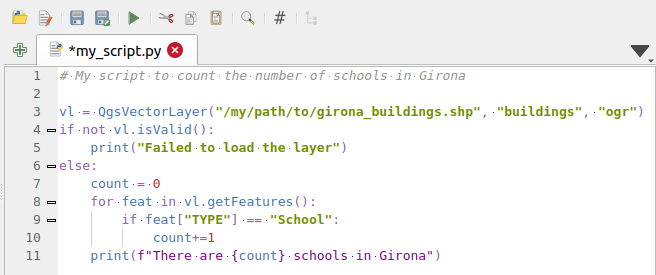
그림 25.18 파이썬 콘솔 편집기
The code editor area allows to simultaneously work on different scripts, each in a specific tab.
Press  New editor to add a new tab.
You can run partially or totally a script from the Code Editor
and output the result in the Interactive Console output area.
New editor to add a new tab.
You can run partially or totally a script from the Code Editor
and output the result in the Interactive Console output area.
팁
Press Ctrl+Space to view the auto-completion list.
At the top of the dialog, a toolbar provides access to a few commands. Right-clicking the editor area provides some more options. All available tools are described in the following table.
Tool name |
Function |
위치 |
|---|---|---|
|
Loads a Python file in the code editor dialog, as a new tab |
툴바 |
|
Opens a saved Python script in the default external program set for Python file editing |
|
|
Saves the current script |
|
|
Saves the current script as a new file |
|
|
Executes the whole script in the Interactive console
(this creates a byte-compiled file with the extension |
Toolbar & Contextual menu |
|
Attempts to display help on the selected string (class, method, object,…) in its corresponding API documentation |
Contextual menu |
|
Executes in the Interactive console the lines selected in the script |
Toolbar & Contextual menu |
|
Cuts selected text to the clipboard |
|
|
Copies selected text to the clipboard |
|
|
Pastes a cut or copied text |
|
|
Allows to search and replace a text in the script.
|
|
|
Comments out or uncomment selected lines, by adding or removing |
|
|
Allows to manually apply various formatting rules (sort imports, indentation, line length,…) to the code, following user-defined settings. This may require installation of additional Python modules. |
|
|
Shows and hides a dedicated browser with a tree structure for classes and functions available in the script. Click an item for a quick access to its definition. The tool requires an activation from the Python settings - Run and Debug. |
|
Hide editor |
Hides the Python code editor block.
To make it visible again, press |
Contextual menu |
|
Browses the code and reports syntax errors, such as missing parenthesis, colons, wrong indentation,… |
|
|
Undoes the latest action |
|
|
Reverts undone actions to a more recent |
|
Select all (Ctrl+A) |
Selects the whole script |
|
|
Shares the script as a Secret Gist or Public Gist on GitHub, provided a GitHub access token. |
|
|
Opens the Python settings dialog. |


