중요
번역은 여러분이 참여할 수 있는 커뮤니티 활동입니다. 이 페이지는 현재 73.68% 번역되었습니다.
18.22. 보간법
참고
이 수업에서는 포인트 데이터를 보간하는 방법과 함께 공간 분석을 수행하는 또다른 실제 사례를 배워보겠습니다.
이 수업을 통해, 포인트 데이터를 보간해서 래스터 레이어를 얻을 것입니다. 그러나 그 전에 데이터를 준비해야 하며, 보간 후에 결과 레이어를 수정하기 위한 몇 가지 공간 처리 과정을 추가해야 합니다. 그래야 완전한 분석 과정을 마칠 수 있기 때문입니다.
이 수업에 해당하는 예제 데이터를 불러오십시오. 다음과 같이 보일 것입니다.
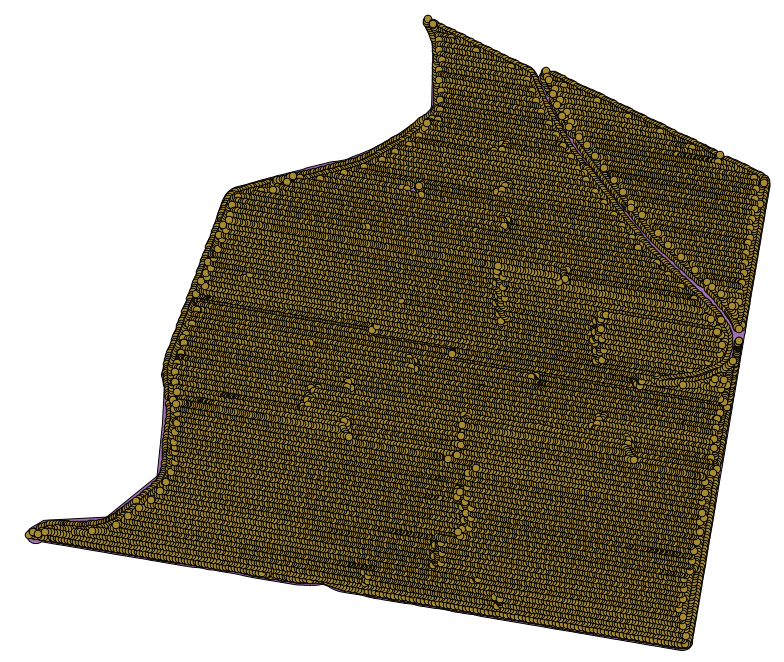
이 데이터는 현대적인 수확기가 제공한 작물 수확량 데이터로, 이 데이터를 이용해서 작물 수확량을 나타내는 래스터 레이어를 생성할 것입니다. 래스터 레이어로 더 심화된 분석을 수행하지는 않습니다. 생산성이 가장 높은 지역 및 생산성을 향상시킬 수 있는 지역을 쉽게 식별하기 위한 배경 레이어로만 사용할 것입니다.
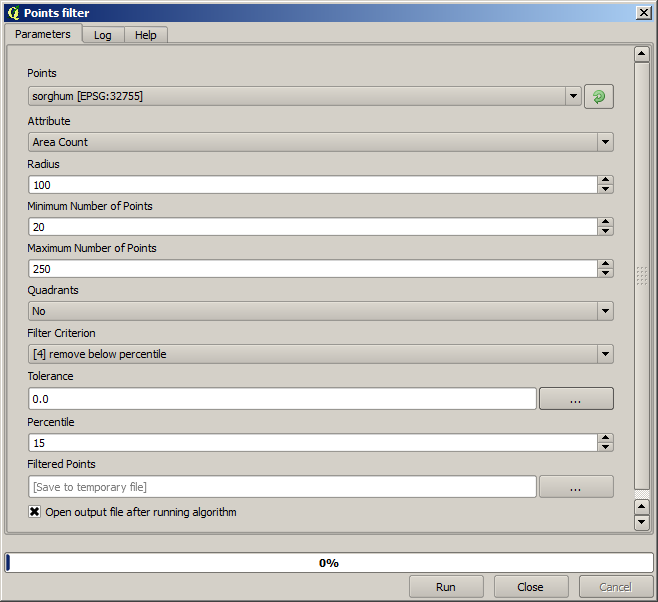
The first thing to do is to clean–up the layer, since it contains redundant points. These are caused by the movement of the harvester, in places where it has to do a turn or it changes its speed for some reason. The Points filter algorithm will be useful for this. We will use it twice, to remove points that can be considered outliers both in the upper and lower part of the distribution.
첫 번째 실행 시, 다음 파라미터 값을 사용하십시오.
두 번째 실행 시, 다음과 같이 환경설정하십시오.
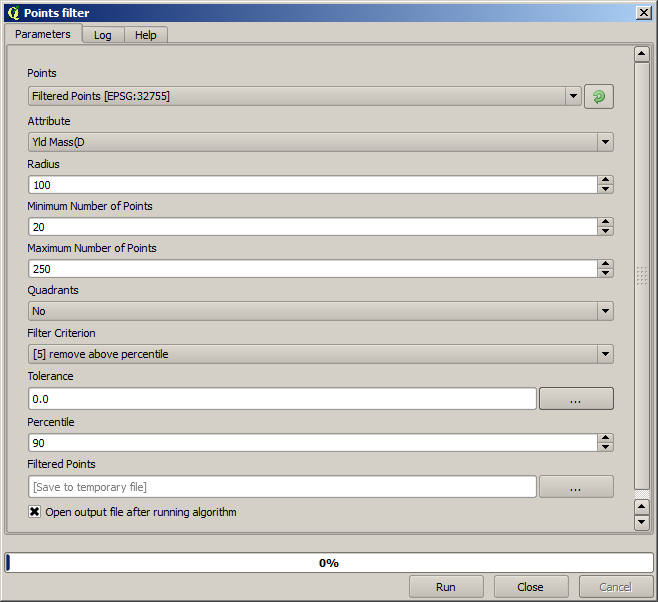
입력 레이어에 원래 레이어가 아니라 첫 번째 실행의 산출물을 사용한다는 사실을 기억하십시오.
줄어든 포인트 집합을 담은 최종 필터링 레이어는 원래 레이어와 비슷하게 보이지만 담고 있는 포인트의 개수는 줄어들었습니다. 두 레이어의 속성 테이블을 비교해서 확인할 수 있습니다.
Now let’s rasterize the layer using the Rasterize algorithm.
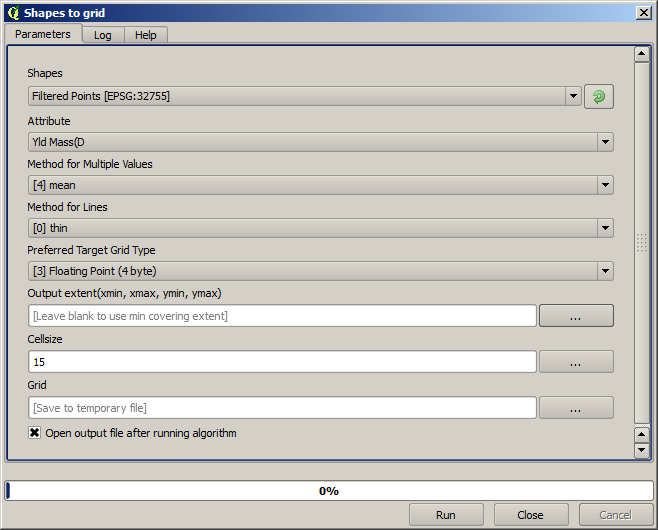
The Filtered points layer refers to the resulting one of the second filter.
It has the same name as the one produced by the first filter, since the name
is assigned by the algorithm, but you should not use the first one. Since we
will not be using it for anything else, you can safely remove it from your
project to avoid confusion, and leave just the last filtered layer.
결과물 레이어는 다음과 같습니다.
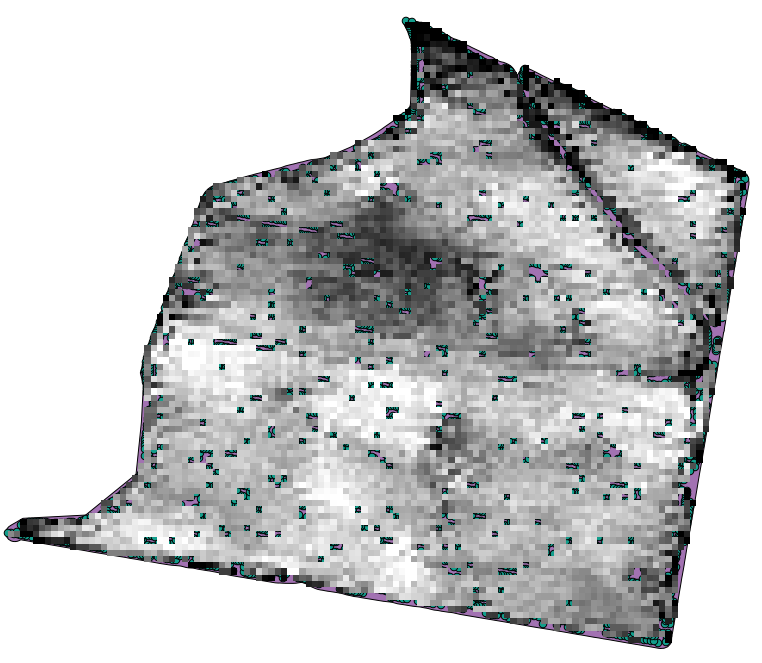
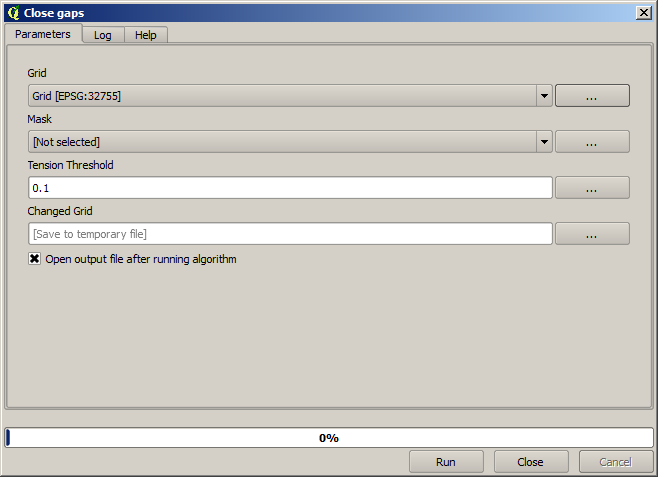
It is already a raster layer, but it is missing data in some of its cells. It only contain valid values in those cells that contained a point from the vector layer that we have just rasterized, and a no–data value in all the other ones. To fill the missing values, we can use the Close gaps algorithm.
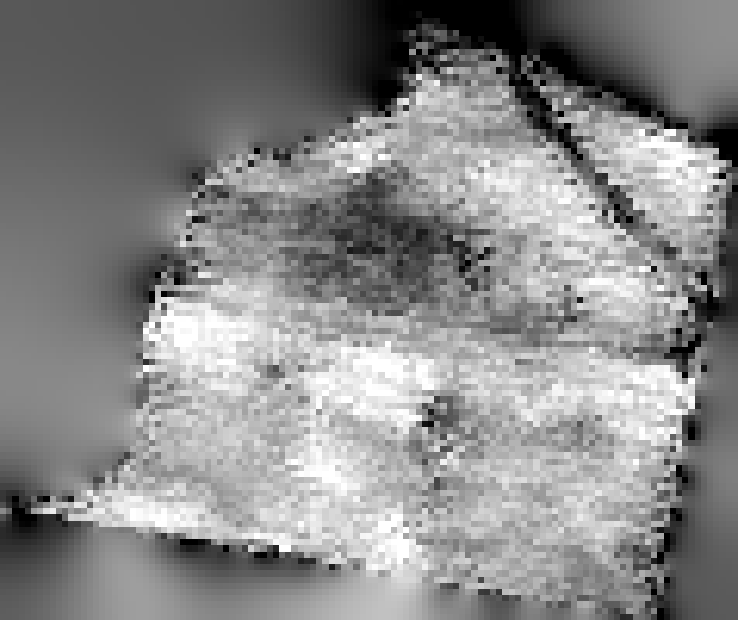
NODATA 값이 없는 레이어는 다음과 같습니다.
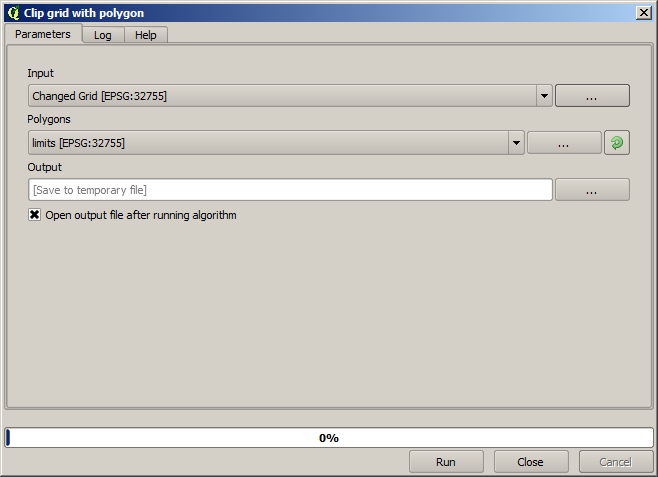
데이터가 커버하는 지역을 작물 수확량이 측정된 지역만으로 제한하려면, 제공된 limits 레이어로 래스터 레이어를 잘라내면 됩니다.
And for a smoother result (less accurate but better for rendering in the background as a support layer), we can apply a Gaussian filter to the layer.
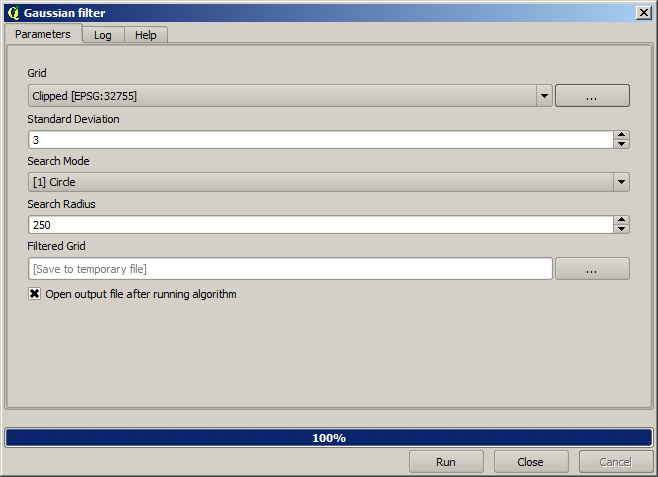
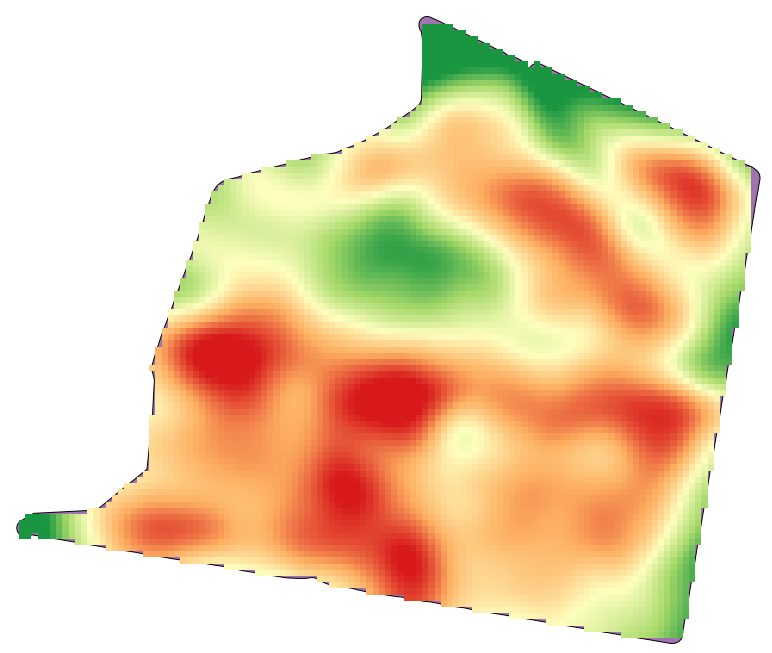
그림과 같은 파라미터를 적용하면, 다음과 같은 결과를 얻게 됩니다.