重要
翻訳は あなたが参加できる コミュニティの取り組みです。このページは現在 100.00% 翻訳されています。
14.9. レッスン: 地図プレゼンテーション
以前のレッスンでは、GISプロジェクトとして古い森林調査をインポートし、それを現在の状況に更新し、森林調査を設計し、フィールドワークの地図を作成し、フィールド測定から森林のパラメーターを算出しました。
GISプロジェクトの結果で地図を作成することはしばしば重要です。森林調査の結果を提示する地図によって、特定の数字を見なくても、結果が何であるか誰にでも一目でわかりやすくなるでしょう。
このレッスンの目標: 調査結果を提示する地図を、陰影図ラスターを背景に使用して作成します。
14.9.1. ★☆☆ (初級レベル) 理解しよう: 地図データを準備する
パラメータ計算のレッスンで使用したQGISプロジェクト、forest_inventory.qgs を開きます。少なくとも以下のレイヤは残しておいてください:
forest_stands_2012_results.basic_map.rautjarvi_aerial.lakes(持っていない場合は、exercise_data\forestry\フォルダからそれを追加します)。
これから林分の平均体積を地図上に表示します。 forest_stands_2012_results` レイヤの :guilabel:`属性テーブル` を開くと、情報がない林分には ``NULL 値が表示されます。これらの林分もシンボロジに取り込むには、NULL 値を例えば -999 に変更する必要があります。負の数は、そのポリゴンにはデータが存在しないことを意味することにします。
forest_stands_2012_results レイヤに対して:
属性テーブル を開き編集を可能にします。
NULL値を持つポリゴンを選択します。選択された地物だけに対して、計算機を使用して
MEANVolフィールドの値を-999に更新します。編集を無効にし、変更を保存します。
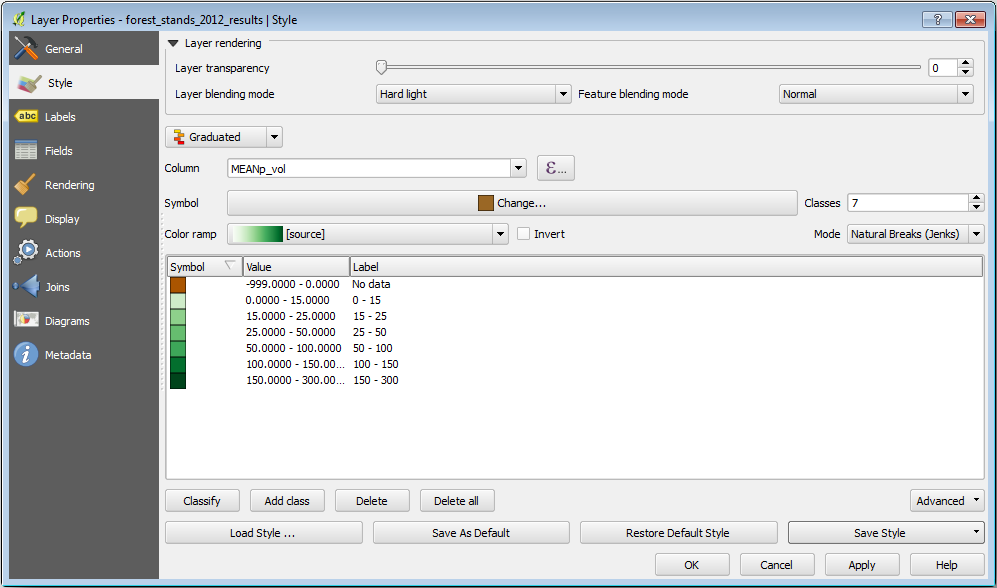
これで保存したスタイルをこのレイヤーに使用できます:
シンボロジ タブに移動します。
。
exercise_data\forestry\results\フォルダからforest_stands_2012_results.qmlを選択します。OK をクリックします。
地図は次のようになります。
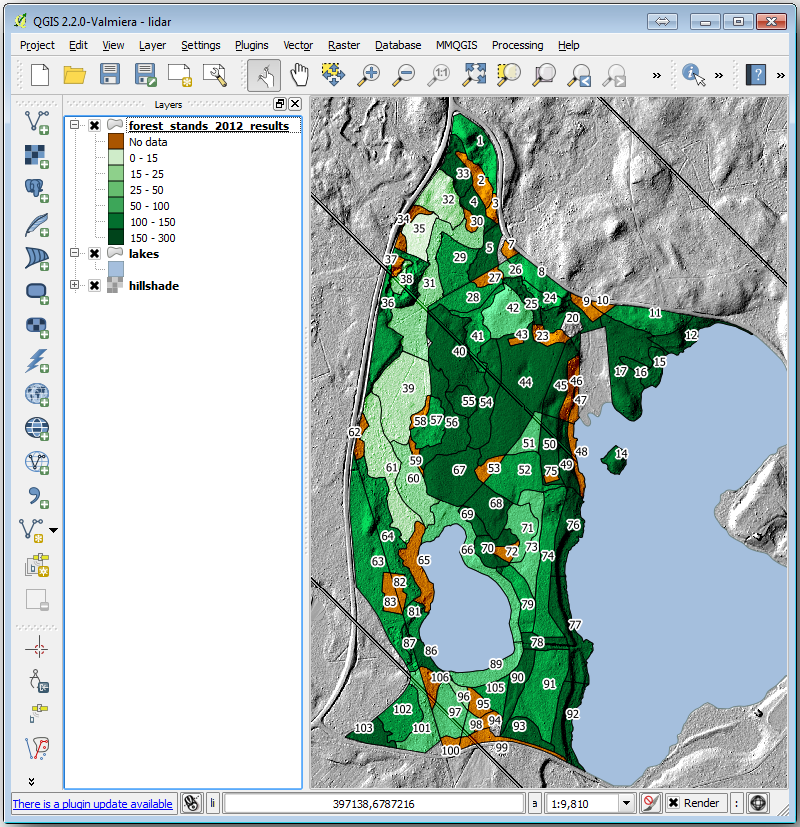
14.9.2. ★☆☆ (初級レベル) 自分でやってみよう: さまざまなブレンドモードを試す
読み込んだスタイル:
これは レイヤブレンディングモード に Hard light モードを使用しています。異なるモードは、下層と上層のレイヤーを組み合わせて異なるフィルタを適用することに注意してください。この場合、陰影図ラスタと林分が使用されています。これらのモードについては、 ユーザーガイド で説明されています。
異なるモードで試してみて、地図の違いを見てください。それから、より好きな方を最終的な地図として選択してください。
14.9.3. ★☆☆ (初級レベル) 自分でやってみよう: レイアウトテンプレートを使って地図の結果を作る
結果を提示するには、あらかじめ用意されたテンプレートを使います。テンプレート forest_map.qpt は exercise_data\forestry\results\ フォルダにあります。 ダイアログを使用して読み込みます。
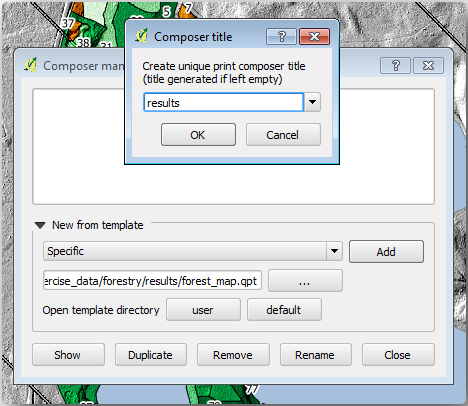
印刷レイアウトを開き、最終的なマップを編集して納得のいく仕上がりにします。
使用している地図テンプレートは、これと同じ地図を提供します:
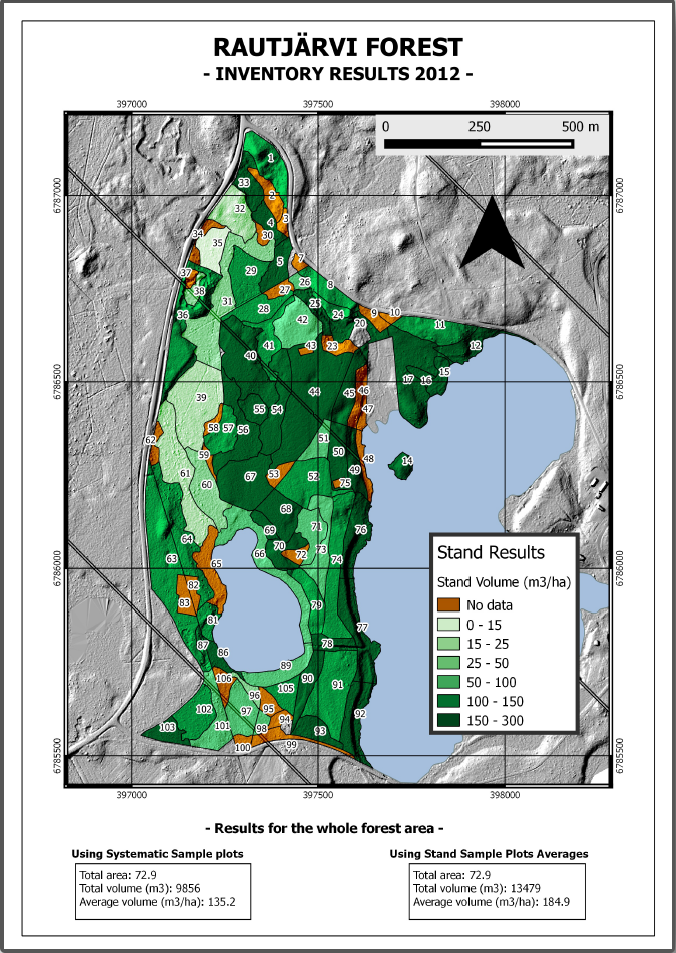
将来の参照のためQGISプロジェクトを保存します。
14.9.4. 結論
このモジュールを通して、基本的な森林調査を計画し、QGISで提示する方法を見てきました。アクセスできるさまざまなツールでさらに多くの森林の分析が可能ですが、このマニュアルがご自身が必要とする結果を達成する方法を探るための良い出発点になればと思います。