Important
Traducerea este un efort al comunității, la care puteți să vă alăturați. În prezent, această pagină este tradusă 27.68%.
21.1. Prezentare Generală a Sistemului de Autentificare
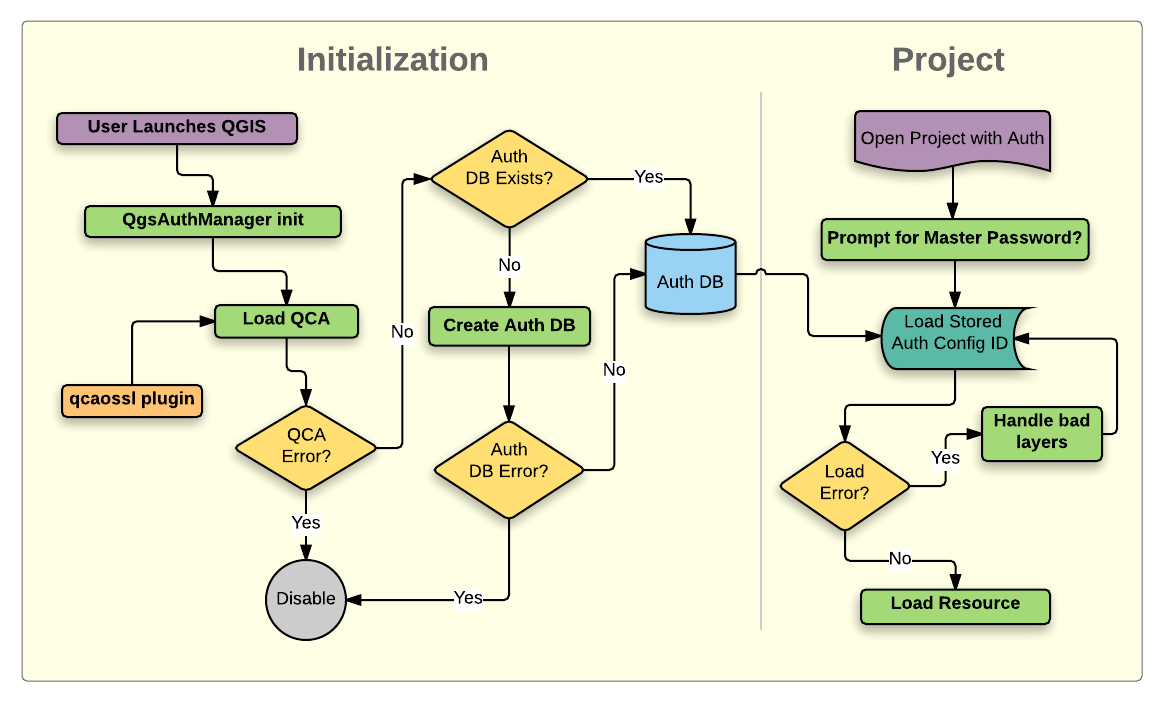
Fig. 21.1 Anatomia Sistemului de Autentificare
21.1.1. Baza de date de autentificare
The authentication system stores authentication configurations in an
SQLite database file located, by default, at <profile directory>/qgis-auth.db.
Această bază de date de autentificare poate fi mutată între instalările QGIS, fără afectarea altor preferințe ale utilizatorului QGIS curent, deoarece este complet separată de setările normale ale QGIS. Atunci când stocați inițial o configurație a unei baze de date, este generat un ID de configurare (un șir aleatoriu de 7 caractere alfanumerice). Acesta reprezintă configurația, fiind posibilă stocarea în clar a ID-ului de către componentele aplicației, (cum ar fi proiectele, plugin-urile, sau fișierele de setare) fără divulgarea credențialelor asociate.
Notă
Directorul părinte al qgis-auth.db poate fi setat folosind variabila de mediu QGIS_AUTH_DB_DIR_PATH, sau din linia de comandă, pe durata lansării cu opțiunea --authdbdirectory.
21.1.2. Custom authentication databases
QGIS can be configured to use a custom authentication database instead of the above mentioned default SQLite one: any database supported by the Qt SQL module can be used (e.g. PostgreSQL, MySQL, etc), provided that the corresponding Qt SQL driver is available in the system.
This can be useful in scenarios where a user wants to share the same authentication database between multiple QGIS installations, or when a user wants to use a different authentication database than the default SQLite one or when a centralized authentication database is used by QGIS server.
The only way to configure a custom authentication database is by setting the
QGIS_AUTH_DB_URI environment variable to the URI of the connection, the URI
is in the form of driver://username:password@hostname:port/database?options.
- Where:
driveris the name of the Qt SQL driver to use, e.g.QPSQLfor PostgreSQL,QMYSQLfor MySQL, etc.usernameis the username to use to connect to the databasepasswordis the password to use to connect to the databasehostnameis the hostname of the database serverportis the port of the database serverdatabaseis the name of the database to useoptionsare the options to pass to the driver, e.g.sslmode=requirefor PostgreSQL
Notă
The schema can be specified in the URI options, e.g. QPSQL://username:password@hostname:port/database?schema=schema_name
The database must exist before starting QGIS, and the user must have the necessary permissions to connect to the database and to create the required tables if they do not exist.
Atenționare
The password in the URI is stored in plain text in the environment variable, so it is recommended to use a passwordless user or a user with limited permissions to connect to the database.
Atenționare
Any database not based on SQLite is considered to be read-only (this can be changed by Python plugins if necessary).
This is an advanced feature, designed to allow one or more custom authentication databases or even custom Python implementations of credentials storages to be used by QGIS.
The system is also designed to allow for multiple authentication databases to be used but there is currently no user facing interface to manage multiple credential storages so its usage requires manual configuration and management, typically from a Python plugin.
21.1.3. Parola master
To store or access sensitive information within the database, a user must define a master password. A new master password is requested and verified when initially storing any encrypted data to the database. When sensitive information is accessed, the user is prompted for the master password. The password is then cached for the remainder of the session (until application is quit), unless the user manually chooses an action to clear its cached value. Some instances of using the authentication system do not require input of the master password, such as when selecting an existing authentication configuration, or applying a configuration to a server configuration (such as when adding a WMS layer).
You can choose to save the password in the Wallet/Keyring of your
computer.
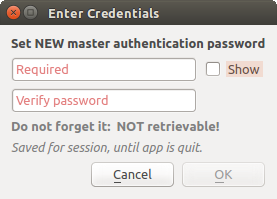
Fig. 21.2 Introducerea noii parole master
Notă
A path to a file containing the master password can be set using the
following environment variable, QGIS_AUTH_PASSWORD_FILE.
21.1.3.1. Gestiunea parolei master
Odată stabilită, parola principală poate fi resetată; parola master curentă va fi necesară înainte de resetare. Pe durata acestui proces, există opțiunea de a genera o copie de rezervă completă a bazei de date curente.
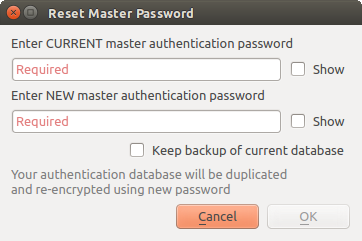
Fig. 21.3 Resetarea parolei master
În cazul în care utilizatorul uită parola principală, nu există nici o modalitate de a o recupera sau de a o suprascrie. De asemenea, nu există nici un mijloc de recuperare a informațiilor criptate, fără a cunoaște parola de master.
Dacă un utilizator introduce incorect, de trei ori, parola, fereastra de dialog se va oferi să șteargă baza de date.
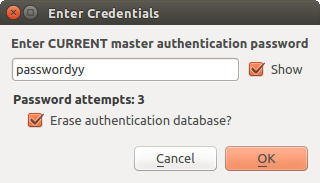
Fig. 21.4 Se va cere parola după trei încercări eronate
21.1.4. Configurații de Autentificare
You can manage authentication configurations from Configurations in the Authentication tab of the QGIS Options dialog ().

Fig. 21.5 Editorul de configurații
To create a new authentication configuration:
Press the
 Add a new authentication configuration
Provide a Name and optional Resource URL
A seven-characters ID will be assigned to the configuration for identification purpose. It can be customized after you pressed the
 Unlock to edit ID button.
Be aware that updating that ID may break things.
Unlock to edit ID button.
Be aware that updating that ID may break things.Select the target method and fill the corresponding connection details
Once done, click Save to save the configuration. The saved configuration appears in the list of authentication configurations and can be used with supported connections.
The saved configuration can later be edited using  Edit selected configuration
or removed using
Edit selected configuration
or removed using  Delete selected configuration.
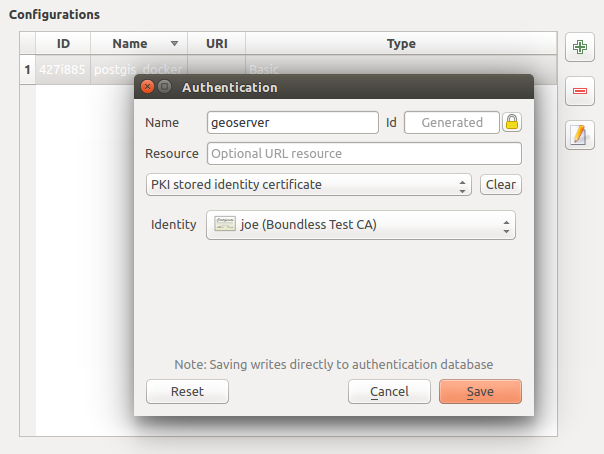
Fig. 21.6 Adăugarea configurărilor din cadrul Editorului de Configurații
The same type of operations for authentication configuration management (Add, Edit and Remove) can be done when configuring a given service connection, such as configuring an OWS service connection. For that, there are action buttons within the configuration selector for fully managing configurations found within the authentication database. In this case, there is no need to go to the configurations in Authentication tab of QGIS options unless you need to do more comprehensive configuration management.
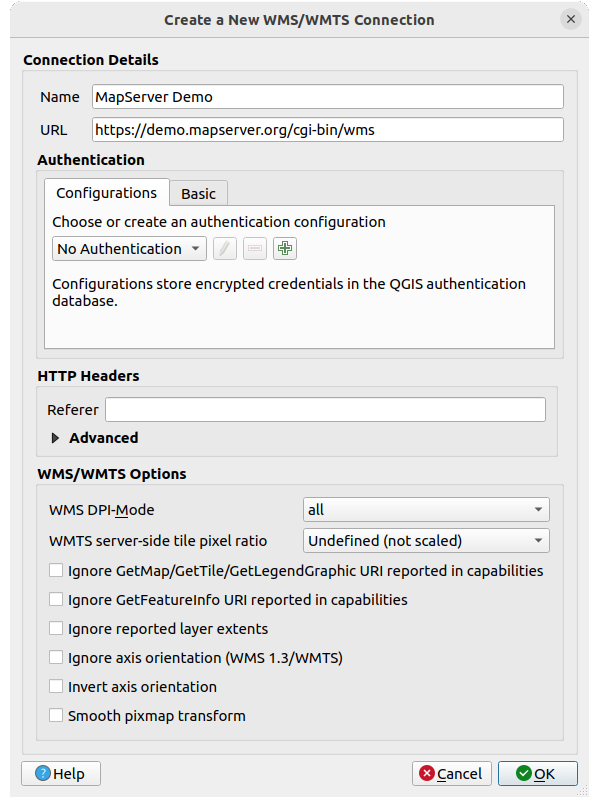
Fig. 21.7 WMS connection dialog showing authentication configuration widget
When creating or editing an authentication configuration, the info required is a name, an authentication method and any other info that the authentication method requires (see more about the available authentication types in Metoda de Autentificare).
21.1.5. Metoda de Autentificare
Available authentications are provided by C++ plugins much in the same way data
provider plugins are supported by QGIS. The method of authentication that can
be selected is relative to the access needed for the resource/provider, e.g.
HTTP(S) or database, and whether there is support in both QGIS code and a
plugin. As such, some authentication method plugins may not be applicable
everywhere an authentication configuration selector is shown. A list of
available authentication method plugins and their compatible resource/providers
can be accessed going to and, in the
Authentication tab, click the  Installed Plugins
button.
Installed Plugins
button.
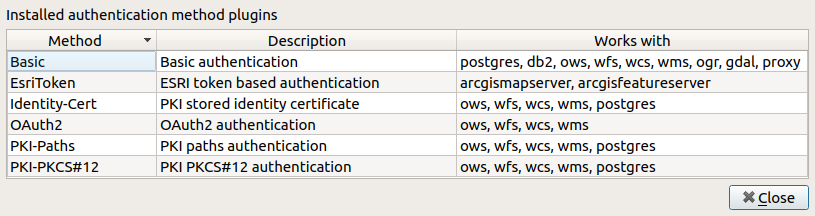
Fig. 21.8 Available method plugins list
Plugins can be created for new authentication methods that do not require QGIS to be recompiled. Since the support for plugins is currently C++-only, QGIS will need to be restarted for the new dropped-in plugin to become available to the user. Ensure your plugin is compiled against the same target version of QGIS if you intend to add it to an existing target install.
21.1.5.1. API Header Authentication
The API Header authentication method allows you to connect to services
that require custom HTTP headers, such as API keys.
For example, if a WMS service requires an API key sent as a header
(e.g. X-API-KEY), you can use this method to provide it.
You can add one or more headers with the button; provide a
Header Name and Header Value for each entry. Use
to delete the selected header or the Clear
button to remove all entries.

Fig. 21.9 API Header authentication configs
21.1.5.2. AWS S3 Authentication
The AWS S3 authentication method allows you to connect to Amazon S3 resources by providing a Name, Resource, Username, Password, and Region.

Fig. 21.10 AWS S3 authentication configs
21.1.5.3. Basic Authentication
The Basic authentication method is used for services that require standard HTTP authentication with a Username, Password and Realm.

Fig. 21.11 Configurări de autentificare HTTP de bază
21.1.5.4. ESRI Token Authentication
The ESRI token authentication method is used for ArcGIS REST Servers that require token-based authentication.

Fig. 21.12 ESRI Token authentication configs
21.1.5.5. Identity certificate authentication
The Identity certificate authentication method allows you to connect using a client identity certificate.

Fig. 21.13 Identity-cert authentication configs
21.1.5.6. MapTiler HMAC-SHA256 Authentication
The MapTiler HMAC-SHA256 authentication method is used to connect to MapTiler services that require HMAC-SHA256 authorization.

Fig. 21.14 MapTiler HmacSha256 authentication configs
21.1.5.7. OAuth2 Authentication
The OAuth2 authentication method is used to connect to services that require OAuth2 2.0 authorization, allowing secure access using client credential and token-based authentication.
It supports using localhost as the redirect host,
providing compatibility with services that do not accept http://127.0.0.1 redirects (for example, Microsoft SharePoint).
An advanced OAuth2 configuration option, Extra token header(s), allows attaching additional tokens returned by the OAuth2 token endpoint as HTTP(S) request headers.

Fig. 21.15 OAuth2 authentication configs
21.1.5.8. PKI-Paths Authentication
The PKI-Paths authentication method allows you to connect using separate certificate and key files stored on your system.

Fig. 21.16 Configurări de autentificare ale căilor PKI
21.1.5.9. PKI-PKCS#12 Authentication
The PKI-PKCS#12 authentication method allows you to connect using a single bundle file containing both the certificate and private key, with an optional passphrase for the key.

Fig. 21.17 Configurări de autentificare ale căilor către fișierele PKI PKCS#12
21.1.6. Utilitare pentru Parola Master și Configurările de Autentificare
Under the Options menu () in the Authentication tab, there are several utility actions to manage the authentication database and configurations:
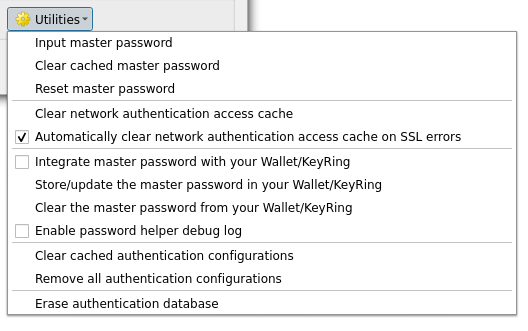
Fig. 21.18 Meniul Utilitarelor
Input master password…: opens the master password input dialog, independent of performing any authentication database command
Clear cached master password: unsets the master password if it has been set
Reset master password…: opens a dialog to change the master password (the current password must be known) and optionally back up the current database
Clear network authentication access cache: clears the authentication cache of all connections
Automatically clear network authentication access cache on SSL errors: the connection cache stores all authentication data for connections, also when the connection fails. If you change authentication configurations or certification authorities, you should clear the authentication cache or restart QGIS. When this option is checked, the authentication cache will be automatically cleared every time an SSL error occurs and you choose to abort the connection
Integrate master password with the Wallet: adds the master password to your personal Wallet/Keyring
Clear the master password from the Wallet…: deletes the master password from your Wallet/Keyring
Enable password helper debug log: enables a debug tool that will contain all the log information of the authentication methods
Clear cached authentication configurations: clears the internal lookup cache for configurations, used to speed up network connections. This does not clear QGIS’s core network access manager’s cache, which requires a relaunch of QGIS.
Remove all authentication configurations…: clears the database of all configuration records, without removing other stored records.
Import authentication configurations from file…: imports from an
.XMLfile details for creating custom authentication configurations.Export selected authentication configurations to file…: exports the selected items to a possibly encrypted
.XMLfile.Erase authentication database…: schedules a backup of the current database and complete rebuild of the database table structure. The actions are scheduled for a later time, to ensure that other operations, like project loading, do not interrupt the operation or cause errors due to a temporarily missing database.
21.1.7. Folosirea configurațiilor de autentificare
În mod tipic, o configurație de autentificare este selectată într-un dialog de configurare, pentru serviciile de rețea (cum ar fi WMS). Cu toate acestea, controlul grafic de selectare poate fi încorporat oriunde este necesară autentificarea, sau într-o funcționalitate care nu este de esențială, cum ar fi plugin-urile terțe PyQGIS sau C++.
When using the selector, No authentication is displayed in the
pop-up menu control when nothing is selected, when there are no configurations
to choose from, or when a previously assigned configuration can no longer be
found in the database. Use the drop-down menu to select an existing authentication
configuration or press Create a new authentication configuration
to create a configuration you could use.
More details at Autentificarea.

Fig. 21.19 Authentication configuration selector with selected config
21.1.8. Legături Python
All classes and public functions have sip bindings, except QgsAuthCrypto, since management of the master password hashing and auth database encryption should be handled by the main app, and not via Python.
Once the master password is entered, the API is open to access authentication configs in the authentication database, similar to how Firefox works. However, no wall against PyQGIS access has been defined. This may lead to issues where a user downloads/installs a malicious PyQGIS plugin or standalone app that gains access to authentication credentials.