重要
翻訳は あなたが参加できる コミュニティの取り組みです。このページは現在 55.36% 翻訳されています。
21.1. 認証システムの概要
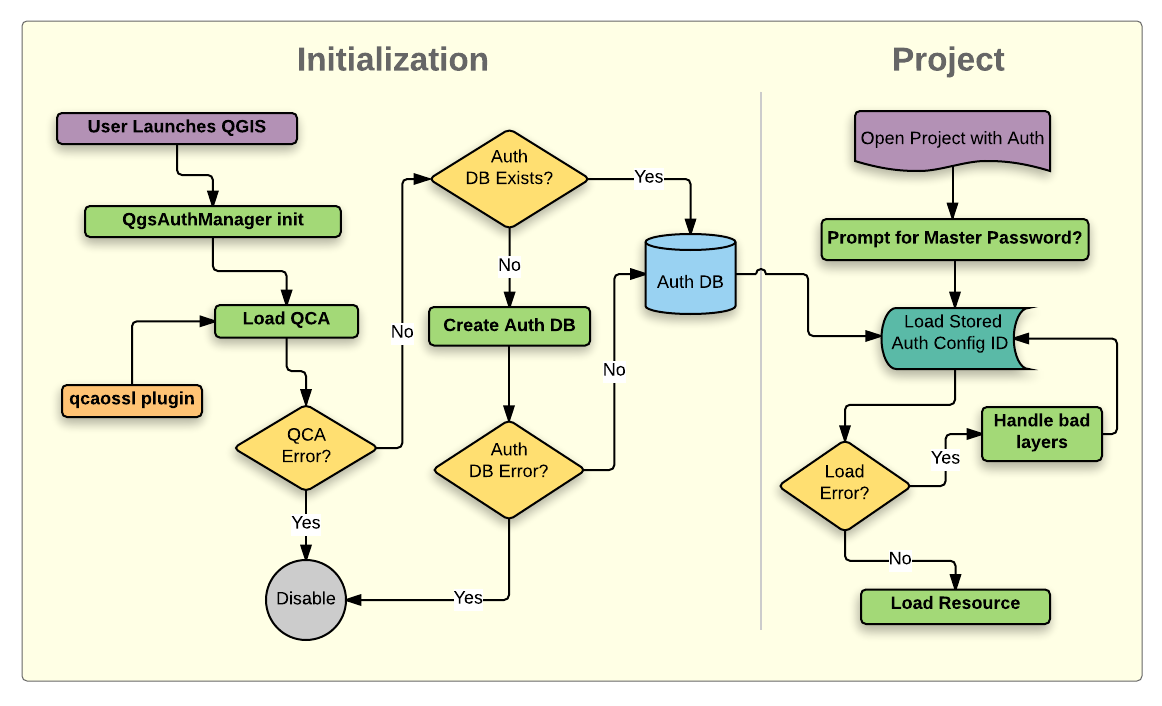
図 21.1 認証システムの構造
21.1.1. 認証データベース
認証システムは、認証設定を SQLite データベースファイルに保存します。このファイルはデフォルトで<profile directory>/qgis-auth.dbに配置されています。
この認証データベースは、それは通常のQGIS設定から完全に分離されているので、他の現在のQGISユーザーの好みに影響を与えることなく、QGISのインストール間で移動できます。最初にデータベースに設定を格納する際に、構成ID(ランダム7文字の英数字文字列)が生成されます。これは設定を表し、これによりIDがその関連する資格情報の開示することなく、プレーンテキストアプリケーションコンポーネント(例えば、プロジェクト、プラグイン、または設定ファイルなど)に格納することを可能にします。
注釈
qgis-auth.db の親ディレクトリは、以下の環境変数、 QGIS_AUTH_DB_DIR_PATH を使用して設定、または --authdbdirectory オプションでの起動時にコマンドラインで設定できます。
21.1.2. カスタム認証データベース
QGIS can be configured to use a custom authentication database instead of the above mentioned default SQLite one: any database supported by the Qt SQL module can be used (e.g. PostgreSQL, MySQL, etc), provided that the corresponding Qt SQL driver is available in the system.
これは、複数のQGISインストール間で同じ認証データベースを共有したい場合や、デフォルトの SQLite とは別の認証データベースを使いたい場合、あるいはQGIS サーバーで集中管理された認証データベースを利用している場合などに便利です。
カスタム認証データベースを設定する唯一の方法は、環境変数``QGIS_AUTH_DB_URI``に接続情報のURIを設定することです。URIの形式は次のとおりです。driver://username:password@hostname:port/database?options
- 項目
driver:使用するQtSQLドライバー名 例:PostgreSQL用はQPSQL、MySQL用は``QMYSQL``などusername:データベース接続に用いるユーザー名password:データベースに接続する際に用いるパスワードhostname:データベースサーバーのホスト名port:データベースサーバーのポート番号database:利用するデータベース名options:ドライバーに渡す追加オプション 例:PostgreSQL の場合sslmode=require
注釈
URIのオプションで``schema``を指定できます。
例:QPSQL://username:password@hostname:port/database?schema=schema_name
データベースはQGIS起動前にあらかじめ作成しておく必要があります。ユーザーには当該データベースへの接続権限と、必要なテーブルが存在しない場合にそれらを作成する権限が付与されている必要があります。
警告
URIに含まれるパスワードは環境変数にプレーンテキストで保存されるため、パスワード不要(パスワードレス)のユーザー、またはデータベースへの接続権限を最小限にしたユーザーの使用を強く推奨します。
警告
SQLite以外のデータベースはすべて読み取り専用として扱われます(必要に応じてPythonプラグインで書き込み可能に変更できます)。
本機能は上級者向けで、複数のカスタム認証データベースや、独自の資格情報付きストレージにアクセスするためのPython実装を、 QGIS から利用できるよう設計されています。
また、複数の認証データベースを併用する仕組みも備えていますが、複数の資格情報ストレージを管理するためのユーザー向けインターフェイスは現時点で提供されていません。そのため、通常はPythonプラグインなどを用いた手動での設定・運用が必要です。
21.1.3. マスターパスワード
データベース内に機密情報を保存したりアクセスしたりするには、ユーザは マスターパスワード を定義しなければなりません。暗号化されたデータをデータベースに初めて保存する際には、新しいマスターパスワードが要求され、確認されます。機密情報がアクセスされるとき、ユーザーはマスターパスワードの入力を求められます。その後、ユーザがキャッシュされた値をクリアするアクションを手動で選択しない限り、パスワードはセッションの終わりまで(アプリケーションが終了するまで)キャッシュされます。既存の認証設定を選択するときや、サーバー構成に設定を適用するとき(WMS レイヤを追加するときなど)など、認証システムを使用するインスタンスによっては、マスターパスワードの入力を必要としません。
パスワードをあなたのコンピュータの Wallet/Keyring に保存することもできます。
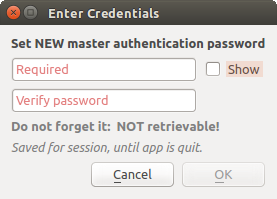
図 21.2 新しいマスターパスワードの入力
注釈
マスターパスワードを含むファイルへのパスは、以下の環境変数、 QGIS_AUTH_PASSWORD_FILE を使用して設定できます。
21.1.3.1. マスターパスワードの管理
一度設定すると、マスターパスワードはリセットできます。現在のマスターパスワードはリセットする前に必要になるでしょう。このプロセスの間には、現在のデータベースの完全なバックアップを作成するオプションがあります。
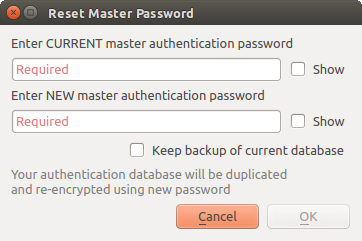
図 21.3 マスターパスワードのリセット
ユーザーがマスターパスワードを忘れた場合は、それを取得したり、上書きする方法はありません。マスターパスワードを知らずに暗号化された情報を検索する手立てもありません。
ユーザーが既存のパスワードを誤って3回入力すると、ダイアログがデータベースを消去しようとします。
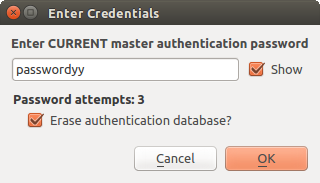
図 21.4 3つの無効な試みの後にパスワードのプロンプト
21.1.4. 認証設定
認証設定はQGISオプションダイアログ ( )の 認証 タブ中の 設定 から管理できます。

図 21.5 設定エディタ
To create a new authentication configuration:
Press the
 Add a new authentication configuration
Provide a Name and optional Resource URL
A seven-characters ID will be assigned to the configuration for identification purpose. It can be customized after you pressed the
 Unlock to edit ID button.
Be aware that updating that ID may break things.
Unlock to edit ID button.
Be aware that updating that ID may break things.Select the target method and fill the corresponding connection details
Once done, click Save to save the configuration. The saved configuration appears in the list of authentication configurations and can be used with supported connections.
The saved configuration can later be edited using  Edit selected configuration
or removed using
Edit selected configuration
or removed using  Delete selected configuration.
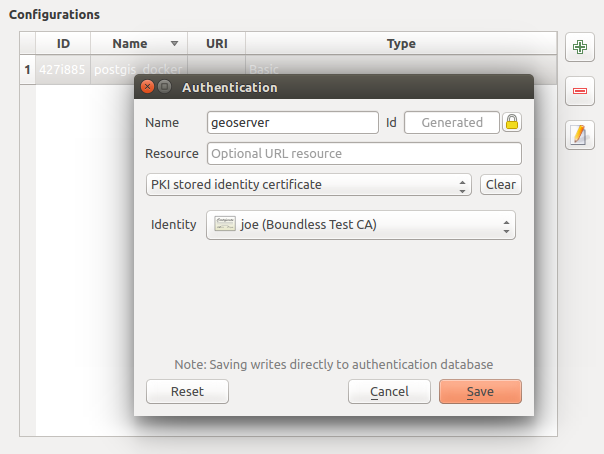
図 21.6 設定エディタから設定を追加
The same type of operations for authentication configuration management (Add, Edit and Remove) can be done when configuring a given service connection, such as configuring an OWS service connection. For that, there are action buttons within the configuration selector for fully managing configurations found within the authentication database. In this case, there is no need to go to the configurations in Authentication tab of QGIS options unless you need to do more comprehensive configuration management.
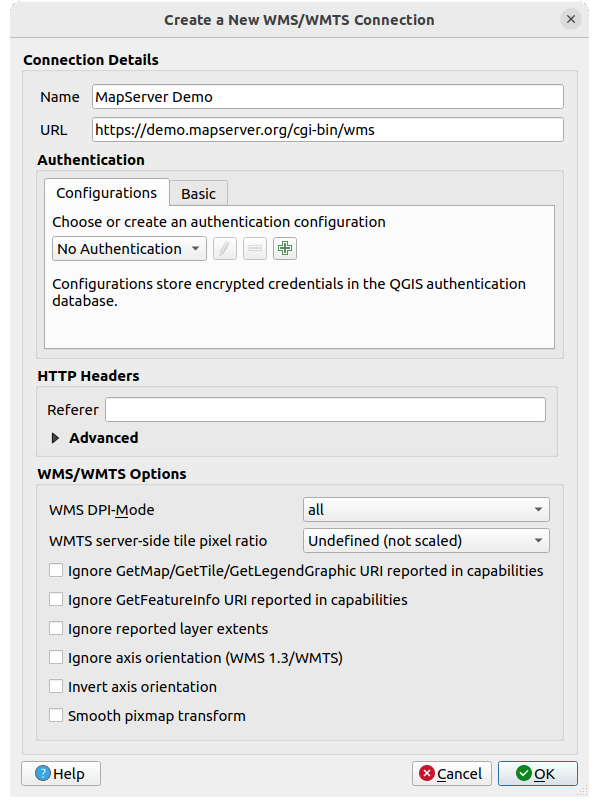
図 21.7 WMS connection dialog showing authentication configuration widget
認証設定を作成または編集するときに、必要な情報には、名前、認証方法および認証方法が必要であること、他の情報(利用可能な認証の種類についての詳細は 認証方式 を参照)。
21.1.5. 認証方式
利用可能な認証は、データプロバイダプラグインが QGIS でサポートされているのと同じように、C++ プラグインによって提供されます。選択できる認証方法は、リソース/プロバイダに必要なアクセス(HTTP(S)やデータベースなど)、およびQGISコードとプラグインの両方にサポートがあるかどうかに関係します。そのため、認証方法プラグインによっては、認証設定セレクタが表示されていても適用できない場合があります。利用可能な認証方法プラグインとその対応リソース/プロバイダの一覧は にアクセスし、 認証 タブの  インストール済みプラグイン ボタンをクリックすると表示されます。
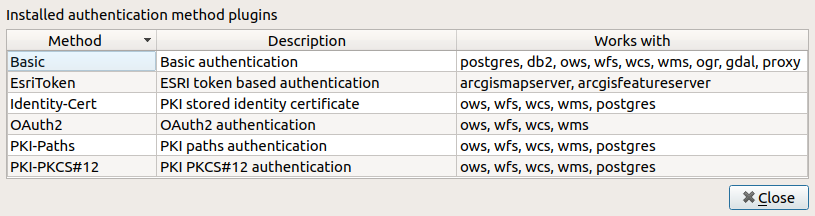
図 21.8 利用可能なメソッドプラグイン一覧
プラグインは、QGIS の再コンパイルを必要とせずに新しい認証方法用に作成できます。現在、プラグインのサポートはC++のみであるため、ドロップインした新しいプラグインをユーザーが使用できるようにするには、QGISを再起動する必要があります。プラグインを既存のターゲットインストールに追加する場合は、プラグインがQGISの同じターゲットバージョンに対してコンパイルされていることを確認してください。
21.1.5.1. API Header Authentication
The API Header authentication method allows you to connect to services
that require custom HTTP headers, such as API keys.
For example, if a WMS service requires an API key sent as a header
(e.g. X-API-KEY), you can use this method to provide it.
You can add one or more headers with the button; provide a
Header Name and Header Value for each entry. Use
to delete the selected header or the Clear
button to remove all entries.

図 21.9 API Header authentication configs
21.1.5.2. AWS S3 Authentication
The AWS S3 authentication method allows you to connect to Amazon S3 resources by providing a Name, Resource, Username, Password, and Region.

図 21.10 AWS S3 authentication configs
21.1.5.3. Basic Authentication
The Basic authentication method is used for services that require standard HTTP authentication with a Username, Password and Realm.

図 21.11 基本HTTP認証構成
21.1.5.4. ESRI Token Authentication
The ESRI token authentication method is used for ArcGIS REST Servers that require token-based authentication.

図 21.12 ESRIトークン認証構成
21.1.5.5. Identity certificate authentication
The Identity certificate authentication method allows you to connect using a client identity certificate.

図 21.13 Identity-cert authentication configs
21.1.5.6. MapTiler HMAC-SHA256 Authentication
The MapTiler HMAC-SHA256 authentication method is used to connect to MapTiler services that require HMAC-SHA256 authorization.

図 21.14 MapTiler HmacSha256 authentication configs
21.1.5.7. OAuth2 Authentication
The OAuth2 authentication method is used to connect to services that require OAuth2 2.0 authorization, allowing secure access using client credential and token-based authentication.
It supports using localhost as the redirect host,
providing compatibility with services that do not accept http://127.0.0.1 redirects (for example, Microsoft SharePoint).
An advanced OAuth2 configuration option, Extra token header(s), allows attaching additional tokens returned by the OAuth2 token endpoint as HTTP(S) request headers.

図 21.15 OAuth2認証構成
21.1.5.8. PKI-Paths Authentication
The PKI-Paths authentication method allows you to connect using separate certificate and key files stored on your system.

図 21.16 PKIパス認証構成
21.1.5.9. PKI-PKCS#12 Authentication
The PKI-PKCS#12 authentication method allows you to connect using a single bundle file containing both the certificate and private key, with an optional passphrase for the key.

図 21.17 PKI PKCS#12ファイルのパス認証構成
21.1.6. マスターパスワードと認証構成ユーティリティ
( )オプションメニューの下にある 認証 タブ、認証データベースと構成を管理するには、いくつかのユーティリティアクションがあります。
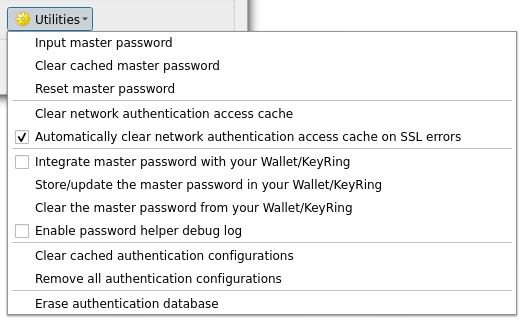
図 21.18 ユーティリティメニュー
Input master password…: opens the master password input dialog, independent of performing any authentication database command
Clear cached master password: unsets the master password if it has been set
Reset master password…: opens a dialog to change the master password (the current password must be known) and optionally back up the current database
Clear network authentication access cache: clears the authentication cache of all connections
Automatically clear network authentication access cache on SSL errors: the connection cache stores all authentication data for connections, also when the connection fails. If you change authentication configurations or certification authorities, you should clear the authentication cache or restart QGIS. When this option is checked, the authentication cache will be automatically cleared every time an SSL error occurs and you choose to abort the connection
Integrate master password with the Wallet: adds the master password to your personal Wallet/Keyring
Clear the master password from the Wallet…: deletes the master password from your Wallet/Keyring
Enable password helper debug log: enables a debug tool that will contain all the log information of the authentication methods
Clear cached authentication configurations: clears the internal lookup cache for configurations, used to speed up network connections. This does not clear QGIS’s core network access manager’s cache, which requires a relaunch of QGIS.
Remove all authentication configurations…: clears the database of all configuration records, without removing other stored records.
Import authentication configurations from file…: imports from an
.XMLfile details for creating custom authentication configurations.Export selected authentication configurations to file…: exports the selected items to a possibly encrypted
.XMLfile.Erase authentication database…: schedules a backup of the current database and complete rebuild of the database table structure. The actions are scheduled for a later time, to ensure that other operations, like project loading, do not interrupt the operation or cause errors due to a temporarily missing database.
21.1.7. 認証設定を使用する
典型的には、認証構成は、(例えば、WMSのような)ネットワークサービスのための設定ダイアログで選択されています。しかし、セレクタウィジェットは、サードパーティのPyQGISまたはC ++プラグインのように、認証が必要などこにでも、または非コア機能中に、埋め込むことができます。
When using the selector, No authentication is displayed in the
pop-up menu control when nothing is selected, when there are no configurations
to choose from, or when a previously assigned configuration can no longer be
found in the database. Use the drop-down menu to select an existing authentication
configuration or press Create a new authentication configuration
to create a configuration you could use.
More details at 認証.

図 21.19 構成が選択された認証設定セレクタ
21.1.8. Pythonバインディング
All classes and public functions have sip bindings, except QgsAuthCrypto, since management of the master password hashing and auth database encryption should be handled by the main app, and not via Python.
マスターパスワードが入力されると、Firefoxの仕組みと同じように、認証データベースの認証設定にアクセスするためのAPIが開かれる。ただし、PyQGISアクセスに対する壁は定義されていません。このため、認証情報にアクセスする悪意のあるPyQGISプラグインやスタンドアロンアプリをユーザーがダウンロード/インストールした場合に問題が発生する可能性があります。