重要
翻訳は あなたが参加できる コミュニティの取り組みです。このページは現在 100.00% 翻訳されています。
18.23. 補間(続)
注釈
この章では、補間アルゴリズムが使用される別の実用的な場合を示しています。
補間は一般的な技術であり、QGISプロセシングフレームワークを使用して適用できるいくつかの技術を実際にやってみせるのに使用できます。このレッスンでは既に紹介したいくつかの補間アルゴリズムを別のアプローチで使用します。
このレッスン用のデータもポイントレイヤーを含んでいますが、この場合は標高データです。前のレッスンで行ったのとほとんど同じ方法で補間しますが、今回は元のデータの一部を保存しておいて、補間処理の品質を評価するためにそれを使用します。
まず、ポイントレイヤをラスタ化し、no--data セルを埋めますが、レイヤ内の一部のポイントだけを使用します。ポイントの 10% を後のチェックのために取っておくので、ポイントの90%を補間のために準備する必要があります。そのためには前のレッスンで使った シェープレイヤーをランダムに分割 アルゴリズムを使用できますが、新しい中間レイヤーを全く作ることなく それをするもっと良い方法があります。代わりの方法では、補間に使用したいポイント(90%の部分)を選択だけして、その後、アルゴリズムを実行します。既に見てきたように、ラスタ化アルゴリズムは、選択されたポイントだけを使用し、残りを無視します。選択は、 ランダム選択 アルゴリズムを使用して行うことができます。次のパラメーターを使用して、それを実行します。
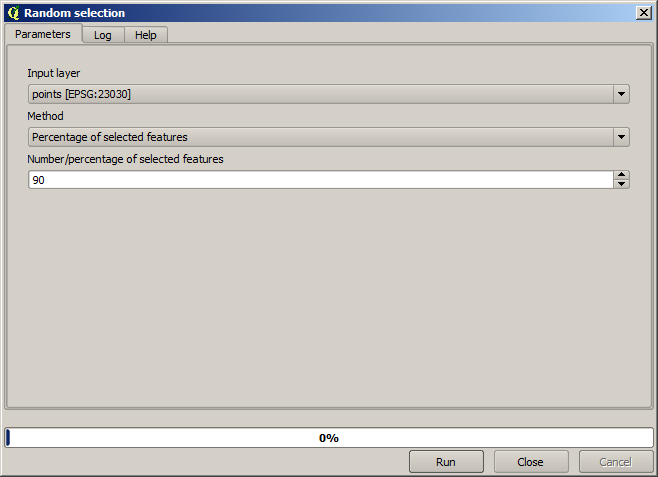
それはラスタ化するレイヤにあるポイントの90%を選択します
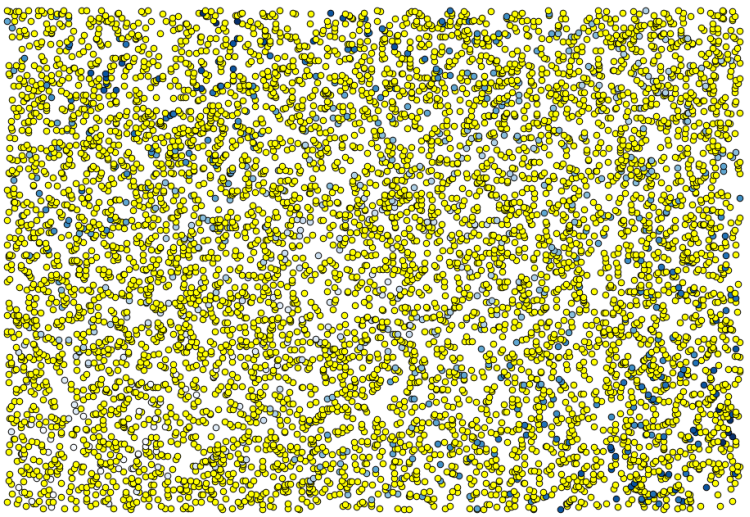
選択はランダムなので、あなたの選択は上記の画像に示されている選択とは異なるでしょう。
今度は ラスタライズ アルゴリズムを実行して最初のラスタレイヤを手に入れ、次に Close gaps アルゴリズムを実行して no-data セルを埋めます[セル解像度:100 m]。
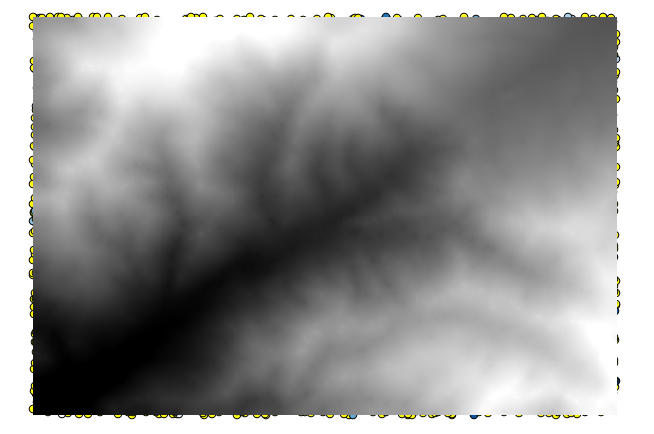
補間の品質を確認するために、ここで選択されていないポイントを使用できます。この時点で、実際の標高(ポイントレイヤーにおける値)と補間した標高(補間ラスタレイヤの値)を知っています。これらの値の差を計算することにより、2つを比較できます。
選択されていないポイントを使用しようとしているので、まず、この選択を反転してみましょう。
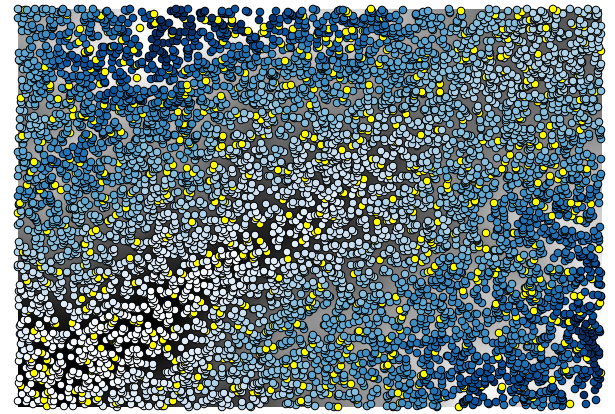
ポイントは、補間されたものではなく、元の値を格納しています。それらを新しいフィールドに追加するには、 Add raster values to points アルゴリズムを使用できます
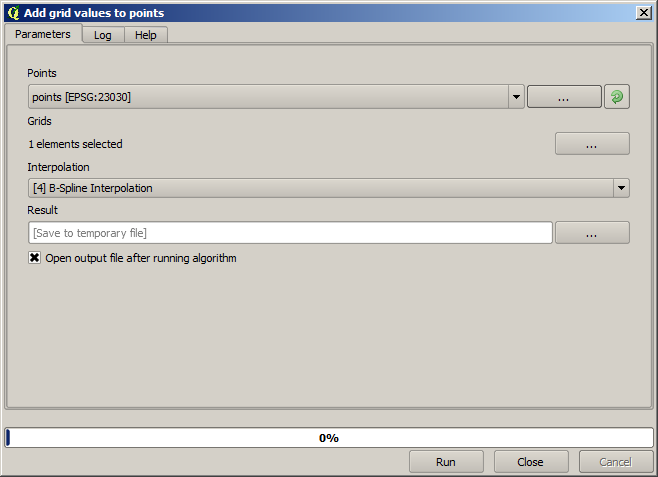
選択するラスタレイヤ(アルゴリズムは複数のラスタをサポートしていますが、ここでは1つだけ必要)は補間の成果レイヤです。ここではその名前を interpolate に変更しました。このレイヤ名は追加するフィールドの名前に使用されます。
これで補間に使用しなかったポイントに両方の値を格納したベクタレイヤができました。
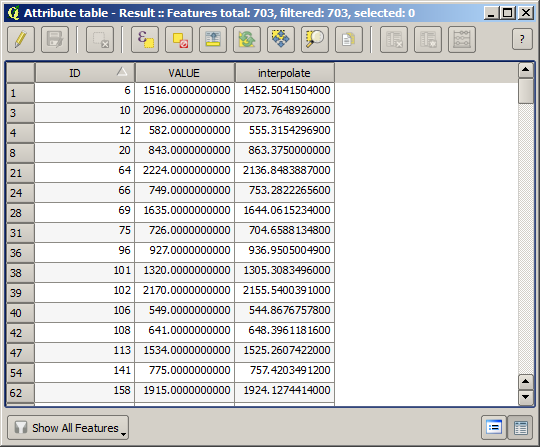
今度はこの作業にフィールド計算機を使用します。 フィールド計算機 アルゴリズムを開き、次のパラメータでそれを実行してください。
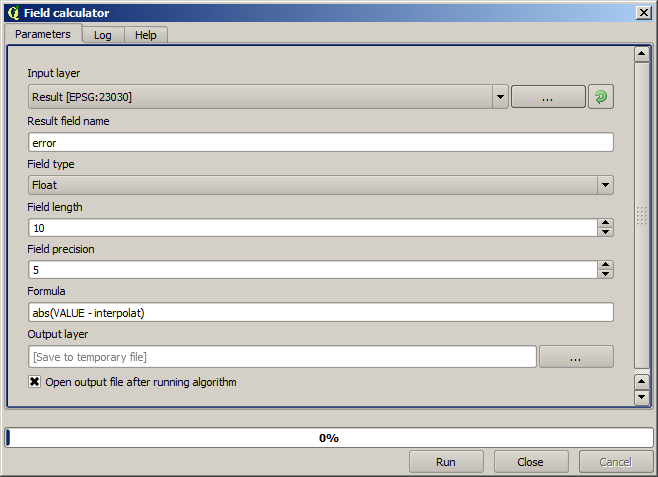
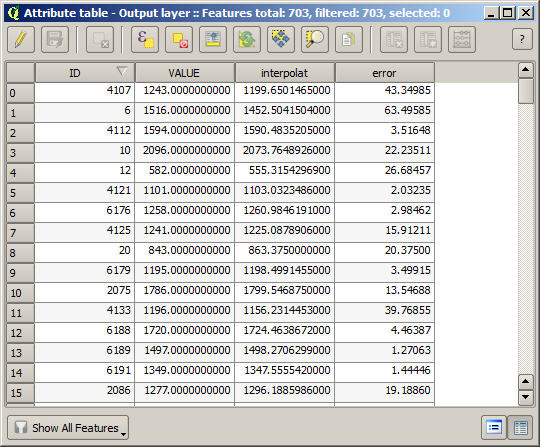
ラスタレイヤからの値を持つフィールドに異なる名前を使っている場合は、それに応じて上記の式を変更する必要があります。このアルゴリズムを実行すると、補間に使用していないポイントだけを持ち、各ポイントが2つの標高値の差を格納している新しいレイヤが得られます。
その値に従ってそのレイヤーを表現すると最大の不一致がどこに見つかるかの最初のアイデアが得られるでしょう。
そのレイヤを補間すると、補間された地域の全てのポイントにおける推定誤差を持ったラスタレイヤが得られます。
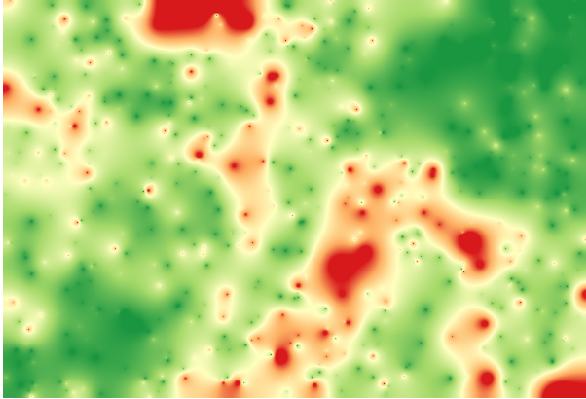
で同じ情報(元のポイントの値と補間されたものとの差)を直接得ることもできます。
このレッスンの初めでランダムな選択を実行する際にランダム成分が入るので、結果はこれらのものと異なるでしょう。