重要
翻訳は あなたが参加できる コミュニティの取り組みです。このページは現在 100.00% 翻訳されています。
2. GIS入門
|
目的 |
GISとは何か、何ができるのかを理解する。 |
キーワード: |
GIS, コンピュータ, 地図, データ, 情報システム, 空間解析 |
2.1. 概要
ワープロを使用してコンピュータで文章を書いたり扱ったりできるのと同じように、 GIS アプリケーション を使用して 空間情報 を扱うことができます。 GIS とは 地理情報システム (Geographical Information System) のことです。
GIS は以下のものから構成されます。
デジタルデータ --- コンピュータハードウェアとソフトウェアを使って表示や分析する地理情報。
コンピュータハードウェア --- データの保存、グラフィックの表示、データの処理に使われるコンピュータ。
コンピュータソフトウェア --- コンピュータハードウェア上で動作し、デジタルデータの処理を可能にするコンピュータプログラム。GISを構成するソフトウェアプログラムは、GISアプリケーションと呼ばれます。
GISアプリケーションを使うとコンピュータ上のデジタル地図を開いたり, 新しい空間情報データを作成して地図に加えたり、必要に応じてカスタマイズした地図の印刷物を制作したり空間解析が出来ます。
GISがどんなに便利なのかちょっと例を見てみましょう。あなたが医療従事者だとして、患者たちの診療日と自宅の位置を記録しているとします。
経度 |
緯度 |
病気 |
日付 |
|---|---|---|---|
26.870436 |
-31.909519 |
おたふく風邪 |
2008年12月13日 |
26.868682 |
-31.909259 |
おたふく風邪 |
2008年12月24日 |
26.867707 |
-31.910494 |
おたふく風邪 |
2009年01月22日 |
26.854908 |
-31.920759 |
はしか |
2009年01月11日 |
26.855817 |
-31.921929 |
はしか |
2009年01月26日 |
26.852764 |
-31.921929 |
はしか |
2009年02月10日 |
26.854778 |
-31.925112 |
はしか |
2009年02月22日 |
26.869072 |
-31.911988 |
おたふく風邪 |
2009年02月02日 |
26.863354 |
-31.916406 |
水疱瘡 |
2009年02月26日 |
上の表を見ると, 1月と2月には多くのはしかが発症していたことがわかります。医療従事者は、それぞれの患者の家の位置を緯度経度で表に記録していました。このデータを GIS アプリケーションで使えば、病気の規則性についてより多くのことを簡単に理解することができるようになります。
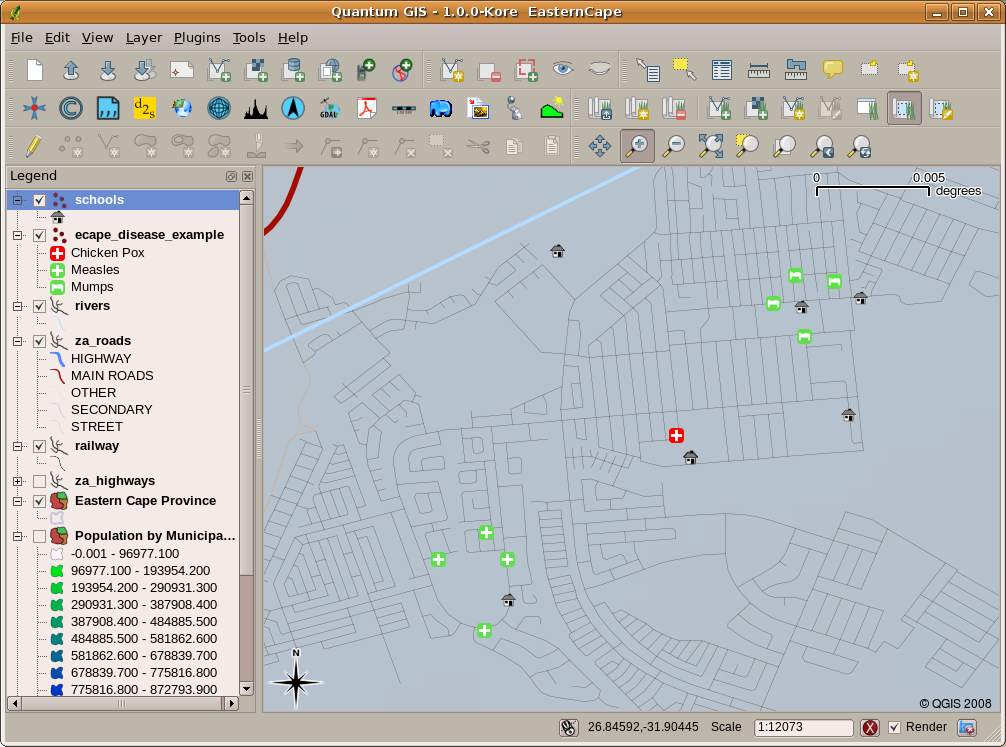
図 2.11 こちらの例では GIS アプリケーションで様々な疾病記録を見せています。おたふく風邪患者同士が近くに居住していることが簡単に見て取れます。
2.2. GISについてより詳しく
GISは、1970年代に始まった比較的新しい分野です。かつては、コンピュータ化されたGISを利用できるのは、高価なコンピュータ機器を所有する企業や大学に限られていました。しかし現在では、パソコンやノートパソコンさえあれば、誰でもGISソフトウェアを利用できるようになっています。また、時間の経過とともにGISアプリケーションも使いやすくなりました。以前はGISアプリケーションを使用するために多くの訓練が必要でしたが、現在ではアマチュアや一般ユーザーであっても、GISを簡単に始められるようになっています。前述したように、GISは単なるソフトウェアにとどまらず、デジタル地理データの管理や利用に関するあらゆる側面を指します。以下のチュートリアルでは、GISソフトウェアに焦点を当てて解説します。
2.3. GIS ソフトウェア / アプリケーションとは何か?
GISアプリケーション がどのようなものかは、図 2.11 の例をご覧ください。GISアプリケーションは通常、マウスやキーボードを使って操作できるグラフィカルユーザーインターフェイスを備えたプログラムです。アプリケーションは、ウィンドウの上部付近に メニュー ( プロジェクト、編集 など)を用意しており、マウスでクリックすると 機能 のパネルが表示されます。これらの機能を使うことで、GISアプリケーションに対して何をしたいかを指示することができます。例えば 図 2.12 に示されているように、メニューを使って、表示出力に新しいレイヤを追加するよう GIS アプリケーションに指示することができます。
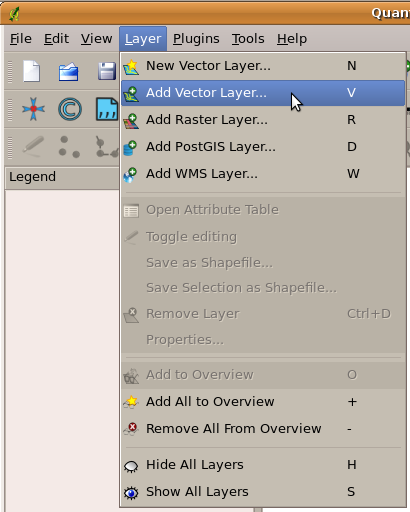
図 2.12 アプリケーションのメニューは、マウスでクリックすると、開いて実行可能な操作の一覧が表示されます。
図 2.13 に示されているように、 ツールバー (マウスでクリックできる小さなアイコンが並んだ行)は通常、メニューのすぐ下に配置され、頻繁に使用する機能を素早く実行できるようにします。

図 2.13 ツールバーでは、よく使う機能にすばやくアクセスできます。アイコンの上にマウスをかざすと、それをクリックしたときに何が起こるかが表示されます。
GISアプリケーションの一般的な機能のひとつは、地図レイヤ を表示することです。地図レイヤはディスク上のファイルやデータベース内のレコードとして保存されます。通常、それぞれの地図レイヤは現実世界の何かを表しています。たとえば、道路レイヤは街路ネットワークについてのデータを持ちます。
GISアプリケーションでレイヤを開くと、それは マップビュー に現れます。マップビューはレイヤを表すグラフィックを表示します。マップビューに複数のレイヤを追加すると、レイヤは互いに重なり合って表示されます。図 2.14、 図 2.15 、 図 2.16 、 図 2.17 を見ると、マップビューに複数のレイヤが追加される様子が分かります。
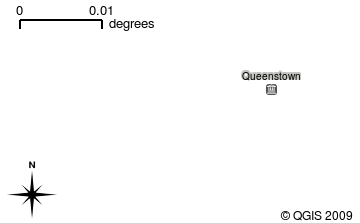
図 2.14 マップビューに追加された街レイヤ
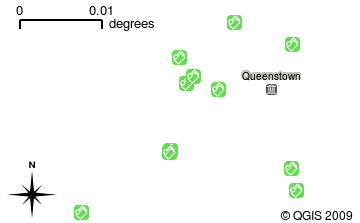
図 2.15 マップビューに追加された学校レイヤ

図 2.16 マップビューに追加された線路レイヤ

図 2.17 マップビューに追加された川レイヤ
マップビューの重要な機能として、ズームインして拡大表示したり、ズームアウトしてより広い範囲を表示したり、地図の中を移動(パン)したりすることが挙げられます。またGISソフトウェアでは、情報の表示方法であるシンボロジを簡単に変更することもできます。図 2.18 は、地図を横方向にパンし、レイヤのシンボロジを変更した後のマップビューを示しています。
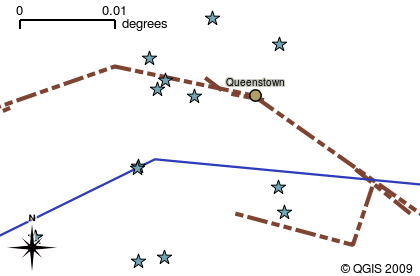
図 2.18 移動(パン)してシンボロジを変えた後のマップビュー
GISアプリケーションのもう一つの一般的な機能は、マップ凡例 です。マップ凡例は、GISアプリケーションに読み込まれたレイヤのリストを提供します。紙の地図の凡例とは異なり、GISアプリケーションのマップ凡例または「レイヤリスト」は、レイヤの順序変更、非表示、表示及びグループ化する手段を提供します。レイヤの順序変更は、凡例内のレイヤをクリックし、マウスボタンを押したまま、レイヤを新しい位置までドラッグすることで行われます。 図 2.19 と 図 2.20 では、マップ凡例はGISアプリケーションウィンドウの左側の領域に表示されています。レイヤの順序を変更することで、レイヤの描画方法を調整することができます。この場合、河川は道路の上にではなく、その下に描画されるようになります。
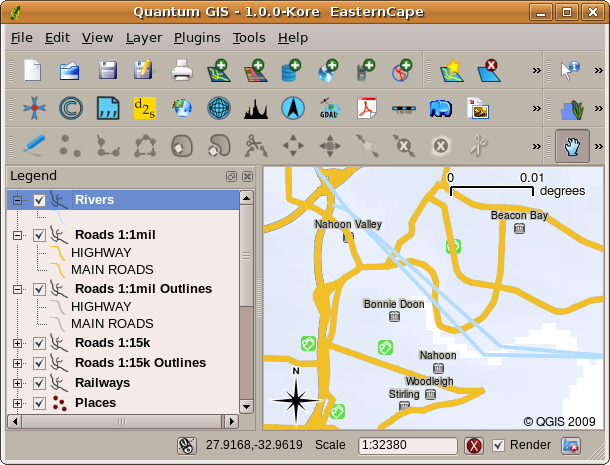
図 2.19 レイヤの順序を変更することで、レイヤの描画方法を調整することができます。レイヤの順序を変更する前は、河川が道路の上に描画されています
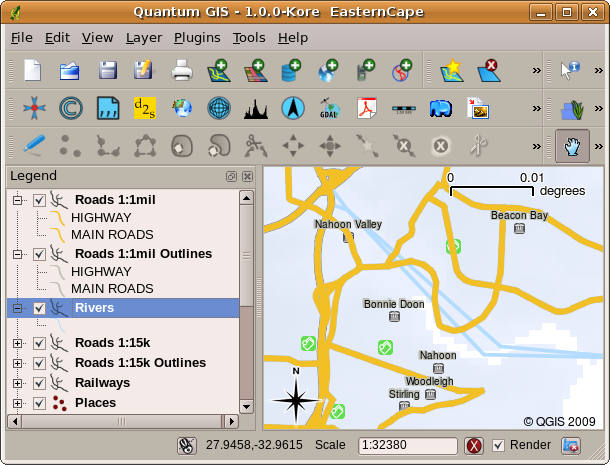
図 2.20 レイヤの順序を変更することで、レイヤの描画方法を調整することができます。レイヤの順序を変更すると、河川が道路の下に描画されています
2.4. GISアプリケーションを入手してみよう
たくさんの異なるGIS アプリケーションが入手できます。洗練された機能を持ち1ライセンス当たり7万円ほどかかるものもあります。一方で、無料で手に入れられるものもあります。どの GISアプリケーションを使うかは、どれだけのお金を出せるか、そして個人の好みの問題です。このチュートリアルでは QGIS アプリケーションを使います。 QGIS は完全にフリーなので、好きなだけ複製したり友人と共有することができます。もしあなたがこのチュートリアルを印刷物として手に入れたなら、QGIS の複製も一緒に手に入れていることでしょう。そうでなくても、インターネットにアクセスすることができれば、いつでもダウンロードページ https://www.qgis.org/ にアクセスして無料で手に入れることができます。
2.5. GISデータ
それではGISとは何か、GISアプリケーションは何ができるのか解ってきたところで GISデータ について説明しましょう。データは 情報 と言い換えることもできます。GISで使う情報は、通常地理的な側面を持っています。前述の医療関係者の例を考えてみましょう。彼女は 症例を記録するために以下のような表を作りました:
経度 |
緯度 |
病気 |
日付 |
|---|---|---|---|
26.870436 |
-31.909519 |
おたふく風邪 |
2008年12月13日 |
経度と緯度の列は 地理的なデータ を持っています。病気と診療日の列は 地理的ではないデータ です。
GISの一般的な機能のひとつは、情報(地理的ではないデータ)を場所(地理的なデータ)に関連付けられることです。事実、GISアプリケーションは、それぞれの場所に関連付けられたたくさんの情報の断片を保存すること-紙の地図があまり得意でないこと-ができます。例えば医療従事者たちは患者の年齢や性別といったデータを表に保存できるでしょう。GISアプリケーションがレイヤを描画するとき、性別に基づいたレイヤや病気の種類に基づいたレイヤなどを描画をするように指示することができます。このように、GISアプリケーションを使えば、作成した地図の外観を場所に関連付けられた地理的でないデータに基づいて簡単に変更することができるのです。
GISシステムは様々な種類のデータを扱います。ベクタデータ は、コンピュータのメモリ内にX、Yの座標ペアの連続として格納されています。ベクタデータは、点、線、面を表現するために使用されます。イラスト 図 2.21 はGISアプリケーションで表示される様々な種類のベクタデータを表しています。この後のチュートリアルでは、ベクタデータについてより詳しく説明します。
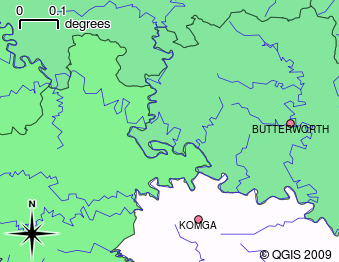
図 2.21 ベクタデータは、点 (例 町) , 線 (例 河川) , 面 (例 行政区) を表すのに使われます
ラスタデータ は、格子状の数値として保存されています。地球を周回しているたくさんの人工衛星が撮影した写真は、GISで見ることのできるラスタデータの一種です。ラスタデータとベクタデータの重要な違いの一つは、ラスタ画像を拡大しすぎると「ブロック状」に見えてしまうことです( 図 2.22 および 図 2.23 を参照)。実際には、これらのブロックは、ラスタ画像を構成するデータグリッドの個々のセルです。ラスタデータについては、後のチュートリアルでさらに詳しく見ていきます。
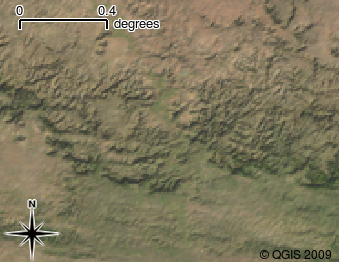
図 2.22 衛星画像のラスタデータ.こちらは東ケープの山岳地帯です.
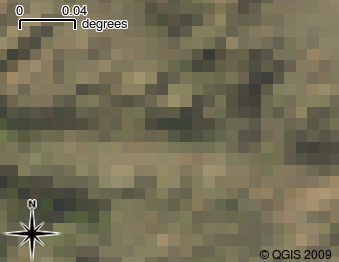
図 2.23 同じラスタデータを拡大したもの。データのグリッドの性質が分かります。
2.6. 分かりましたか?
ここでは以下のことを学びました:
GIS とはコンピュータ・ハードウェア, コンピュータ・ソフトウェア, 地理的なデータのシステムです.
GISアプリケーション は地理的なデータを見ることを可能にし, GISの重要な部分を占めます.
GISアプリケーションは通常、 メニューバー 、 ツールバー 、 マップビュー 、 凡例 から構成されます.
GISアプリケーションで使われる地理的なデータには ベクタデータ と ラスタデータ があります。
地理的な データは 地理的ではない データと関連付けることができます。
2.7. やってみよう
ここでは生徒に教える際のアイデアをいくつか述べていきます:
地理学: このチュートリアルで示したように、GISの概念を自分の学習者に言葉で説明してください。なぜ紙地図よりGISの方が便利なのか、学習者に3つ理由を考えさせてみて下さい。以下にいくつかの例を示します:
GISアプリケーションを用いることで, 同じデータから様々なタイプの地図を作ることができます.
GISはすばらしい可視化ツールで, データそのものやそれらが空間的にどのような関係性を持っているのか(例えば先ほど示した病気の拡大など)を示すことができます.
紙地図はファイルにして保管しなければならず, 見られるまでに時間がかかります. GISは非常に大きな量の地図データから興味のある地域を簡単に素早く探して見ることができます.
地理学: あなたやあなたの生徒たちはどのように衛星データからラスタデータを活用できると思いますか?ここではいくつかアイデアを述べていきます:
災害発生時、ラスタデータは対象地域がどこかを示すのに便利です。例えば、洪水発生時に撮影された最新の衛星画像は、救助を必要としているかもしれない人々がどこにいるかを示すことができます。
人々は、植物や動物に害を及ぼす危険な化学薬品の廃棄などといった、環境に悪影響をもたらす行為をすることがあります. こういった問題は, 衛星画像のようなラスタデータを使って監視することができます.
都市計画を行う人にとっては衛星画像といったラスタデータを使うことにより, どこに居住区域が存在するのかを把握し, インフラ計画に役立てることができます.
2.8. 考えてみよう
もしコンピュータが利用できない場合でも、このチュートリアルの多くの項目は、OHPとシートを使って、レイヤ情報の重ね合わせを同様におこなうことで再現可能です。ですが、GISについて正しく理解する目的ならば、コンピュータを使って学ぶ方がよいでしょう。
2.9. 参考文献
書籍: Desktop GIS: Mapping the Planet with Open Source Tools. (デスクトップGIS:オープンソースツールで地球を地図化する) 著者: Gary Sherman. ISBN: 9781934356067
QGISユーザーガイドでは, QGISについてより詳細な情報が含まれています.
2.10. 次は?
この後のセクションではもっと詳しくどうやってGISアプリケーションを使うのか掘り下げていきます. すべてのチュートリアルはQGISで行われています. 次はベクタデータを見てみましょう!