중요
번역은 여러분이 참여할 수 있는 커뮤니티 활동입니다. 이 페이지는 현재 100.00% 번역되었습니다.
21.1. 인증 시스템 개요
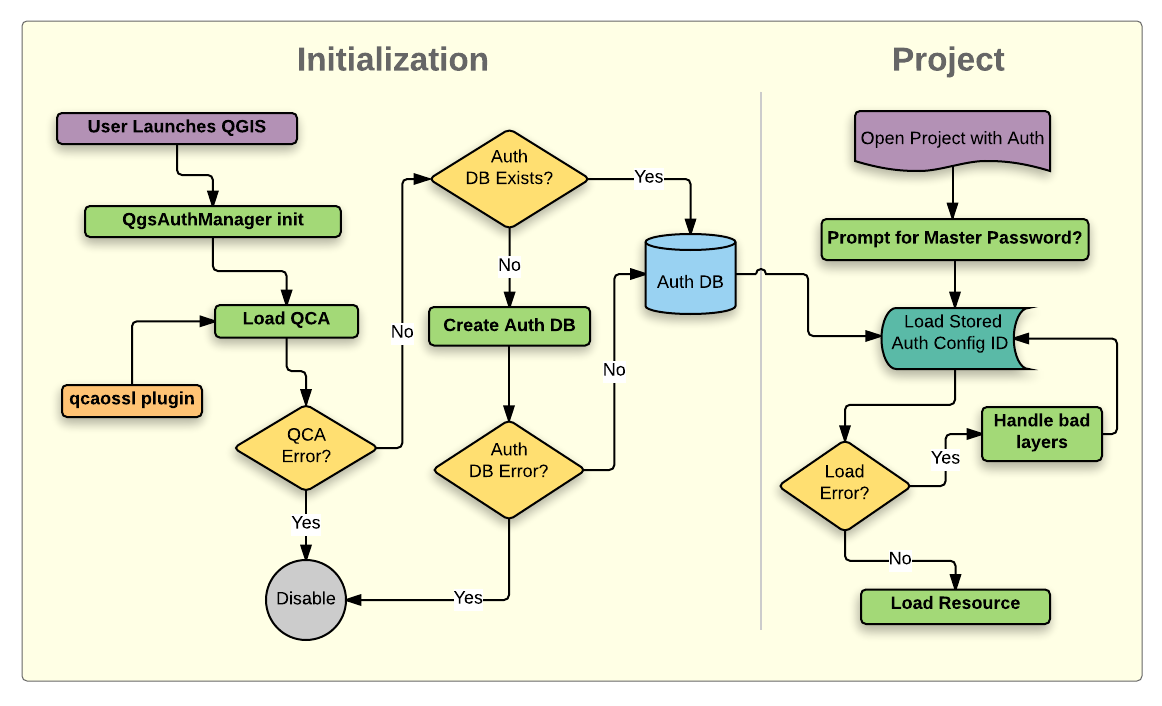
그림 21.1 인증 시스템 개념도
21.1.1. 인증 데이터베이스
인증 시스템은 기본적으로 <profile directory>/qgis-auth.db 위치에 있는 SQLite 데이터베이스 파일에 인증 환경 설정을 저장합니다.
현재의 다른 QGIS 사용자 환경 설정에 영향을 미치지 않고 서로 다른 QGIS 설치본 간에 이 인증 데이터베이스를 이동시킬 수 있습니다. 인증 데이터베이스가 일반적인 QGIS 설정과 완벽하게 분리되어 있기 때문입니다. 환경 설정을 데이터베이스에 처음으로 저장할 때 환경 설정 ID(랜덤한 문자 7개 길이의 알파벳-숫자 문자열)를 생성합니다. 이 ID가 환경 설정을 가리키기 때문에, 관련 인증 정보를 노출시키는 일 없이 ID를 (프로젝트, 플러그인, 또는 설정 파일과 같은) 평문 텍스트 응용 프로그램 구성 요소로 저장할 수 있습니다.
참고
환경 변수 QGIS_AUTH_DB_DIR_PATH 를 사용하거나 또는 QGIS 구동 시 명령 줄에서 --authdbdirectory 옵션을 설정해서 qgis-auth.db 의 상위(부모) 디렉터리를 설정할 수 있습니다.
21.1.2. 사용자 정의 인증 데이터베이스
QGIS가 앞에서 이야기한 기본 SQLite 데이터베이스 대신 사용자 정의 인증 데이터베이스를 사용하도록 환경설정할 수 있습니다. Qt SQL 모듈이 지원하는 모든 데이터베이스(예: PostgreSQL, MySQL 등등)를 사용할 수 있습니다. 물론 시스템 상에 해당 데이터베이스의 Qt SQL 드라이버가 설치되어 있어야 하겠죠.
사용자가 여러 QGIS 설치본들 사이에서 동일한 인증 데이터베이스를 공유하길 원한다거나, 기본 SQLite 데이터베이스가 아닌 다른 인증 데이터베이스를 사용하길 원한다거나, 또는 QGIS 서버가 중앙 집중형(centralized) 인증 데이터베이스를 사용하고 있는 경우 이 기능이 유용할 수 있습니다.
사용자 정의 인증 데이터베이스를 환경설정할 수 있는 유일한 방법은 driver://username:password@hostname:port/database?options 형식의 연결 URI에 환경 변수 QGIS_AUTH_DB_URI 를 설정하는 것입니다.
- 이때:
driver: 사용할 Qt SQL 드라이버의 이름, 예: PostgreSQL은QPSQL, MySQL은QMYSQL등등username: 데이터베이스에 연결하기 위해 쓰이는 사용자명password: 데이터베이스에 연결하기 위해 쓰이는 비밀번호hostname: 데이터베이스 서버의 호스트명port: 데이터베이스 서버의 포트 번호database: 사용할 데이터베이스의 이름options: 드라이버로 전송할 옵션들, 예: PostgreSQL의 경우sslmode=require등등
참고
URI 옵션에서 schema 를 지정할 수 있습니다. 예: QPSQL://username:password@hostname:port/database?schema=schema_name
QGIS를 시작하기 전에 데이터베이스가 존재하고 있어야만 하며, 사용자는 데이터베이스에 연결하기 위해 필요한 권한과 필수 테이블이 존재하지 않을 경우 생성할 수 있는 권한을 가지고 있어야만 합니다.
경고
URI에서 비밀번호는 환경 변수 안에 평문으로 저장되기 때문에, 비밀번호가 없는 사용자명 또는 데이터베이스에 제한적인 권한으로 연결되는 사용자명을 사용할 것을 권장합니다.
경고
SQLite을 기반으로 하지 않는 모든 데이터베이스는 읽기 전용으로 간주될 것입니다. (필요한 경우 파이썬 플러그인을 통해 변경할 수 있습니다.)
이 고급 기능은 QGIS가 하나 이상의 사용자 정의 인증 데이터베이스를 사용할 수 있도록, 또는 QGIS가 사용할 자격 증명 저장소를 사용자가 직접 파이썬으로 구현할 수 있도록 설계되었습니다.
이 시스템은 여러 개의 인증 데이터베이스를 사용할 수 있도록 설계되었지만, 지금으로써는 여러 자격 증명 저장소를 관리할 수 있는 사용자향 인터페이스가 존재하지 않습니다. 즉 인증 데이터베이스를 여러 개 사용하고 싶다면, 대부분의 경우 파이썬 플러그인을 통해 수동으로 환경설정하고 관리해야 합니다.
21.1.3. 마스터 비밀번호
데이터베이스 내에 민감한 정보를 저장하거나 접근하려면, 사용자가 마스터 비밀번호 를 정의해야만 합니다. 데이터베이스에 암호화된 데이터를 처음으로 저장할 때 새 마스터 비밀번호를 요청하고 확인합니다. 사용자가 민감한 정보에 접근할 때 마스터 비밀번호를 입력해야 합니다. 사용자가 캐시값을 수동으로 삭제하지만 않는다면 남은 세션 동안 (응용 프로그램을 종료할 때까지) 마스터 비밀번호를 캐시에 저장합니다. 기존 인증 환경 설정을 선택한다거나 또는 (WMS 레이어 추가 시처럼) 서버 환경 설정에 인증 환경 설정을 적용한다거나 하는 경우와 같은 인증 시스템을 이용하는 일부 인스턴스는 마스터 비밀번호를 요구하지 않습니다.
사용자 컴퓨터의 Wallet/Keyring 에 비밀번호를 저장하도록 선택할 수 있습니다.
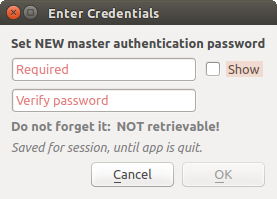
그림 21.2 새 마스터 비밀번호 입력 대화창
참고
환경 변수 QGIS_AUTH_PASSWORD_FILE 을 이용해서 마스터 비밀번호를 담고 있는 파일을 가리키는 경로를 설정할 수 있습니다.
21.1.3.1. 마스터 비밀번호 관리하기
마스터 비밀번호를 설정한 다음, 다시 리셋할 수 있습니다. 리셋하기 전에 현재 마스터 비밀번호를 입력해야 합니다. 이 과정 도중에 현재 데이터베이스의 완전한 백업 파일을 생성하는 옵션이 있습니다.
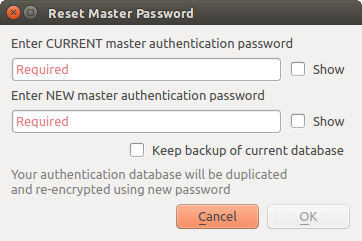
그림 21.3 마스터 비밀번호 리셋하기
사용자가 마스터 비밀번호를 잊어버린 경우, 다시 찾거나 무시할 수 있는 방법은 없습니다. 또 마스터 비밀번호 없이 암호화된 정보를 받아올 수 있는 방법도 없습니다.
사용자가 기존 비밀번호를 세 번 부정확하게 입력한 경우, 대화창이 데이터베이스를 삭제하도록 제안할 것입니다.
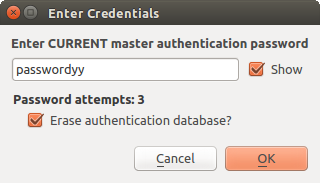
그림 21.4 부정확한 시도를 세 번 한 후의 QGIS 비밀번호 메시지
21.1.4. 인증 환경 설정
QGIS 옵션 대화창의 () Authentication 탭에 있는 Configurations 부분에서 인증 환경 설정을 관리할 수 있습니다.

그림 21.5 환경 설정 편집기
새 인증 환경 설정을 생성하려면:
 Add a new authentication configuration 을 누르십시오.
Name 과 부가적인 Resource URL을 입력하십시오.
새로운 환경 설정을 식별하기 위해 7 글자의 ID 가 할당될 것입니다. 사용자가
 Unlock to edit ID 버튼을 눌러 변경할 수 있습니다. ID를 업데이트하면 에러가 발생할 수도 있으니 주의하십시오.
대상 메소드 를 선택한 다음 해당하는 연결 상세 정보를 입력하십시오.
입력이 끝나면 Save 를 클릭해서 환경 설정을 저장하십시오. 인증 환경 설정 목록에 저장한 환경 설정이 추가되어 지원하는 연결과 함께 사용할 수 있게 됩니다.
저장한 환경 설정은 이후  Edit selected configuration 으로 편집하거나
  Delete selected configuration 으로 제거할 수 있습니다.
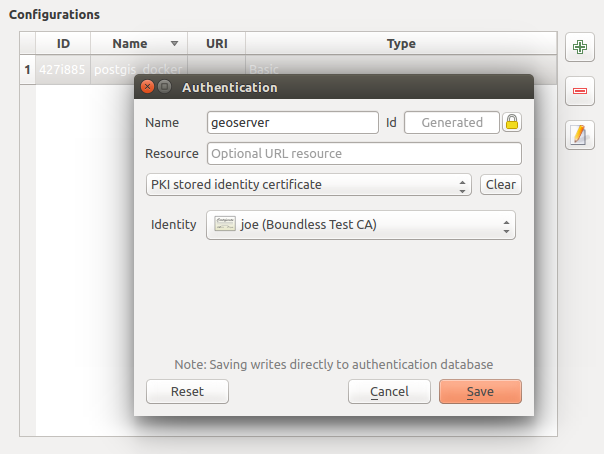
그림 21.6 환경 설정 편집기 안에서 환경 설정 추가하기
OWS 서비스 연결과 같은 지정한 서비스 연결을 환경 설정할 때, 인증 환경 설정 관리에 대해 세 가지 유형의 작업(추가, 편집 및 제거)을 할 수 있습니다. 이를 위해, 환경 설정 선택기 안에 인증 데이터베이스에서 찾은 환경 설정을 완전히 관리할 수 있는 액션 버튼들이 있습니다. 이런 경우, 환경 설정을 좀 더 종합적으로 관리해야 할 필요가 없는 한, QGIS 옵션 대화창의 Authentication 탭에 있는 Configurations 환경 설정 부분으로 갈 필요가 없습니다.
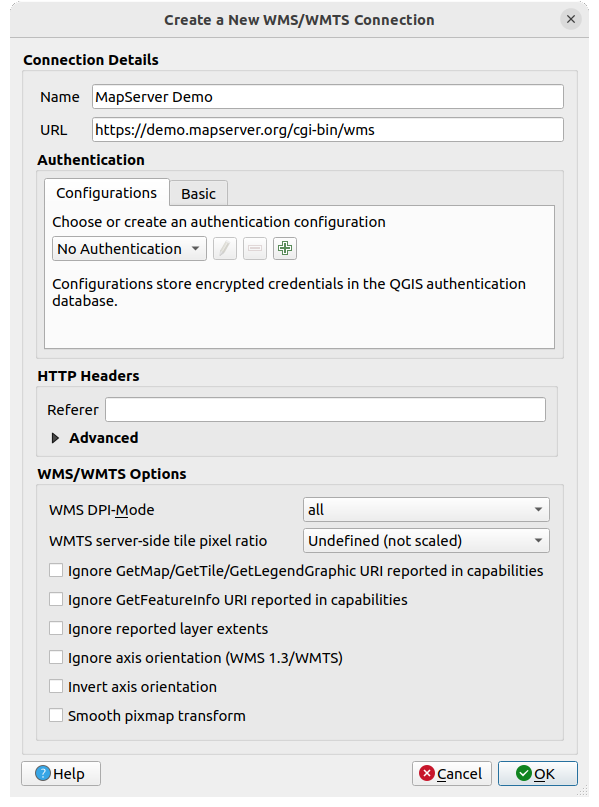
그림 21.7 인증 환경 설정 위젯을 보여주는 WMS 연결 대화창
인증 환경 설정을 생성하거나 편집할 때, 요구되는 정보는 이름, 인증 방법, 그리고 인증 방법이 요구하는 기타 정보입니다. (사용할 수 있는 인증 유형에 관한 자세한 내용은 인증 방법 을 참조하세요.)
21.1.5. 인증 방법
QGIS가 데이터 제공자 플러그인을 지원하는것과 거의 동일한 방식으로 C++ 플러그인이 사용 가능한 인증을 제공합니다. QGIS 코드와 플러그인을 둘 다 지원하는지 여부와 HTTP(S), 데이터베이스 같은 리소스/제공자에 필요한 접근 권한에 따라 인증 방법을 선택할 수 있습니다. 따라서 일부 인증 방법 플러그인은 인증 환경 설정 선택기가 표시된 모든 위치에 적용이 안 될 수도 있습니다. 메뉴를 선택한 다음 Authentication 탭에 있는  Installed Plugins 버튼을 클릭하면 사용 가능한 인증 방법 플러그인과 호환 가능한 리소스/제공자 목록을 볼 수 있습니다.
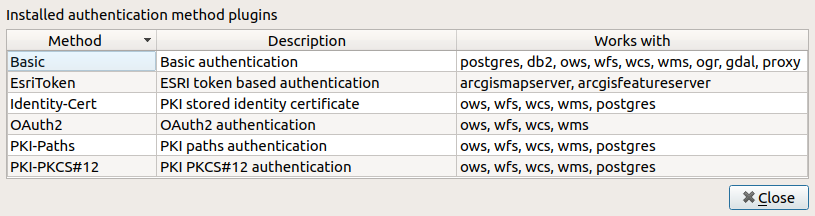
그림 21.8 사용할 수 있는 인증 방법 플러그인 목록
QGIS를 다시 컴파일할 필요가 없는 경우 새 인증 방법을 위한 플러그인을 생성할 수 있습니다. 현재 C++ 플러그인만을 지원하고 있기 때문에, 새로 추가한 플러그인을 사용하려면 QGIS를 재시작해야 합니다. 기존 QGIS 설치본에 플러그인을 추가할 생각이라면, 사용자 플러그인이 기존 설치본과 동일한 버전을 대상으로 컴파일됐는지 확인하십시오.
21.1.5.1. API 헤더 인증
API 헤더 인증 메소드는 API 키 같은 사용자 지정 HTTP 헤더를 필수로 요구하는 서비스에 연결할 수 있게 해줍니다. 예를 들어 WMS 서비스가 API 키를 헤더로 (예: X-API-KEY) 전송할 것을 요구할 경우 이 메소드를 사용해서 제공하면 됩니다.
버튼으로 하나 이상의 헤더를 추가할 수 있습니다. 각 항목마다 Header Name 과 Header Value 를 입력하십시오. 선택한 헤더를 제거하려면 버튼을, 모든 항목을 한번에 제거하려면 Clear 버튼을 사용하십시오.

그림 21.9 API 헤더 인증 환경 설정
21.1.5.2. AWS S3 인증
AWS S3 인증 메소드는 Name, Resource, Username, Password, 그리고 Region 정보를 제공하여 아마존 S3 리소스에 연결할 수 있게 해줍니다.

그림 21.10 AWS S3 인증 환경 설정
21.1.5.3. 기본 인증
기본 인증 메소드는 표준 HTTP 인증을 요구하는 서비스에 Username, Password 와 Realm 정보로 연결할 수 있게 해줍니다.

그림 21.11 HTTP 기본 인증 환경 설정
21.1.5.4. ESRI 토큰 인증
ESRI 토큰 인증 메소드는 토큰 기반 인증을 요구하는 ArcGIS REST 서버 에 연결할 수 있게 해줍니다.

그림 21.12 ESRI 토큰 인증 환경 설정
21.1.5.5. 신원 인증서 인증
신원 인증서(Identity certificate) 인증 메소드는 클라이언트 신원 인증서 를 사용해서 연결할 수 있게 해줍니다.

그림 21.13 신원 인증서 인증 환경 설정
21.1.5.6. MapTiler HMAC-SHA256 인증
MapTiler HMAC-SHA256 인증 메소드는 HMAC-SHA256 인증을 요구하는 MapTiler 서비스에 연결할 수 있게 해줍니다.

그림 21.14 MapTiler HMAC-SHA256 인증 환경 설정
21.1.5.7. OAuth2 인증
OAuth2 인증 메소드는 클라이언트 인증 정보 및 토큰 기반 인증으로 보안 접속을 가능하게 해주는 OAuth2 2.0 인증을 요구하는 서비스에 연결할 수 있게 해줍니다.
이 메소드는 리다이렉트 호스트로 localhost 를 사용하는 것을 지원합니다. 즉 (예를 들면 마이크로소프트 셰어포인트 같은) http://127.0.0.1 리다이렉트를 허용하지 않는 서비스와 호환됩니다.
고급 OAuth2 환경 설정 옵션인 Extra token header(s) 에서 OAuth2 토큰 엔드포인트가 HTTP(S) 요청 헤더로 반환하는 추가 토큰을 첨부할 수 있습니다.

그림 21.15 OAuth2 인증 환경 설정
21.1.5.8. PKI-경로 인증
PKI-경로 인증 메소드는 사용자 시스템 상에 저장된 개별 인증서 및 키 파일을 사용해서 연결할 수 있게 해줍니다.

그림 21.16 PKI-경로 인증 환경 설정
21.1.5.9. PKI-PKCS#12 인증
PKI-PKCS#12 인증 메소드는 인증서와 비공개 키 둘 다 담고 있는 단일 번들 파일을 사용해서 연결할 수 있게 해줍니다. 이 번들 파일은 키에 대한 비밀구절(passphrase)을 담고 있을 수도 있습니다.

그림 21.17 PKI-PKCS#12 파일 경로 인증 환경 설정
21.1.6. 마스터 비밀번호 및 인증 환경 설정 유틸리티
Authentication 탭의 옵션 메뉴에서 () 인증 데이터베이스 및 환경 설정을 관리할 수 있는 유틸리티 액션이 몇 개 있습니다:
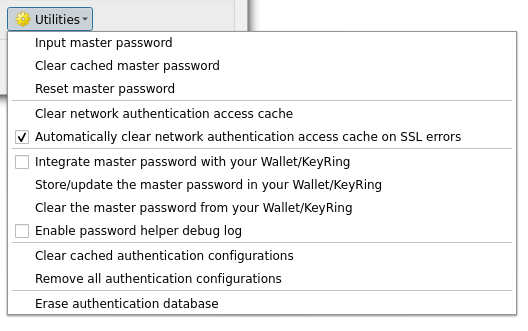
그림 21.18 유틸리티 목록
Input master password…: 인증 데이터베이스 명령어 수행과는 무관하게 마스터 비밀번호 입력 대화창을 엽니다.
Clear cached master password: 마스터 비밀번호가 입력 대화창에 설정되어 있다면 이를 해제합니다.
Reset master password…: 마스터 비밀번호를 바꾸기 위한 (현재 비밀번호를 알고 있어야만 합니다) 대화창을 열고, 선택적으로 현재 데이터베이스를 백업합니다.
Clear network authentication access cache: 모든 연결의 인증 캐시를 삭제합니다.
Automatically clear network authentication access cache on SSL errors: 연결 캐시는 연결이 실패하더라도 연결에 대한 모든 인증 데이터를 저장합니다. 사용자가 인증 환경 설정이나 인증서 기관을 변경하는 경우, 인증 캐시를 삭제하거나 QGIS를 재시작해야 합니다. 이 옵션을 체크하면, SSL 오류가 발생해서 사용자가 연결을 중지하도록 선택할 때마다 인증 캐시를 자동적으로 삭제할 것입니다.
Integrate master password with the Wallet: 사용자 개인 월렛/키링에 마스터 비밀번호를 추가합니다.
Clear the master password from the Wallet…: 사용자 월렛/키링에서 마스터 비밀번호를 삭제합니다.
Enable password helper debug log: 인증 방법의 모든 로그 정보를 담게 될 디버그 도구를 활성화합니다.
Clear cached authentication configurations: 네트워크 연결 속도를 높이는데 사용되는 환경 설정용 내부 조회 캐시를 지웁니다. QGIS의 핵심 네트워크 접근 관리자의 캐시는 지워지지 않습니다. QGIS를 다시 시작해야 하기 때문입니다.
Remove all authentication configurations…: 저장된 다른 레코드는 삭제하지 않은 채, 모든 환경 설정 레코드의 데이터베이스를 지웁니다.
Import authentication configurations from file…:
.XML파일에서 사용자 지정 인증 환경 설정을 생성하기 위한 상세 정보를 가져옵니다.Export selected authentication configurations to file…: 선택한 항목을 암호화되어 있을 수도 있는
.XML파일로 내보냅니다.Erase authentication database…: 현재 데이터베이스의 백업과 데이터베이스 테이블 구조의 완전한 리빌딩을 예약합니다. 이런 작업들은 나중에 실행되도록 예약됩니다. 프로젝트 불러오기와 같은 다른 작업이 이를 방해하지 않도록 하거나 일시적으로 누락된 데이터베이스로 인해 오류가 발생하지 않도록 하기 위해서입니다.
21.1.7. 인증 환경 설정 사용하기
일반적으로, (WMS 같은) 네트워크 서비스 용 환경 설정 대화창에서 인증 환경 설정을 선택합니다. 하지만 인증이 필요한 곳이라면 어디든, 또는 제3자 PyQGIS 또는 C++ 플러그인 같은 비핵심 기능에 선택기 위젯을 내장시킬 수 있습니다.
선택기 위젯을 사용할 때, 아무것도 선택하지 않았거나 선택할 인증 환경 설정이 없거나 또는 데이터베이스에서 이전에 할당한 환경 설정을 찾을 수 없는 경우 팝업 메뉴의 콤보박스에 No authentication 이라고 표시됩니다. 드롭다운 메뉴를 사용해서 기존 인증 환경 설정을 선택하거나, Create a new authentication configuration 버튼을 눌러 사용할 수 있는 환경 설정을 생성하십시오. 더 자세한 내용은 인증 을 참조하세요.

그림 21.19 선택한 환경 설정을 표시한 인증 환경 설정 선택기
21.1.8. 파이썬 바인딩
모든 클래스 및 공개 함수는 SIP 바인딩을 보유하고 있습니다. QgsAuthCrypto 를 제외하고 말이죠. 왜냐하면 파이썬을 통해서가 아니라 주 응용 프로그램이 마스터 비밀번호 해싱 및 인증 데이터베이스를 관리해야 하기 때문입니다.
마스터 비밀번호를 입력하고 나면, 파이어폭스 작동 방식과 비슷하게 API가 열려 인증 데이터베이스에 있는 인증 환경 설정에 접근할 수 있습니다. 하지만 PyQGIS 접근을 막는 어떤 방화벽도 정의되지 않은 상태입니다. 인증 정보에 접근할 수 있는 악성 PyQGIS 플러그인 또는 독립형 응용 프로그램을 다운로드해서 설치한 경우 문제가 발생할 수도 있습니다.