Importante
La traduzione è uno sforzo comunitario you can join. Questa pagina è attualmente tradotta al 96.30%.
17.1. Lezione: Lavorare con i Database utilizzando il Browser di QGIS
Nei precedenti 2 moduli hai esaminato i concetti di base, le caratteristiche e le funzioni dei database relazionali e le estensioni che consentono di archiviare, gestire, interrogare e manipolare i dati spaziali in un database relazionale. Questa sezione approfondirà come puoi usare efficacemente i database spaziali in QGIS.
Obiettivo di questa lezione: Imparare a interagire con i database spaziali usando l’interfaccia QGIS Browser.
17.1.1. ★☆☆ Passo dopo passo: Aggiunta di Tabelle di Database a QGIS utilizzando il Browser
Hai già analizzato come aggiungere tabelle da un database come layer QGIS, ora puoi dare un’occhiata a ciò in modo più dettagliato e osservare i diversi modi in cui ciò può essere fatto in QGIS. Inizia guardando la nuova interfaccia del browser.
Start a new empty map in QGIS.
Apri il Browser cliccando sulla scheda Browser. Se non vedi questa scheda, puoi abilitarla andando in .
Apri la sezione PostgreSQL dell’albero e dovresti trovare disponibile la connessione che hai configurato in precedenza (potrebbe essere necessario cliccare il pulsante Aggiorna in alto nella finestra del browser).
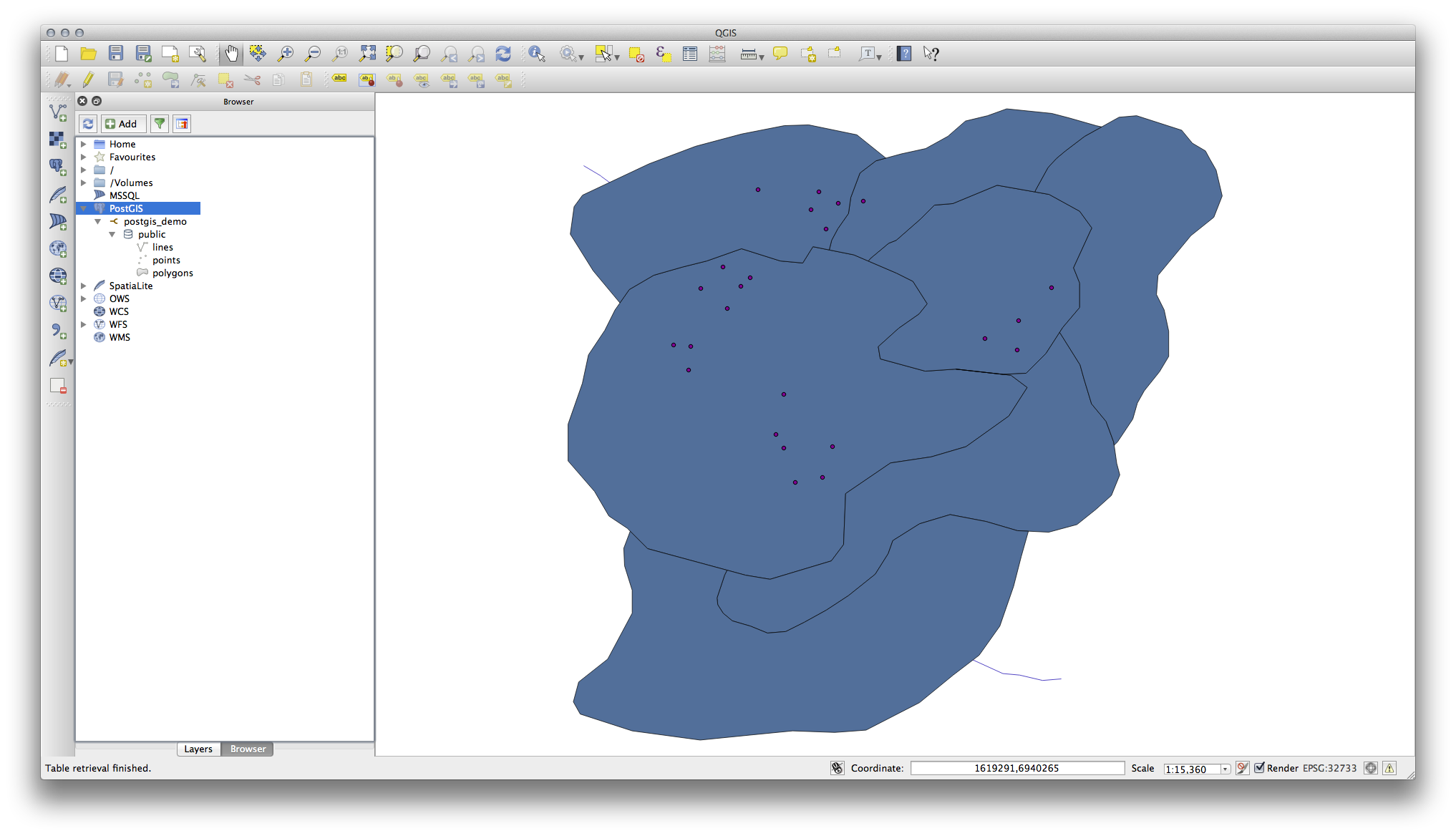
Facendo doppio clic su una delle tabelle/layer elencati qui, lo aggiungerai alla mappa.
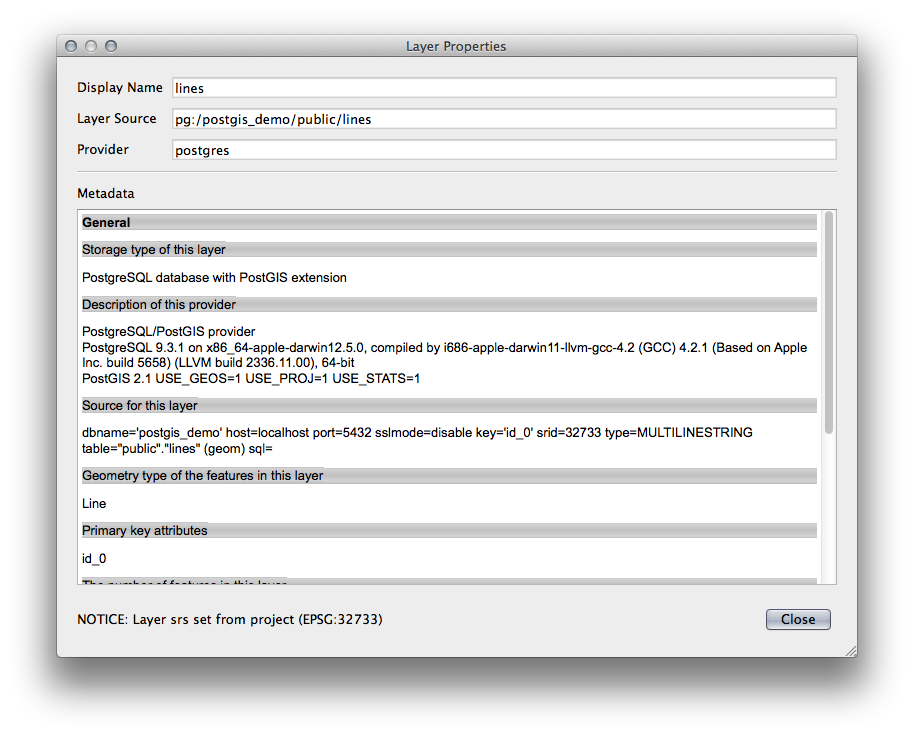
Con clic sul tasto destro su una tabella/layer in questa vista, otterrai alcune opzioni. Fai clic sulla voce Proprietà per esaminare le proprietà del layer.
Nota
Naturalmente puoi usare questa interfaccia anche per connetterti a database PostgreSQL ospitati su un server esterno alla tua workstation. Cliccando con il tasto destro sulla voce PostgreSQL nell’albero potrai specificare i parametri di connessione per una nuova connessione.
17.1.2. ★☆☆ Seguire: Aggiunta di un insieme filtrato di record come Layer
Ora che hai visto come aggiungere un’intera tabella come layer QGIS, può essere utile imparare come aggiungere un insieme filtrato di record da una tabella come layer usando le interrogazioni che abbiamo appreso nelle sezioni precedenti.
Avvia una nuova mappa vuota
Clicca il pulsante Aggiungi Layer PostgreSQL oppure seleziona dal menu.
Nella finestra di dialogo Aggiungi Tabella(e) PostgreSQL che appare, connettiti alla connessione postgis_demo.
Espandi lo schema public e dovresti trovare le tre tabelle con cui stavamo lavorando in precedenza.
Clicca il layer
linesper selezionarlo ma, invece di aggiungerlo, clicca il pulsante Imposta Filtro per aprire la finestra di dialogo Costruttore di interrogazioni.Costruisci la seguente espressione usando i pulsanti o inserendola direttamente:
"roadtype" = 'major'
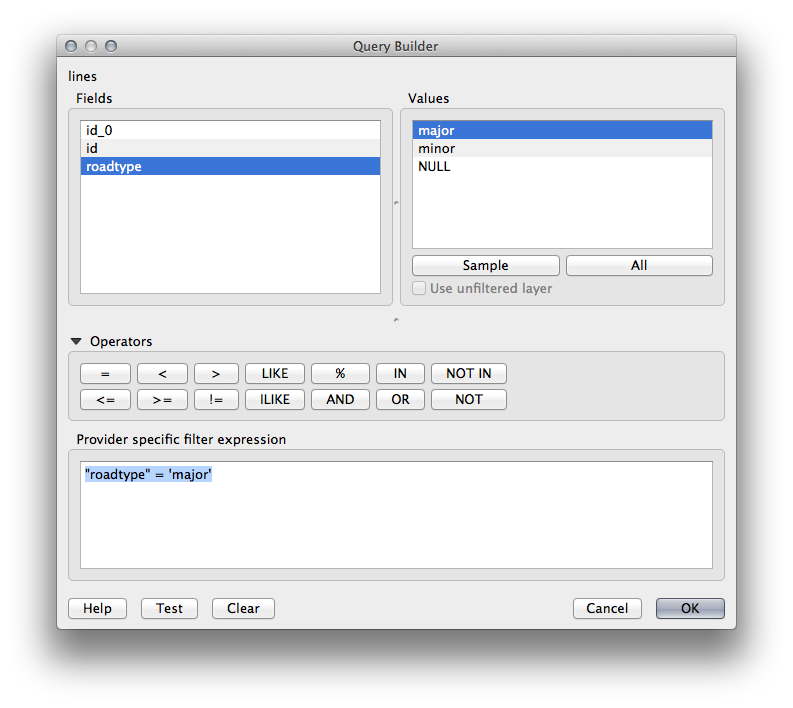
Clicca su OK per completare la creazione del filtro e clicca su Aggiungi per aggiungere il layer filtrato alla tua mappa.
Rinomina il layer
linesnell’albero inroads_primary.
Noterai che solo le Primary Roads sono state aggiunte alla tua mappa piuttosto che l’intero layer.
17.1.3. In Conclusione
Hai visto come interagire con i database spaziali usando il Browser di QGIS e come aggiungere layer alla tua mappa sulla base di una query di filtraggio.
17.1.4. Cosa Segue?
Successivamente vedrai come lavorare con l’interfaccia DB Manager in QGIS per una serie più completa di operazioni di gestione del database.