network_advanced_parameters
Direction field[tablefield: string]Optional
The field used to specify directions for the network edges.
The values used in this field are specified with the three parameters
Value for forward direction,Value for backward directionandValue for both directions. Forward and reverse directions correspond to a one-way edge, “both directions” indicates a two-way edge.If a feature does not have a value in this field, or no field is set then the default direction setting (provided with the
Default directionparameter) is used.Value for forward direction[string]Optional
Value set in the direction field to identify edges with a forward direction.
Value for backward direction[string]Optional
Value set in the direction field to identify edges with a backward direction.
Value for both directions[string]Optional
Value set in the direction field to identify bidirectional edges.
Default direction[enumeration]If a feature has no value set in the direction field or if no direction field is set, then this direction value is used.
Available options are:
0 — Forward direction
1 — Backward direction
2 — Both directions
Default: 2
Speed field[tablefield: string]Optional
Field providing the speed value (in
km/h) for the edges of the network when looking for the fastest path.If a feature does not have a value in this field, or no field is set then the default speed value (provided with the
Default speedparameter) is used.Default speed (km/h)[number]Value to use to calculate the travel time if no speed field is provided for an edge.
Default: 50.0
Topology tolerance[number]Two lines with nodes closer than the specified tolerance are considered connected.
Default: 0.0
end_network_advanced_parameters
geometric_predicates
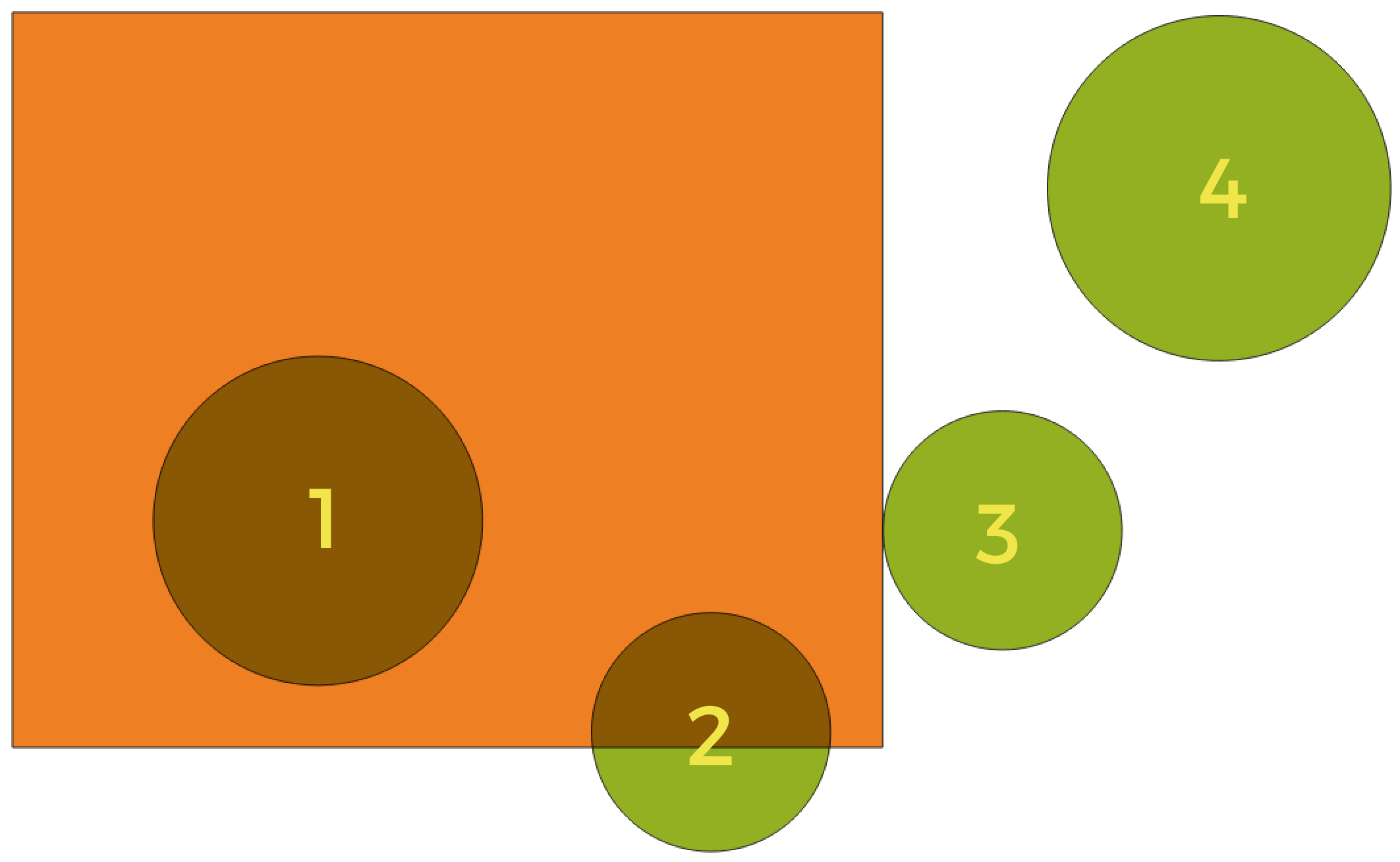
In this example, the dataset from which we want to select (the source vector layer) consists of the green circles, the orange rectangle is the dataset that it is being compared to (the intersection vector layer).
Where the features (geometric predicate)[enumeration] [list]The spatial condition for the selection is defined by choosing one or more geometric predicates.
- Intersect
Tests whether a geometry intersects another. Returns 1 (true) if the geometries spatially intersect (share any portion of space - overlap or touch) and 0 if they don’t. In the picture above, this will select circles 1, 2 and 3.
- Contain
Returns 1 (true) if and only if no points of b lie in the exterior of a, and at least one point of the interior of b lies in the interior of a. In the picture, no circle is selected, but the rectangle would be if you would select it the other way around, as it contains a circle completely. This is the opposite of are within.
- Disjoint
Returns 1 (true) if the geometries do not share any portion of space (no overlap, not touching). Only circle 4 is selected.
- Equal
Returns 1 (true) if and only if geometries are exactly the same. No circles will be selected.
- Touch
Tests whether a geometry touches another. Returns 1 (true) if the geometries have at least one point in common, but their interiors do not intersect. Only circle 3 is selected.
- Overlap
Tests whether a geometry overlaps another. Returns 1 (true) if the geometries share space, are of the same dimension, but are not completely contained by each other. Only circle 2 is selected.
- Are within
Tests whether a geometry is within another. Returns 1 (true) if geometry a is completely inside geometry b. Only circle 1 is selected.
- Cross
Returns 1 (true) if the supplied geometries have some, but not all, interior points in common and the actual crossing is of a lower dimension than the highest supplied geometry. For example, a line crossing a polygon will cross as a line (selected). Two lines crossing will cross as a point (selected). Two polygons cross as a polygon (not selected).
Default: Intersect
end_geometric_predicates
postgisexecutesqlexample
Example
For all features / rows in a PostGIS / PostgreSQL table (“your_table”), set the value of an existing field (“field_to_update”) to a given value (
20). The SQL query string:UPDATE your_table SET field_to_update=20;
- Create a new
areacolumn and calculate the area of each feature with the
ST_AREAPostGIS function.
-- Create the new column "area" in a table named "your_table"
ALTER TABLE your_table ADD COLUMN area double precision;
-- Update the "area" column of each feature with the its area:
UPDATE your_table SET area=ST_AREA(geom);
- Create a new
end_postgisexecutesqlexample