23.1. Introduction
This chapter introduces the QGIS processing framework, a geoprocessing environment that can be used to call native and third-party algorithms from QGIS, making your spatial analysis tasks more productive and easy to accomplish.
As a Core plugin, Processing is installed by default but you need to activate it:
Go to
In the Plugins Manager dialog, click on the Installed tab at the left
Check the box next to the
 Processing entry
Close the dialog.
A menu is now available in the top menu bar.
From there you can reach the main components of this framework.
By default, the Processing plugin will add a set of algorithms to QGIS.
This covers algorithms that can be called in Python using pdal, 3d
or native (using qgis will work also) provider name.
You can extend the capabilities with additional providers
you enable also in the Plugins Manager dialog:
Additional QGIS Processing Tools for Python-based QGIS core algorithms, only callable in Python with the
qgisprovider nameGDAL Processing provider for algorithms that rely on GDAL utility tools only callable in Python with the
gdalprovider nameGRASS Processing provider for algorithms that rely on GRASS tools only callable in Python with the
grassprovider namethird-party plugins may install dedicated providers.
There are four basic elements in the Processing framework GUI, which are used to run algorithms for different purposes. Choosing one tool or another will depend on the kind of analysis that is to be performed and the particular characteristics of each user and project. All of them (except for the batch processing interface, which is called from the toolbox or the algorithm execution dialog, as we will see) can be accessed from the menu item (you will see more entries; the remaining ones are not used to execute algorithms and will be explained later in this chapter).
The Toolbox: The main element of the GUI, it is used to execute a single algorithm or run a batch process based on that algorithm.
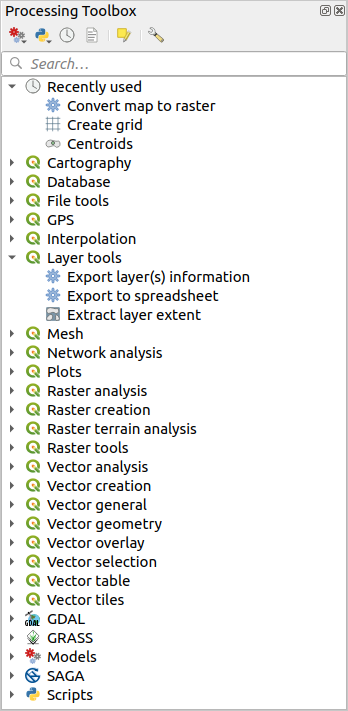
Fig. 23.1 Processing Toolbox
The Model Designer: Several algorithms can be combined graphically using the modeler to define a workflow, creating a single process that involves several subprocesses.
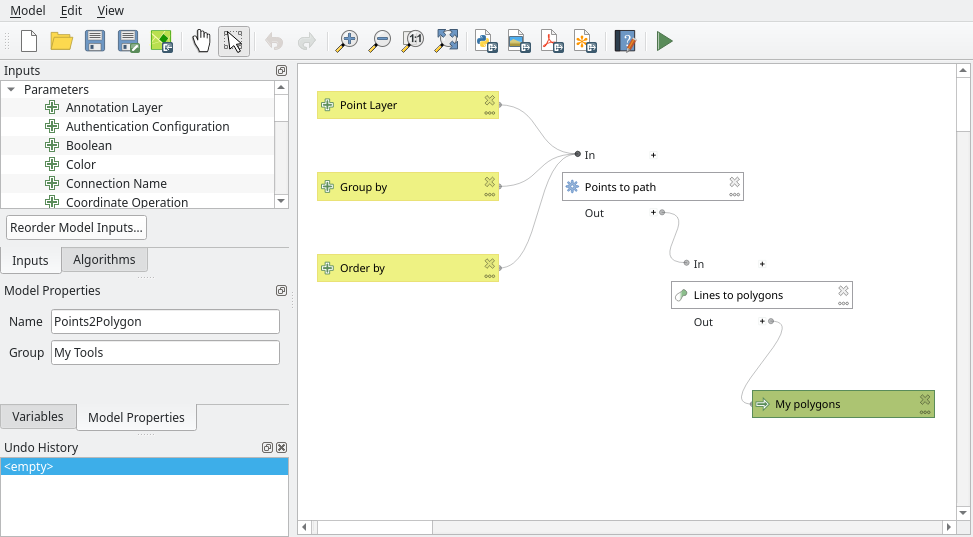
Fig. 23.2 Processing Modeler
The History manager: All actions performed using any of the aforementioned elements are stored in a history file and can be later easily reproduced using the history manager.
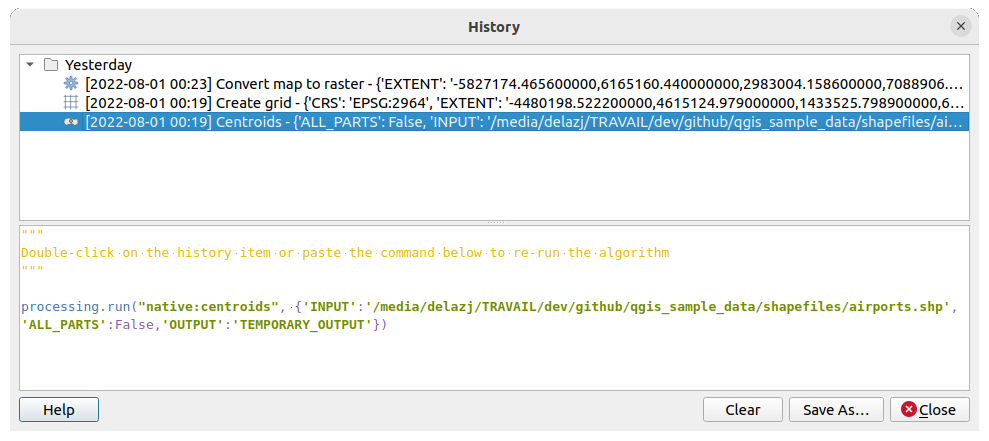
Fig. 23.3 Processing History
The Batch Processing interface: This interface allows you to execute batch processes and automate the execution of a single algorithm on multiple datasets.
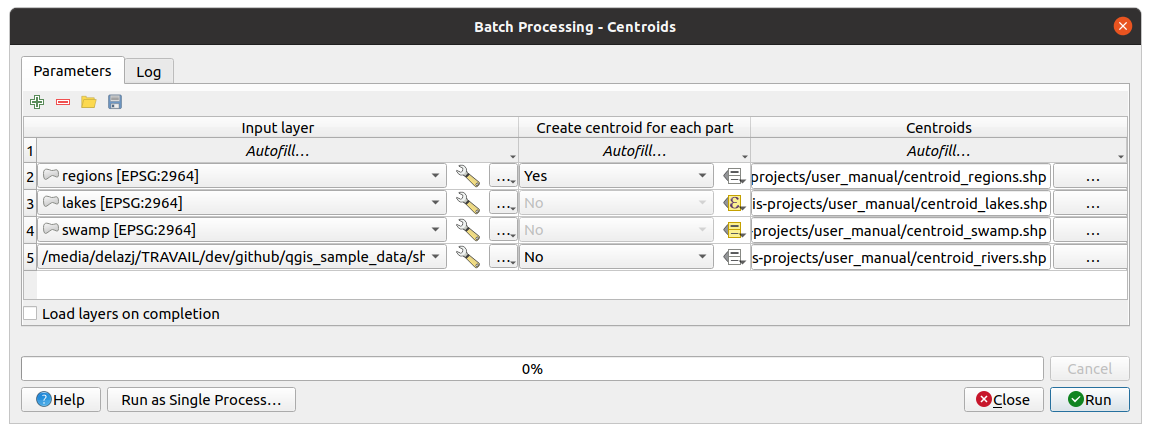
Fig. 23.4 Batch Processing interface
In the following sections, we will review each one of these elements in detail.