Important
翻译是一项社区工作:ref:你可以加入<translation_guidelines>。此页面目前翻译进度为 81.25%。
10.2. Lesson: Web Feature Services
Web要素服务 (WFS) 为用户提供可以直接在QGIS中加载的格式的GIS数据。与WMS不同,WMS只为您提供无法编辑的地图,而WFS则为您提供对要素本身的访问。
本课目标: 使用WFS并了解与WMS的区别。
10.2.1. ★☆☆ Follow Along: Loading a WFS Layer
新建地图。这仅用于演示目的,不会被保存。
单击
 打开数据源管理器 按钮。
开启
 WFS / OGC API - 要素 选项卡。
单击 新建 按钮。
在出现的对话框中,输入 名称 为
nsidc.org, URL 为https://nsidc.org/cgi-bin/atlas_south?version=1.1.0。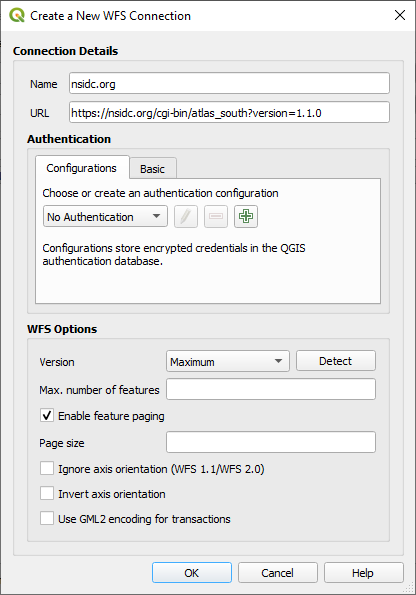
单击 确定 ,新建连接将显示在 服务器连接 中。
单击 连接 。将显示可用图层的列表:
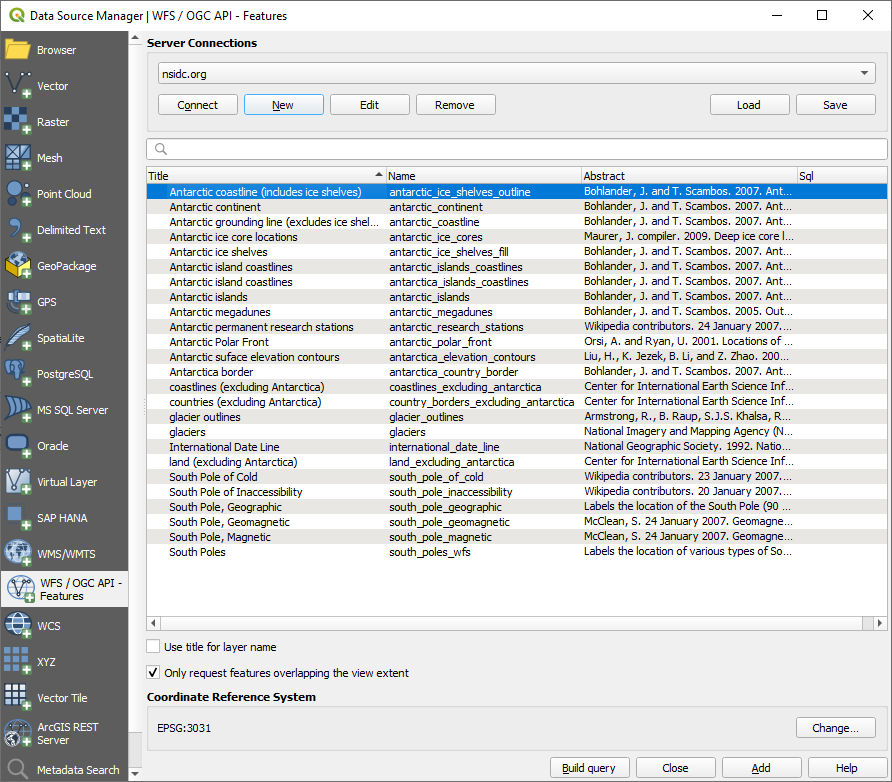
取消勾选图层列表下方的 仅请求与视图范围重叠的要素 选项,因为您当前的地图画布可能无法涵盖我们关注区:南极洲。
Find the layer
antarctica_country_border. You can use the Filter box at the top.单击图层将其选中。
Find and select also the layer
south_poles_wfs. You might need to hold Ctrl.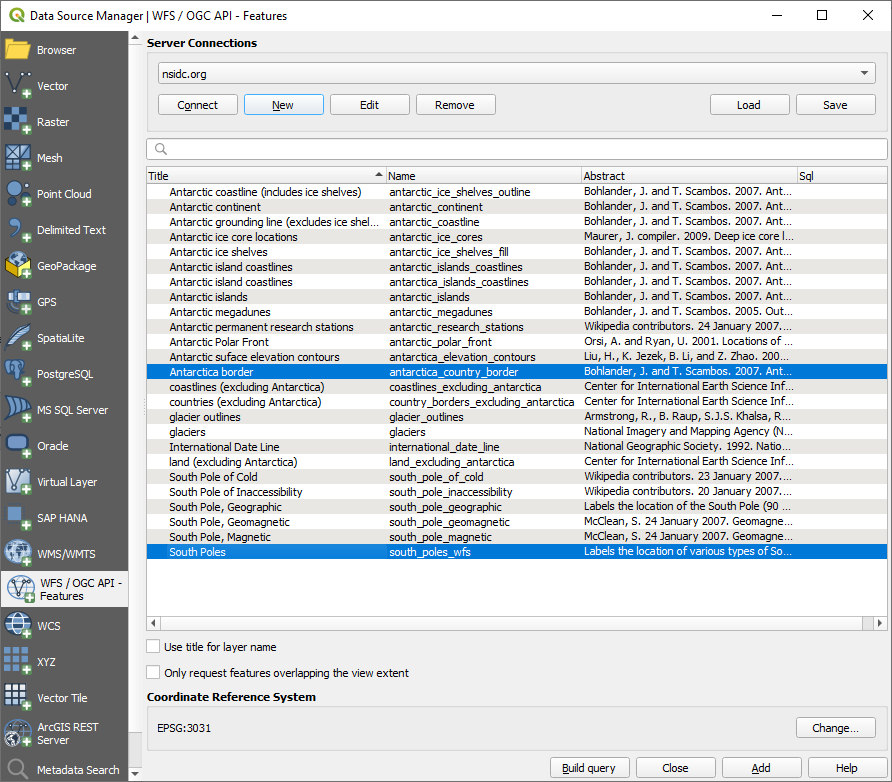
单击 添加 。
加载图层可能需要一段时间。加载后它们将出现在地图上,显示南极洲的轮廓和几个点。
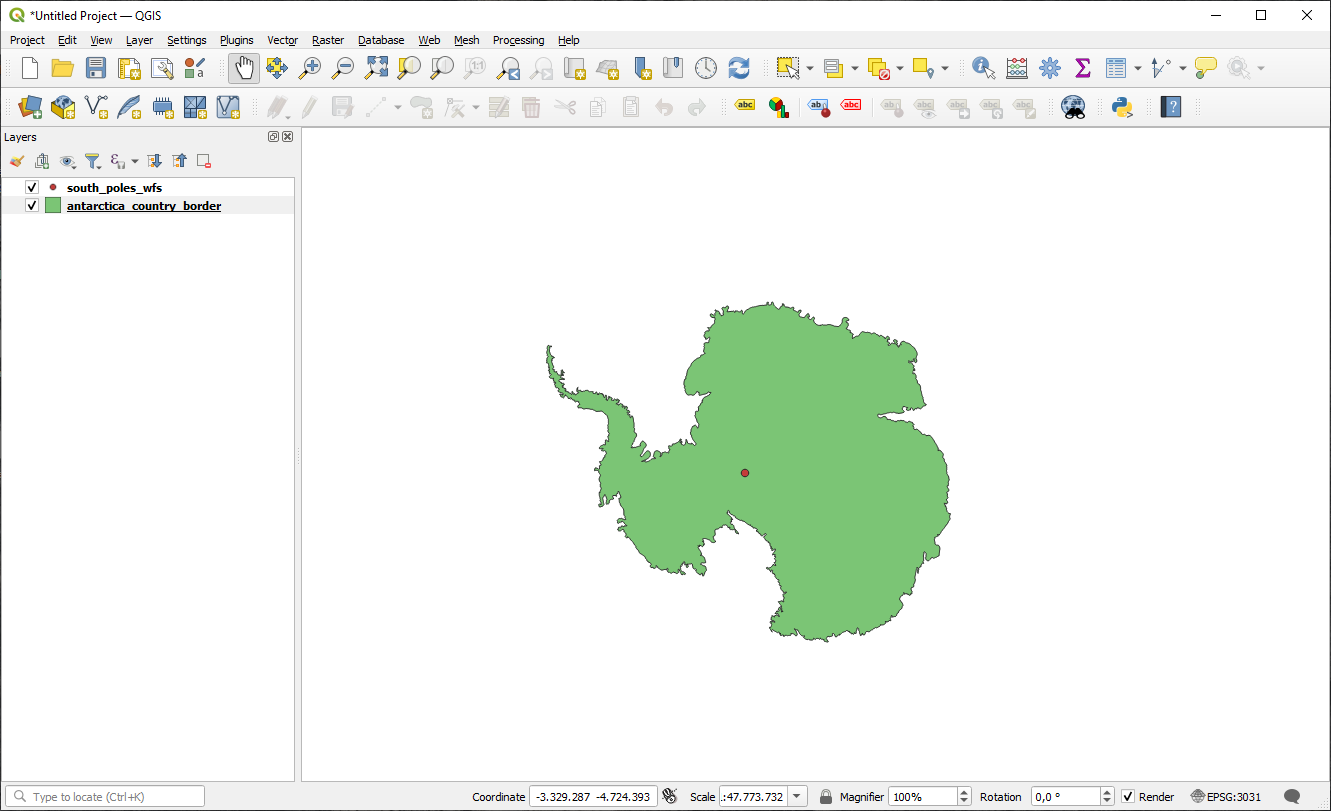
这与使用WMS图层有什么不同呢?
选择任意图层,您都会注意到要素选择和属性表工具已启用。这些是矢量图层。
Select the
south_poles_wfslayer and open its attribute table. You should see this: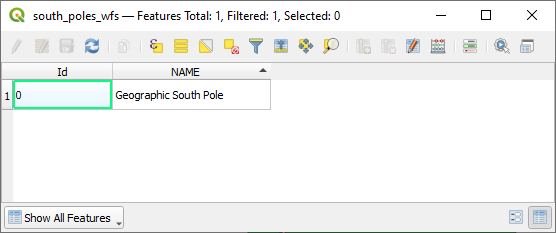
由于这些点具有属性,我们可以为其添加标注,并更改符号。下面是一个例子:
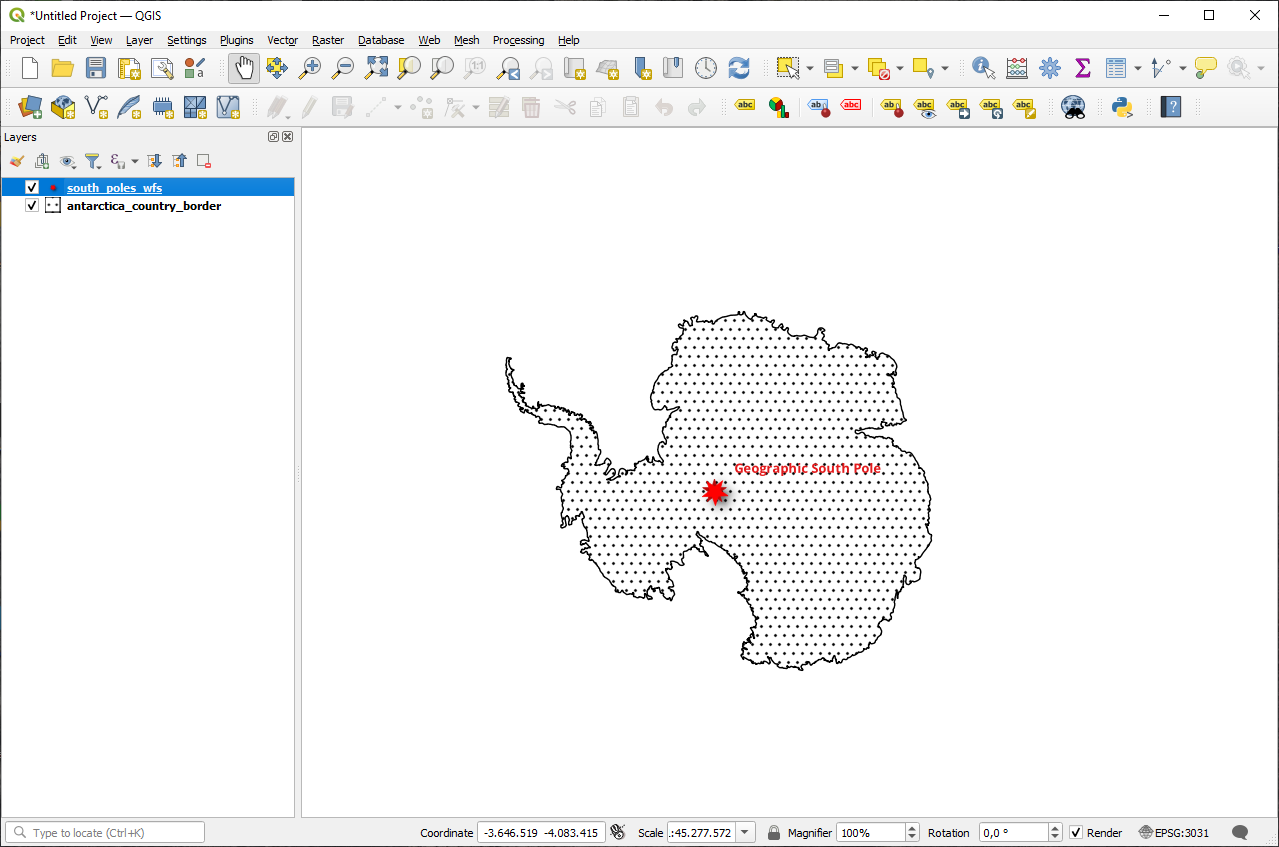
与WMS图层的差异
Web要素服务返回图层本身,而不仅仅是从图层渲染的地图。这使您可以直接访问数据,并可以更改其符号并运行分析功能。然而,这是以传输大量数据为代价的。如果正在加载的图层具有复杂的形状、大量属性或许多要素,这一点尤其明显;或者即使只是加载了很多图层。因此,WFS图层通常需要很长时间才能加载完毕。
10.2.2. ★★☆ Follow Along: Querying a WFS Layer
虽然可以在加载WFS图层后进行查询,但在加载之前对其查询通常更有效。这样,只需请求所需的要素,这意味着您使用的带宽要少得多。
For example, on the WFS server we're currently using, there is a layer called
countries (excluding Antarctica). Let's say that we want to know
where South Africa is relative to the south_poles_wfs layer (and
perhaps also the antarctica_country_border layer) that's already
been loaded.
There are two ways to do this. You can load the whole countries ...
layer, and then build a query as usual once it's loaded. However, transmitting
the data for all the countries in the world and then only using the data for
South Africa seems a bit wasteful of bandwidth. Depending on your connection,
this dataset can take several minutes to load.
另一种方法是从服务器加载图层之前将查询构建为过滤器。
在 Data Source Manager 对话框中启用 WFS / OGC API 要素 选项卡
连接到我们之前使用的服务器,您应该会看到可用图层的列表。
Find and double-click the
countries (excluding Antarctica)layer. The layer name iscountry_borders_excluding_antarctica. You can also select the layer and press Build query button at the bottom of the dialog: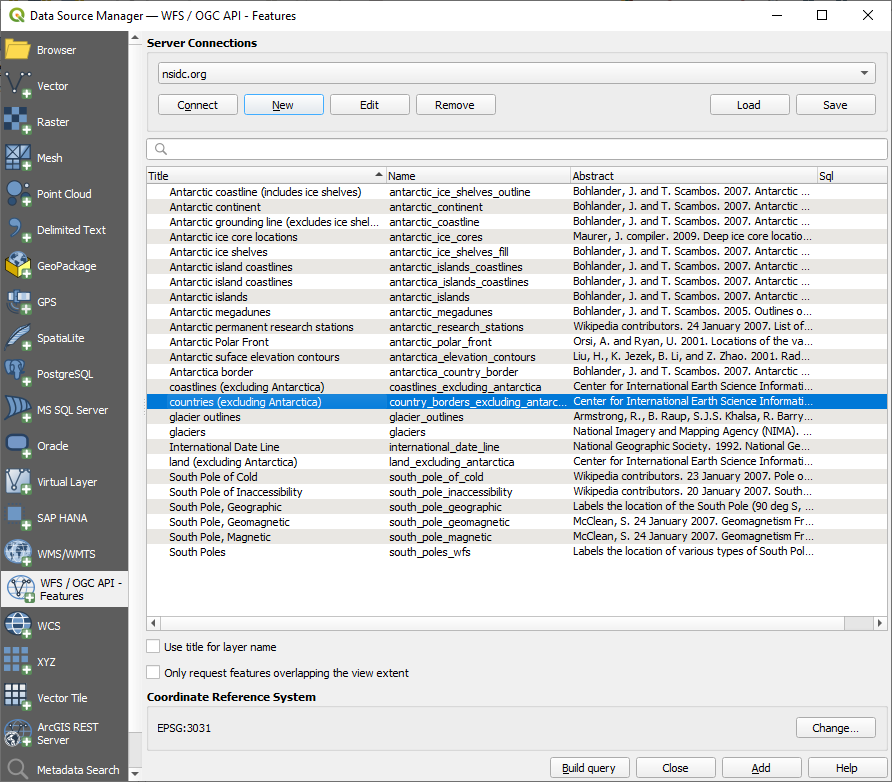
在出现的对话框的 SQL语句 框中键入以下
SELECT * FROM country_borders_excluding_antarctica WHERE "Countryeng" = 'South Africa'查询内容。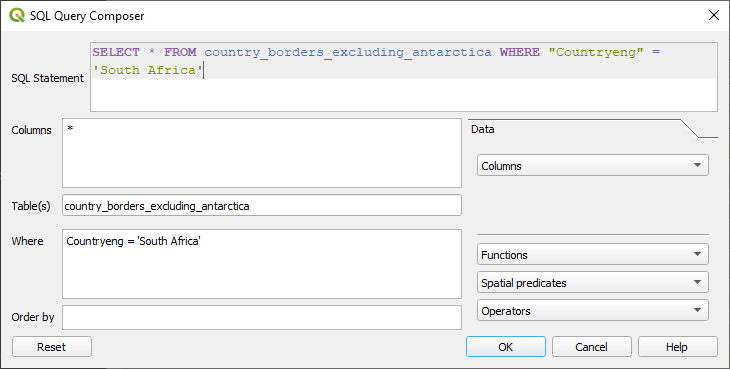
按 确定 。
使用的表达式将显示为目标图层的 Sql 值:
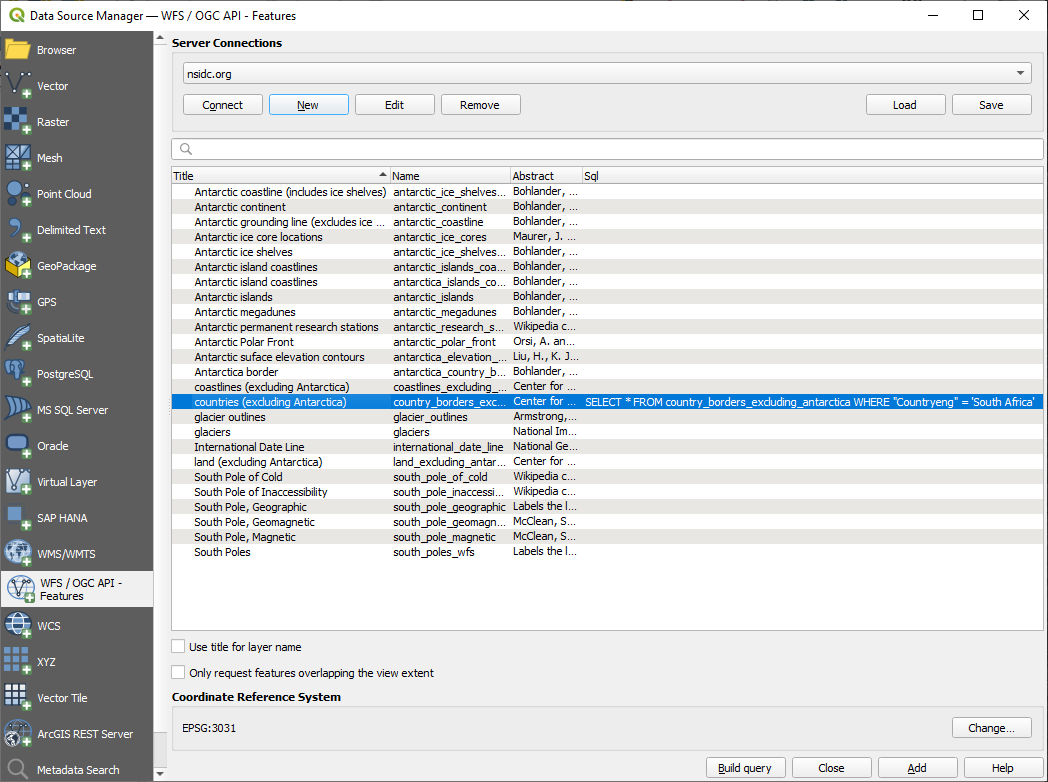
单击 添加 选中的如上所示图层。只有
Countryeng值为South Africa的国家才能从该图层加载: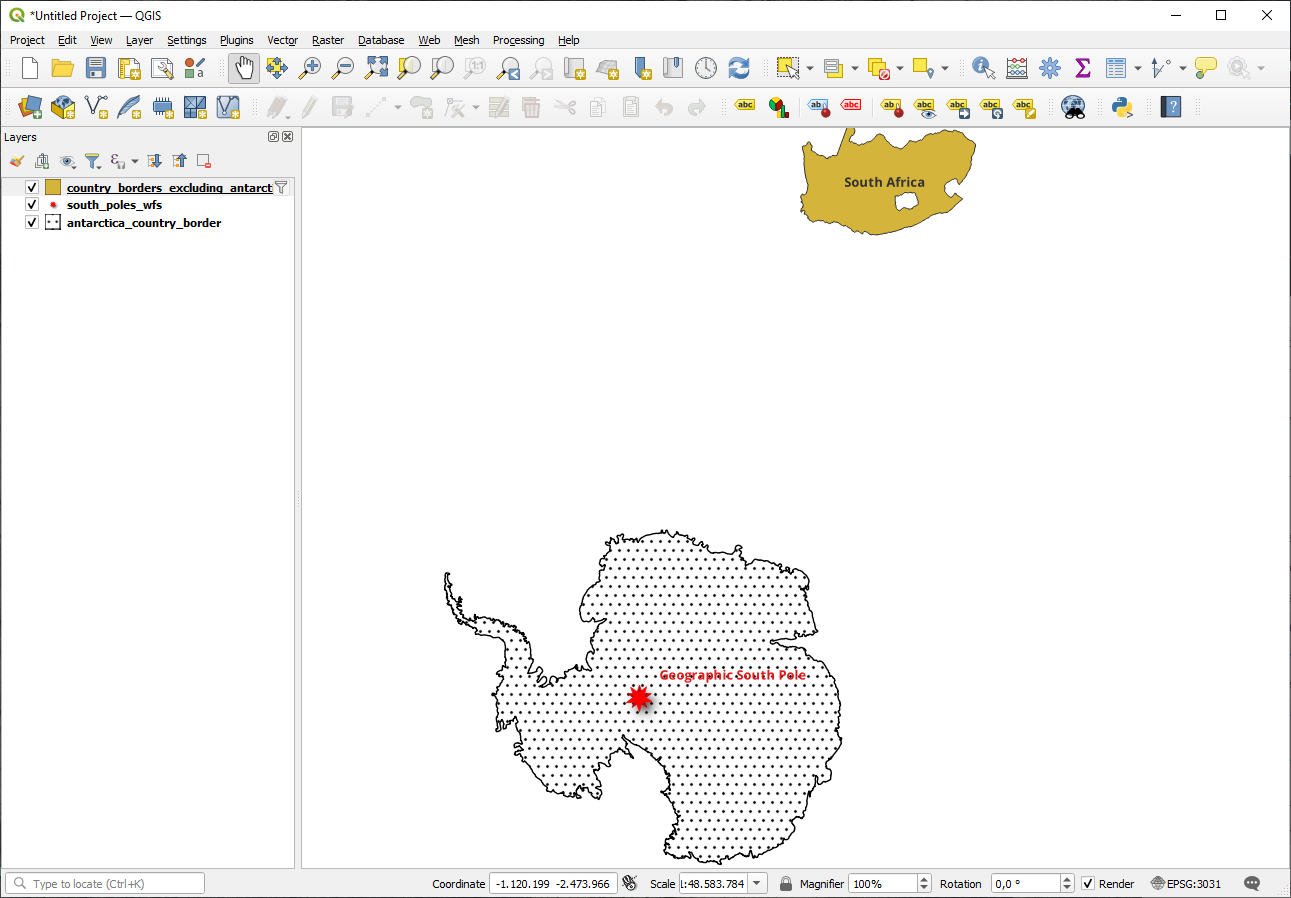
您注意到
country_borders_excluding_antarctica图层旁边的 图标了吗?它表示加载的图层已过滤,不会在工程中显示其所有要素。
您不必这么做,但是如果尝试了这两种方法,会注意到这比在过滤所有国家之前加载数据要快得多!
关于WFS有效性的说明
如果需求非常具体,那么很难找到您需要的WFS托管要素。Web要素服务相对较少的原因是:为了描述整个要素,必须传输大量数据。因此,相对于WMS仅发送图像而言,托管WFS并不是很划算。
所以,您遇到最常见的WFS类型可能是在本地网络,甚至是在您自己的计算机中,而不是在互联网上。
10.2.3. 总结
如果需要直接访问图层的属性和几何图形,WFS图层优于WMS图层。然而,考虑到需要下载的数据量 (这会导致速度问题,也会缺乏易于使用的公共WFS服务器),并不总是可以使用WFS而不是WMS。
10.2.4. 接下来是?
接下来,您将看到如何使用QGIS服务器提供OGC服务。