Importante
A tradução é um esforço comunitário você pode contribuir. Esta página está atualmente traduzida em 38.39%.
21.1. Visão Geral do Sistema de Autenticação
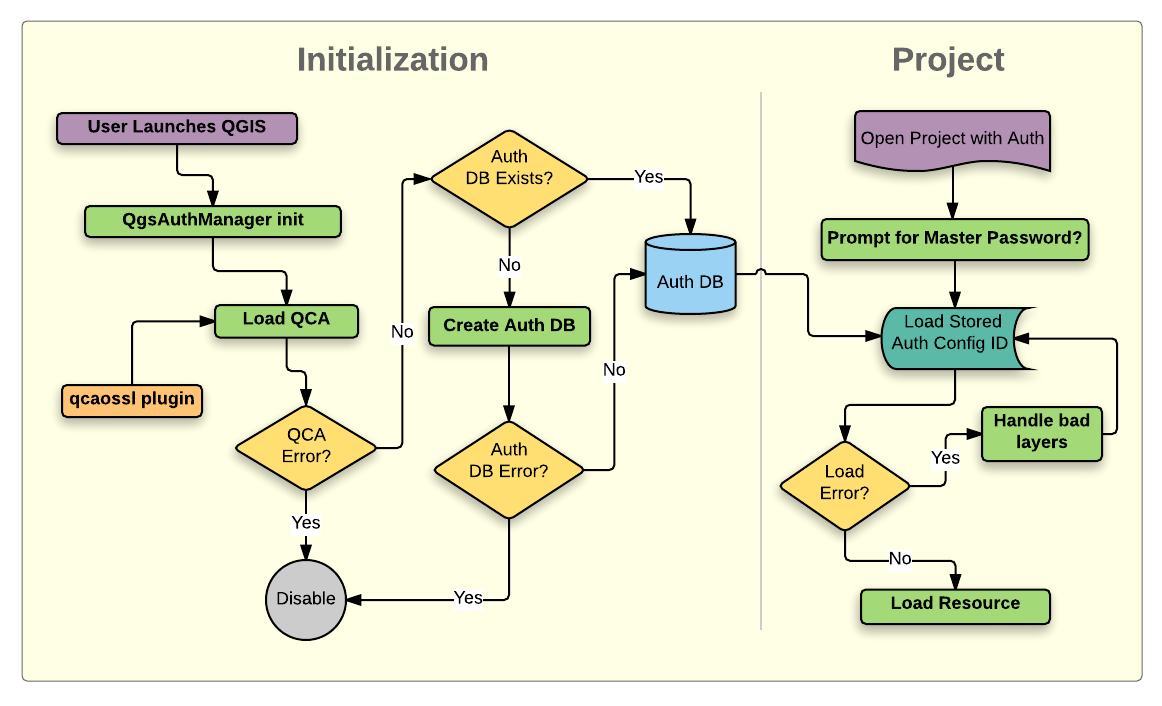
Fig. 21.1 Anatomia do sistema de autenticação
21.1.1. Banco de Dados de Autenticação
The authentication system stores authentication configurations in an
SQLite database file located, by default, at <profile directory>/qgis-auth.db.
Este banco de dados de autenticação pode ser movido entre as instalações do QGIS sem afetar outras preferências do usuário QGIS atuais, já que é completamente separado das configurações normais do QGIS. Um ID de configuração (uma strig alfanumérica aleatória de 7 caracteres) é gerado ao armazenar inicialmente uma configuração no banco de dados. Isso representa a configuração, permitindo que o ID seja armazenado em componentes de aplicativo de texto simples (como arquivos de projeto, complemento ou configurações) sem a divulgação de suas credenciais associadas.
Nota
O diretório pai do qgis-auth.db pode ser definido usando a seguinte variável de ambiente,``QGIS_AUTH_DB_DIR_PATH``, ou definido na linha de comando durante o lançamento com a opção --authdbdirectory.
21.1.2. Custom authentication databases
QGIS can be configured to use a custom authentication database instead of the above mentioned default SQLite one: any database supported by the Qt SQL module can be used (e.g. PostgreSQL, MySQL, etc), provided that the corresponding Qt SQL driver is available in the system.
This can be useful in scenarios where a user wants to share the same authentication database between multiple QGIS installations, or when a user wants to use a different authentication database than the default SQLite one or when a centralized authentication database is used by QGIS server.
The only way to configure a custom authentication database is by setting the
QGIS_AUTH_DB_URI environment variable to the URI of the connection, the URI
is in the form of driver://username:password@hostname:port/database?options.
- Where:
driveris the name of the Qt SQL driver to use, e.g.QPSQLfor PostgreSQL,QMYSQLfor MySQL, etc.usernameis the username to use to connect to the databasepasswordis the password to use to connect to the databasehostnameis the hostname of the database serverportis the port of the database serverdatabaseis the name of the database to useoptionsare the options to pass to the driver, e.g.sslmode=requirefor PostgreSQL
Nota
The schema can be specified in the URI options, e.g. QPSQL://username:password@hostname:port/database?schema=schema_name
The database must exist before starting QGIS, and the user must have the necessary permissions to connect to the database and to create the required tables if they do not exist.
Aviso
The password in the URI is stored in plain text in the environment variable, so it is recommended to use a passwordless user or a user with limited permissions to connect to the database.
Aviso
Any database not based on SQLite is considered to be read-only (this can be changed by Python plugins if necessary).
This is an advanced feature, designed to allow one or more custom authentication databases or even custom Python implementations of credentials storages to be used by QGIS.
The system is also designed to allow for multiple authentication databases to be used but there is currently no user facing interface to manage multiple credential storages so its usage requires manual configuration and management, typically from a Python plugin.
21.1.3. Senha mestra
Para armazenar ou acessar informações confidenciais no banco de dados, o usuário deve definir uma senha mestra. Uma nova senha mestra é solicitada e verificada ao armazenar inicialmente quaisquer dados criptografados no banco de dados. Quando informações confidenciais são acessadas, o usuário é solicitado a fornecer a senha mestra. A senha é então armazenada em cache pelo restante da sessão (até que o aplicativo seja encerrado), a menos que o usuário escolha manualmente uma ação para limpar seu valor em cache. Algumas instâncias de uso do sistema de autenticação não exigem a entrada da senha mestra, como ao selecionar uma configuração de autenticação existente ou ao aplicar uma configuração a uma configuração de servidor (como ao adicionar uma camada WMS).
Você pode optar por salvar a senha na Carteira/Chaveiro do seu computador.
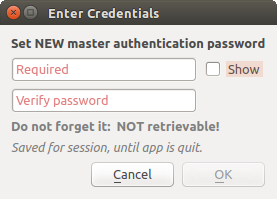
Fig. 21.2 Insira uma nova senha mestra
Nota
Um caminho para um arquivo contendo a senha mestra pode ser definido usando a seguinte variável de ambiente, QGIS_AUTH_PASSWORD_FILE.
21.1.3.1. Gerenciando a senha mestre
Uma vez definida, a senha mestra pode ser redefinida; a senha mestra atual será necessária antes da redefinição. Durante este processo, existe a opção de gerar um backup completo do banco de dados atual.
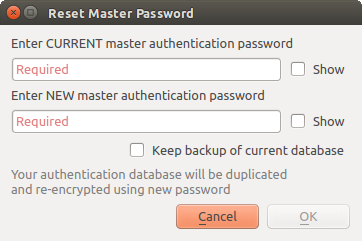
Fig. 21.3 Redefinindo a senha mestre
Se o usuário esquecer a senha mestra, não haverá como recuperá-la ou substituí-la. Também não há meio de recuperar informações criptografadas sem saber a senha mestra.
Se um usuário inserir sua senha existente incorretamente três vezes, a caixa de diálogo se oferecerá para apagar o banco de dados.
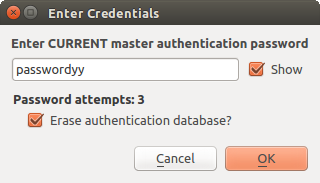
Fig. 21.4 Solicitação de senha após três tentativas inválidas
21.1.4. Configurações de Autenticação
Você pode gerenciar as configurações de autenticação de Configurações na guia Autenticação da caixa de diálogo Opções do QGIS ().

Fig. 21.5 Editor de configurações
To create a new authentication configuration:
Press the
 Add a new authentication configuration
Provide a Name and optional Resource URL
A seven-characters ID will be assigned to the configuration for identification purpose. It can be customized after you pressed the
 Unlock to edit ID button.
Be aware that updating that ID may break things.
Unlock to edit ID button.
Be aware that updating that ID may break things.Select the target method and fill the corresponding connection details
Once done, click Save to save the configuration. The saved configuration appears in the list of authentication configurations and can be used with supported connections.
The saved configuration can later be edited using  Edit selected configuration
or removed using
Edit selected configuration
or removed using  Delete selected configuration.
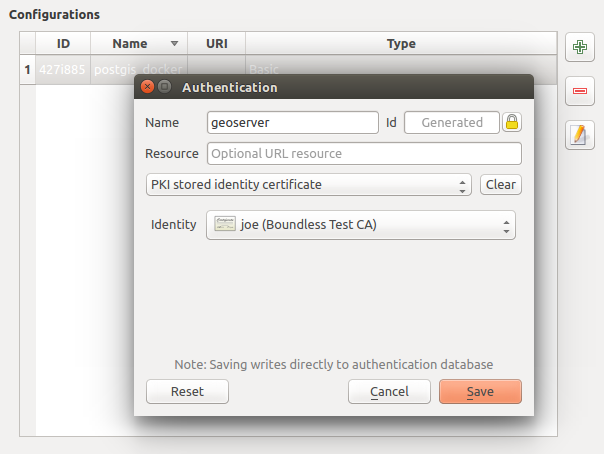
Fig. 21.6 Adicionando configuração de dentro do editor de configuração
The same type of operations for authentication configuration management (Add, Edit and Remove) can be done when configuring a given service connection, such as configuring an OWS service connection. For that, there are action buttons within the configuration selector for fully managing configurations found within the authentication database. In this case, there is no need to go to the configurations in Authentication tab of QGIS options unless you need to do more comprehensive configuration management.
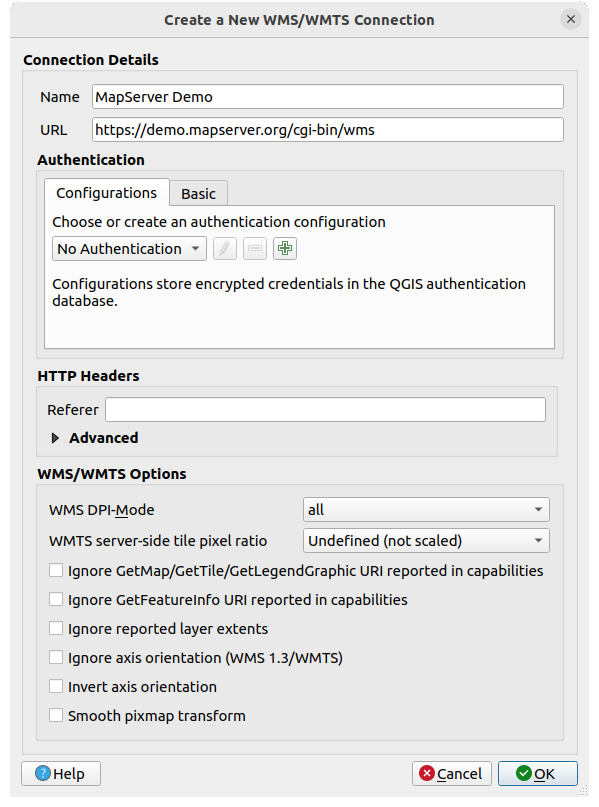
Fig. 21.7 WMS connection dialog showing authentication configuration widget
Ao criar ou editar uma configuração de autenticação, a informação necessária é um nome, um método de autenticação e qualquer outra informação que o método de autenticação requeira (veja mais sobre os tipos de autenticação disponíveis em autenticação_métodos).
21.1.5. Métodos de autenticação
As autenticações disponíveis são fornecidas pelos plugins C++ da mesma forma que os plugins do provedor de dados são suportados pelo QGIS. O método de autenticação que pode ser selecionado é relativo ao acesso necessário para o recurso/provedor, por exemplo. HTTP(S) ou banco de dados, e se há suporte no código QGIS e em um plugin. Como tal, alguns plugins de métodos de autenticação podem não ser aplicáveis em todos os lugares em que um seletor de configuração de autenticação é mostrado. Uma lista de plugins de métodos de autenticação disponíveis e seus recursos/provedores compatíveis podem ser acessados em: seleção de menu:Configurações –> Opções e, na aba Autenticação, clique em |opções|:guilabel:botão Plugins Instalados.
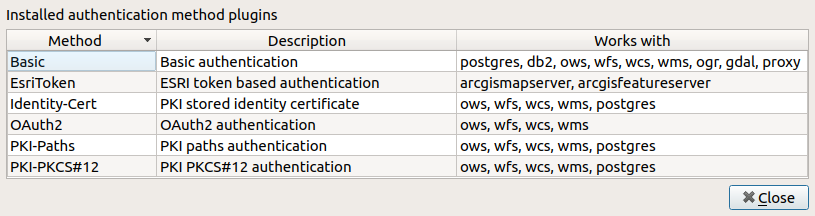
Fig. 21.8 Lista de plugins de métodos disponíveis
Plugins podem ser criados para novos métodos de autenticação que não requerem que o QGIS seja recompilado. Como o suporte para plugins é atualmente somente C++, o QGIS precisará ser reiniciado para que o novo plugin fique disponível para o usuário. Certifique-se de que seu plug-in seja compilado na mesma versão de destino do QGIS se você pretende adicioná-lo a uma instalação de destino existente.
21.1.5.1. API Header Authentication
The API Header authentication method allows you to connect to services
that require custom HTTP headers, such as API keys.
For example, if a WMS service requires an API key sent as a header
(e.g. X-API-KEY), you can use this method to provide it.
You can add one or more headers with the button; provide a
Header Name and Header Value for each entry. Use
to delete the selected header or the Clear
button to remove all entries.

Fig. 21.9 API Header authentication configs
21.1.5.2. AWS S3 Authentication
The AWS S3 authentication method allows you to connect to Amazon S3 resources by providing a Name, Resource, Username, Password, and Region.

Fig. 21.10 AWS S3 authentication configs
21.1.5.3. Basic Authentication
The Basic authentication method is used for services that require standard HTTP authentication with a Username, Password and Realm.

Fig. 21.11 Configurações básicas de autenticação HTTP
21.1.5.4. ESRI Token Authentication
The ESRI token authentication method is used for ArcGIS REST Servers that require token-based authentication.

Fig. 21.12 Configurações de autenticação de símbolo ESRI
21.1.5.5. Identity certificate authentication
The Identity certificate authentication method allows you to connect using a client identity certificate.

Fig. 21.13 Identity-cert authentication configs
21.1.5.6. MapTiler HMAC-SHA256 Authentication
The MapTiler HMAC-SHA256 authentication method is used to connect to MapTiler services that require HMAC-SHA256 authorization.

Fig. 21.14 MapTiler HmacSha256 authentication configs
21.1.5.7. OAuth2 Authentication
The OAuth2 authentication method is used to connect to services that require OAuth2 2.0 authorization, allowing secure access using client credential and token-based authentication.
It supports using localhost as the redirect host,
providing compatibility with services that do not accept http://127.0.0.1 redirects (for example, Microsoft SharePoint).
An advanced OAuth2 configuration option, Extra token header(s), allows attaching additional tokens returned by the OAuth2 token endpoint as HTTP(S) request headers.

Fig. 21.15 Configurações de autenticação OAuth2
21.1.5.8. PKI-Paths Authentication
The PKI-Paths authentication method allows you to connect using separate certificate and key files stored on your system.

Fig. 21.16 Configurações de autenticação de caminhos PKI
21.1.5.9. PKI-PKCS#12 Authentication
The PKI-PKCS#12 authentication method allows you to connect using a single bundle file containing both the certificate and private key, with an optional passphrase for the key.

Fig. 21.17 Configurações de autenticação de caminhos de arquivo PKI PKCS#12
21.1.6. Utilitários de configuração de senha mestra e autenticação
No menu Opções (:seleção de menus: Configurações –> Opções) na aba: guilabel: Autenticação, existem várias ações de utilitários para gerenciar o banco de dados de autenticação e as configurações:
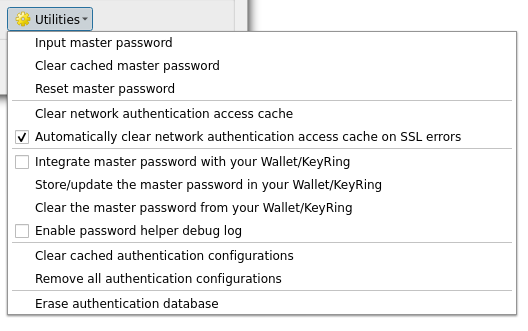
Fig. 21.18 Menu de utilitários
Input master password…: opens the master password input dialog, independent of performing any authentication database command
Clear cached master password: unsets the master password if it has been set
Reset master password…: opens a dialog to change the master password (the current password must be known) and optionally back up the current database
Clear network authentication access cache: clears the authentication cache of all connections
Automatically clear network authentication access cache on SSL errors: the connection cache stores all authentication data for connections, also when the connection fails. If you change authentication configurations or certification authorities, you should clear the authentication cache or restart QGIS. When this option is checked, the authentication cache will be automatically cleared every time an SSL error occurs and you choose to abort the connection
Integrate master password with the Wallet: adds the master password to your personal Wallet/Keyring
Clear the master password from the Wallet…: deletes the master password from your Wallet/Keyring
Enable password helper debug log: enables a debug tool that will contain all the log information of the authentication methods
Clear cached authentication configurations: clears the internal lookup cache for configurations, used to speed up network connections. This does not clear QGIS’s core network access manager’s cache, which requires a relaunch of QGIS.
Remove all authentication configurations…: clears the database of all configuration records, without removing other stored records.
Import authentication configurations from file…: imports from an
.XMLfile details for creating custom authentication configurations.Export selected authentication configurations to file…: exports the selected items to a possibly encrypted
.XMLfile.Erase authentication database…: schedules a backup of the current database and complete rebuild of the database table structure. The actions are scheduled for a later time, to ensure that other operations, like project loading, do not interrupt the operation or cause errors due to a temporarily missing database.
21.1.7. Usando configurações de autenticação
Normalmente, uma configuração de autenticação é selecionada em uma caixa de diálogo de configuração para serviços de rede (como WMS). No entanto, a ferramenta seletora pode ser incorporada em qualquer lugar que a autenticação seja necessária ou em funcionalidades não essenciais, como em plug-ins PyQGIS ou C++ de terceiros.
When using the selector, No authentication is displayed in the
pop-up menu control when nothing is selected, when there are no configurations
to choose from, or when a previously assigned configuration can no longer be
found in the database. Use the drop-down menu to select an existing authentication
configuration or press Create a new authentication configuration
to create a configuration you could use.
More details at Autenticação.

Fig. 21.19 Seletor de configuração de autenticação com configuração selecionada
21.1.8. Vinculações do Python
All classes and public functions have sip bindings, except QgsAuthCrypto, since management of the master password hashing and auth database encryption should be handled by the main app, and not via Python.
Once the master password is entered, the API is open to access authentication configs in the authentication database, similar to how Firefox works. However, no wall against PyQGIS access has been defined. This may lead to issues where a user downloads/installs a malicious PyQGIS plugin or standalone app that gains access to authentication credentials.